Introduction
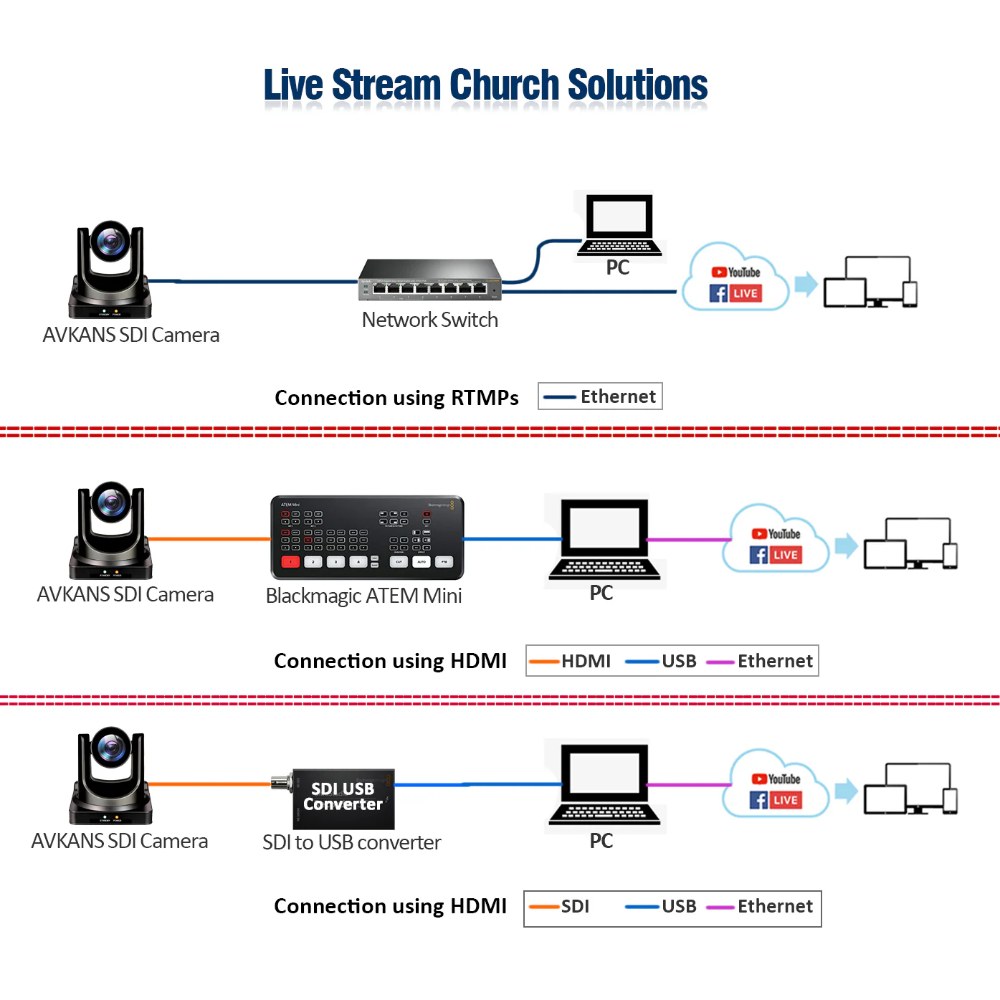
The AVKANS PTZ-U200 integrates with OBS Studio and vMix through NDI, appearing in your production software as a network source. This means your production computer receives full HD video directly from the camera over your network without any capture cards, USB cables, or additional hardware.
Integration is straightforward if NDI is installed and your network is configured for multicast discovery. This guide covers installing NDI support, adding the PTZ-U200 as an OBS or vMix source, configuring video quality, and managing preset recalls from your production software.
Install NDI Support on Your Production Computer
Before you can use NDI sources in your production software, you must install the NDI Runtime and the appropriate plugin for your software. The NDI Runtime is the underlying library that handles network video transport. The software plugin is the interface that allows OBS or vMix to access NDI.
Download the NDI Runtime from the official Vizrt website. Install it on your production computer. The installation is straightforward and requires a system restart.
For OBS, download and install the obs-ndi plugin from the Newtek GitHub repository or from community sources. For vMix, NDI support may be built in depending on your vMix version, or you may need to enable it through preferences. Check your vMix documentation for the specific steps.
After installing both the Runtime and the software plugin, restart your production software. The next time you add a source, you should see NDI as an available source type.
Verify Network Configuration for NDI Discovery
NDI discovery requires multicast communication between your production computer and the camera. Both devices must be on the same network subnet and your network must allow multicast traffic.
Confirm that your production computer and the AVKANS PTZ-U200 are on the same subnet. Ask your IT administrator if you are unsure. If they are on different subnets, NDI multicast will not reach between them and discovery will fail.
Confirm that multicast is not blocked by your firewall or network security settings. Enterprise networks sometimes disable multicast, which prevents NDI discovery even when devices are networked. If multicast is blocked, work with your IT administrator to allow NDI multicast traffic on your network segment.
Add the PTZ-U200 as an NDI Source in OBS
Open OBS and navigate to your scene where you want to add the camera. Click the + button under Sources and select NDI Source from the available source types. If NDI Source does not appear as an option, the NDI plugin is not installed correctly. Reinstall the plugin and restart OBS.
After selecting NDI Source, a dialog appears showing available NDI devices. Look for your AVKANS PTZ-U200 in the list. It may appear by hostname or by the static IP address you assigned. If it does not appear immediately, wait a few seconds and refresh the list. NDI discovery can be slow on some networks.
Select the camera from the list and click OK. OBS adds the source to your scene and immediately begins receiving the 1080p video stream from the camera. The video appears in the preview and is ready for compositing into your scenes.
Add the PTZ-U200 as an NDI Source in vMix
The process in vMix is similar. In the Sources panel, right-click and select Add Input. Choose NDI as the input type. vMix displays a list of available NDI sources. Select your AVKANS PTZ-U200 from the list.
Once selected, vMix adds the camera as an input that can be used in any of your productions. You can rename the input to something meaningful like Camera 1 or Stage Camera to make it clear which camera it is.
Configure Video Quality and Resolution Settings
Both OBS and vMix allow you to configure how they handle incoming NDI streams. In OBS, right-click the NDI source, select Properties, and look for quality or resolution settings. The default settings usually work well, but you can adjust them if you want to reduce CPU load or if bandwidth is limited.
In vMix, you can configure the input properties to optimize bandwidth usage or quality. Most of the time, the default settings are appropriate.
Monitor your production computer’s CPU usage while the NDI source is active. If CPU usage is excessive, you may need to reduce the NDI resolution at the camera or in your production software. A modern production computer should handle one or two 1080p NDI sources without strain.
Create Preset Shortcut Keys for Production Workflow
If your production software supports it, create keyboard shortcuts to recall camera presets directly from your scenes. This reduces the operator’s workload and synchronizes scene changes with camera preset recalls.
In OBS, this might involve using advanced scripting or third-party plugins. In vMix, you can often create buttons or macros that trigger specific camera movements or preset recalls. Check your software documentation for camera control options.
If your production software does not support direct camera control, your operator can recall presets manually using the camera’s web interface or control software while the scene is active in your production software. This is less elegant but still workable.
Test Complete Workflow During Rehearsal
Run a complete test of your OBS or vMix production with the PTZ-U200 as an active source. Do this during a normal network usage time, not in an empty building. Monitor these factors:
Does the NDI source remain available throughout the test without dropping out? Does the video quality remain clean and stable? Does your production computer handle the CPU load without stuttering? Can you switch between scenes smoothly while the camera is active?
If the NDI source drops out, check that the camera is still powered and networked. If video quality degrades, your network may be congested and you may need to reduce NDI bitrate at the camera or switch to a smaller network segment.
Optimize for Your Production Workflow
Configure your OBS or vMix workspace so the PTZ-U200 is easy to access and manage. Name sources clearly, arrange inputs logically, and create scenes that reflect your service flow. The cleaner your production software organization, the easier it is for operators to manage during service.
Document your configuration so that volunteers who are new to the workflow can understand your setup quickly.
Conclusion
AVKANS PTZ-U200 integration with OBS and vMix is straightforward once NDI is installed and multicast is working on your network. The full HD NDI stream appears to your production software as a network source, giving you professional-quality video from a relatively inexpensive camera.
The key to reliable integration is careful initial setup: confirm NDI is installed, verify network multicast is working, test the workflow thoroughly during rehearsal, and document your configuration clearly. Once these basics are in place, the PTZ-U200 operates reliably week after week.