Introduction
The AVKANS PTZ-U100 web interface is where all configuration happens. From initial network setup to enabling NDI output to adjusting zoom and focus parameters, the web UI is your control center for the camera. Unlike cameras that rely on proprietary control software, the AVKANS web interface works in any modern browser on any network-connected computer, which makes it accessible whether you are configuring the camera during initial setup or troubleshooting an issue weeks later.
Accessing the web UI requires knowing the camera’s IP address, but once you are logged in, the interface is logical and organized. This guide covers accessing the interface, navigating the main configuration sections, and setting parameters that directly affect your production workflow.
Access the Web UI for the First Time
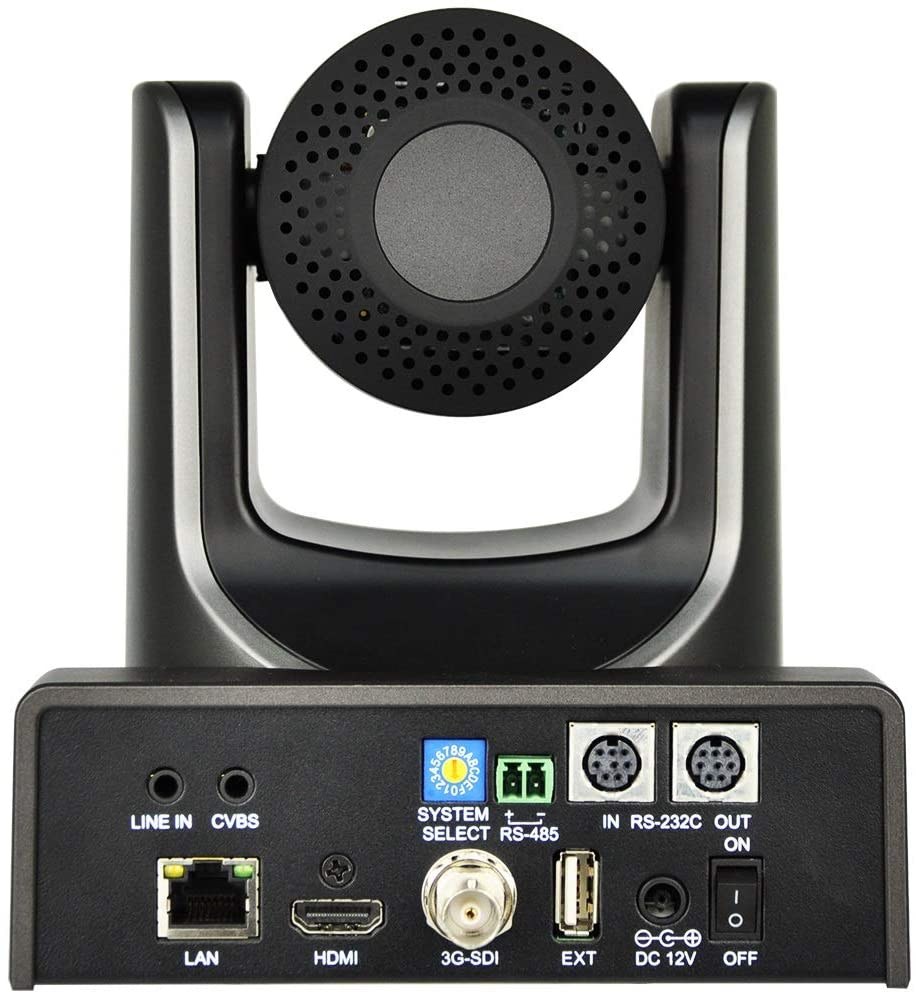
The AVKANS camera ships with a default IP address, typically 192.168.0.100 or 192.168.1.100 depending on firmware version and region. To access the web UI, open a browser on a computer connected to the same network as the camera and enter the IP address in the address bar. You should see a login prompt.
If you do not know the camera’s IP address, use the USB cable that came with the camera to connect it directly to your production computer. This allows you to access the web UI even if the camera is not yet on your main network. Some systems require you to configure a matching IP address on your computer temporarily (for example, setting your computer to 192.168.1.50 if the camera is on 192.168.1.100), but most modern operating systems handle this automatically.
Log in with the default credentials provided in your documentation. Most AVKANS cameras use admin as both the username and password, though some variants may differ. Change this password immediately in the settings section, especially if your camera is on a network accessible to multiple people.
Network Configuration and IP Assignment
Once logged in, navigate to the Network Settings section. This is where you assign a static IP address that matches your church network. Your network likely uses addresses in the range 192.168.1.x or 10.0.0.x, so choose an IP address in that range that is unlikely to conflict with other devices. Many IT setups reserve specific address ranges for different device types, so check with your administrator before assigning an address.
Enter the static IP address, gateway, and subnet mask that match your network configuration. If you are unsure about any of these values, ask your IT administrator for your network settings. Once you enter these values and save, the camera reboots and attempts to connect using the new address. Wait a few moments, then open a new browser tab and navigate to the new IP address to confirm the camera is reachable.
This is a good time to document the IP address in a simple text file or spreadsheet that your team can reference later. If someone needs to troubleshoot the camera and cannot find it on the network, knowing the intended IP address cuts hours of confusion. Store this documentation somewhere that outlives personnel turnover, like a shared folder or a printed setup sheet in the equipment cabinet.
Video Output and Resolution Settings
The Video Settings section controls frame rate, resolution, and bitrate for both HDMI output (if using a capture card) and NDI output. For most church applications, 1080p at 60 fps is the standard, though some networks or older production software may require 30 fps. The choice between 60 and 30 fps usually comes down to bandwidth and whether you want smooth camera movement or just efficient data transmission.
Set your video parameters based on your production environment. If you are streaming to YouTube, Vimeo, or Facebook, match the frame rate and resolution to your streaming encoder settings. If you are recording locally, higher frame rates give you more flexibility in post-production. If bandwidth is limited, 720p at 60 fps can still deliver professional-quality church video.
The bitrate setting controls how much data the camera sends per second. Higher bitrate means better quality but more network bandwidth required. For NDI in a typical church network, a bitrate between 100 and 200 Mbps is reasonable. If your network is limited or unstable, reducing the bitrate can improve reliability, though at the cost of some visual quality.
Enable and Configure NDI Output
Locate the NDI settings and confirm that NDI output is enabled. Some cameras ship with this feature disabled, so do not assume it is active by default. If NDI is disabled, enable it and save the settings. The camera will likely reboot, which is normal and expected.
If your NDI sources are being encrypted or require authentication on your network, the camera settings may have options for NDI security. For most church applications, standard NDI is fine, but if your IT administrator is enforcing network-wide encryption, you may need to enable those options.
Once NDI is enabled, verify that your production software can discover the camera. Open OBS or vMix on your production computer and check that the AVKANS camera appears in the available NDI sources list. This confirms that the camera is sending NDI packets and that multicast is working on your network.
Pan, Tilt, and Zoom Control Settings
The camera movement settings control how the pan and tilt motors respond to control commands. You will not need to adjust these during normal operation, but they become relevant if the camera is moving too fast or too slow, or if presets are not recalling to consistent positions.
Most AVKANS cameras have adjustable pan and tilt speed, sometimes labeled as Horizontal and Vertical Speed. If operators complain that the camera moves too fast or too jerky when changing presets, reducing the speed here can make movements smoother and more controlled. Similarly, if movement feels sluggish, increasing the speed can improve responsiveness.
Zoom speed controls how quickly the camera zooms in and out. A moderate zoom speed prevents overshooting your intended framing and makes manual operation easier for volunteers. Do not set zoom speed to maximum unless your operator specifically prefers aggressive zooming.
Focus and Image Quality Adjustments
The Image Settings section controls focus mode, brightness, contrast, white balance, and other visual parameters. For most installations, leaving these on automatic is appropriate and removes the need for manual adjustment each time the light changes.
However, if you find that the camera is hunting for focus (constantly refocusing) or the image is too bright or too dark, you can make adjustments here. Focus mode can usually be set to continuous automatic, single shot, or manual depending on your preference. For church productions where lighting is relatively stable, continuous automatic focus works well.
White balance should usually be set to automatic unless your church has very unusual lighting. If the video is consistently too warm or too cool, you can adjust the white balance temperature, but most modern cameras adapt quickly to typical church lighting environments.
Preset Management Through the Web UI
The web UI includes preset management, though many operators prefer using dedicated control software or their production software’s preset system. If you are configuring presets directly in the camera, the web UI will have a section for saving and managing preset positions.
When you navigate the camera to a desired position using the pan, tilt, and zoom controls in the web UI, you can save that position as a numbered preset. Name it something meaningful like Wide, Pulpit, or Worship if the interface allows, or at least document what each numbered preset represents.
Testing presets from the web UI helps you confirm they are working correctly before relying on them during a service. Recall each preset a few times to ensure consistent positioning. If a preset recalls to a slightly different pan or tilt position each time, the camera may need calibration, which should be handled before critical service use.
Save and Document Your Configuration
After configuring all settings, take a moment to document your configuration choices in a simple text file or spreadsheet. Record the static IP address, NDI enabled status, video resolution and frame rate, and any custom settings you have applied. This documentation becomes invaluable if someone new needs to understand how the camera is configured or if you need to troubleshoot issues weeks later.
Some AVKANS cameras allow you to download or export configuration files. If this option is available, do it. This creates a backup that can be restored if settings are accidentally changed or if you need to rapidly reconfigure a replacement camera to match your original setup.
Conclusion
The AVKANS web UI is straightforward but requires careful attention to network configuration and NDI settings. Spending time during initial setup to configure IP addressing, enable NDI, and document your settings creates a reliable foundation for weeks of production use.
The web UI remains accessible for troubleshooting throughout the camera’s lifetime, so keep the IP address documented and accessible to your team. Whether you are adjusting video settings, troubleshooting a connection issue, or recalling presets, the web interface is your control point for the entire camera system.