Introduction
Connection problems with the AVKANS PTZ-U100 usually fall into three categories: the camera is not reachable on the network, the camera is on the network but the web UI will not load, or the camera is functioning but NDI is not appearing to production software. Each of these has straightforward diagnostic steps and solutions.
The good news is that connection issues are rarely hardware failures. They are usually configuration problems, network misunderstandings, or simple oversights that can be resolved without replacing equipment. This guide walks through systematic troubleshooting so you can isolate the problem and fix it quickly.
The Camera Is Not Reachable on the Network
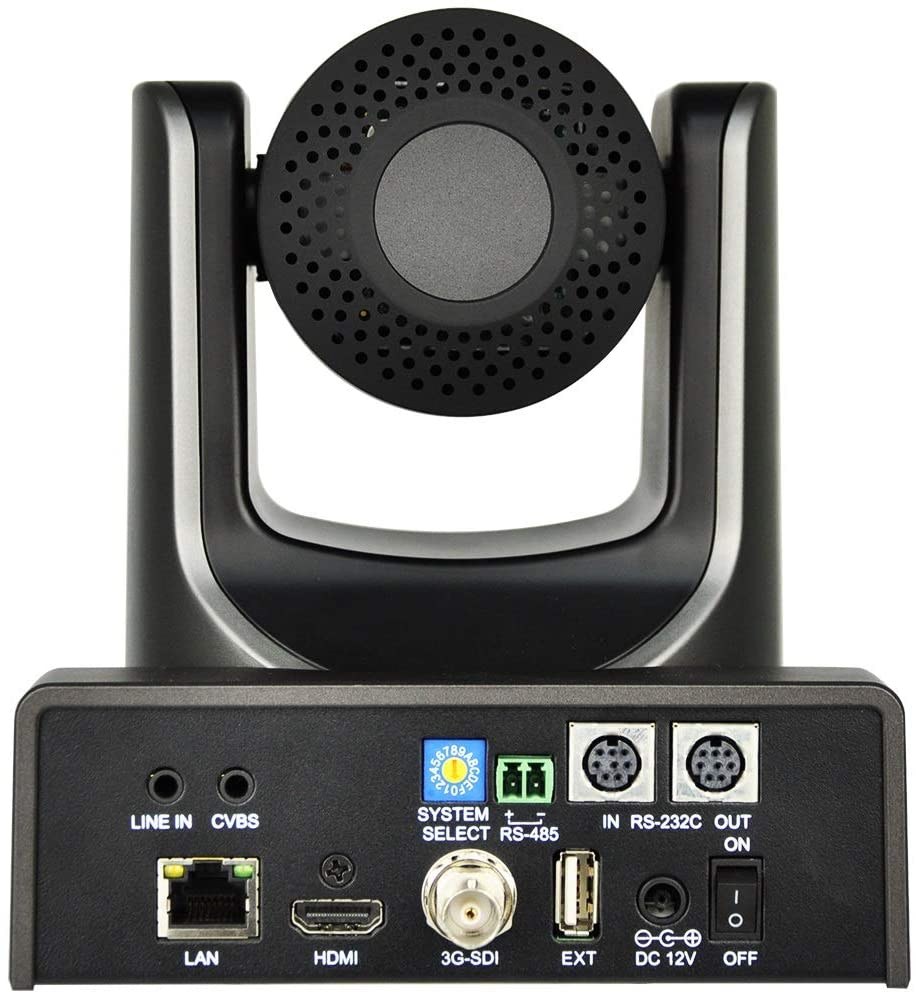
If you cannot ping the camera or access its web UI, the first step is confirming that the camera is actually connected to your network. Check the physical connection: the ethernet cable must be firmly seated in both the camera and the network switch. A loose connection will not trigger a visible error; it will just result in no network access.
Power cycle the camera by unplugging it, waiting ten seconds, and plugging it back in. This resets the network interface and can resolve temporary communication issues. While the camera is rebooting, check that the network switch or port is actually active. Some switches have ports that are disabled by default or that have been manually shut down.
Confirm that your production computer and the camera are on the same subnet. If your production computer is on 192.168.1.x and the camera is on 10.0.0.x, they cannot communicate directly even if both are networked. Check your production computer’s IP address and ensure the camera’s IP address matches the same network range. If you do not know the camera’s IP address, you will need to access the web UI using the USB cable connection or reset the camera to factory defaults.
If you still cannot reach the camera and you have confirmed the physical connection is solid, try connecting the camera directly to your production computer using the included USB cable. This bypasses the network entirely and allows you to access the web UI to verify that the camera is functioning. If the web UI loads via USB, the camera hardware is working and the problem is network-related. If the web UI does not load even via USB, the camera itself may have a problem.
Connect the Camera Using USB as a Diagnostic Tool
The USB cable connection to your production computer creates a temporary network connection that allows you to access the camera’s web UI without going through your main network. This is useful for initial configuration and for diagnosing why the camera is not appearing on your main network.
Connect the USB cable to your production computer and open a browser. Try the default camera IP address (usually 192.168.0.100 or 192.168.1.100). If the web UI loads via USB, log in and check the current network settings. The configured IP address may be outside your network range, or the camera may have lost its DHCP-assigned address and reverted to default.
Once you can access the camera via USB, you can reconfigure the IP address to match your network. This is often the fastest way to restore connectivity if the camera has been moved to a different network or if someone accidentally changed the IP address.
After reconfiguring the IP address, disconnect the USB cable and attempt to reach the camera on your main network. Once you confirm the camera is reachable on the network, you can proceed to check NDI configuration and other settings.
The Web UI Loads But Slowly or Inconsistently
If you can access the camera’s web UI but it loads slowly, times out occasionally, or feels sluggish, the issue is usually network latency or a congested network path between your computer and the camera. This does not necessarily prevent production use, but it indicates a network bandwidth or stability problem that may also affect NDI streaming.
Check your network switch to confirm it is not overloaded. If your church network has multiple high-bandwidth devices (large file transfers, video streaming from other sources), your switch may be congested. This is especially common on older 100 Mbps switches where adding even one or two IP video devices strains the infrastructure.
Confirm that your production computer is on wired ethernet, not wireless. Wireless connections are inherently less stable than wired, and a wireless computer trying to communicate with a camera on wired ethernet can introduce latency and timeouts. If your production computer is wireless, connecting it with ethernet usually resolves sluggish web UI issues.
If the web UI loads slowly but your NDI stream is working fine, the slow UI access is usually not critical for production. However, it does make configuration and troubleshooting harder. Document what you need to configure or troubleshoot, and plan to address the network congestion later if it becomes a barrier.
NDI Source Not Appearing in OBS or vMix
If the camera is networked and the web UI is reachable but the NDI source does not appear in your production software, the problem is usually one of these:
The NDI Runtime is not installed on your production computer. Even if the OBS NDI plugin is installed, it requires the NDI Runtime to function. Reinstall the NDI Runtime, restart OBS, and check for the source again.
Multicast is blocked between your production computer and the camera. The camera and production computer must be able to communicate with broadcast packets on your network. Enterprise firewalls or network segmentation can block this. Check with your IT administrator whether multicast is allowed on your network segment.
The camera’s NDI output is not enabled. Log into the camera’s web UI and confirm that NDI is enabled in the Video or Network settings. If NDI was disabled, enable it and save. The camera will reboot.
The camera and production computer are on different network subnets. While the camera may be reachable on the network (you can access its web UI), multicast discovery may not work between subnets. If you have a multi-segment network, confirm both devices are on the same segment or ask your IT administrator if multicast is bridged between segments.
Try refreshing the NDI source list in your production software. If you recently enabled NDI on the camera, OBS or vMix may not have discovered it yet. Closing and reopening the add source dialog often triggers rediscovery.
The Camera Keeps Losing Its IP Address
If the camera works for a day or two but then stops responding, it may be losing its configured IP address and reverting to DHCP or factory defaults. This happens most often if the IP address was assigned as DHCP instead of static, or if someone has configured a DHCP server that is reclaiming the camera’s address.
Confirm that the camera is set to a static IP address, not DHCP. Log into the web UI and check the Network settings. If it is set to DHCP, change it to static and assign a IP address outside your DHCP pool. Your IT administrator can tell you which address range is safe to use.
Some networks have DHCP servers that are configured with very short lease times or that actively reclaim addresses from devices. If the camera keeps losing its address even when set to static, this may be a network administrator issue that requires their intervention.
Alternatively, some IT networks have a security policy that forces specific MAC addresses to use specific IP addresses. If the camera’s MAC address is not registered in your network’s DHCP server or device management system, it may be assigned a different address automatically. Check with your IT administrator about whether device registration is required.
Reset the Camera to Factory Defaults if All Else Fails
If you have tried all troubleshooting steps and the camera is still not accessible, you can reset it to factory defaults. This erases all configuration, including the static IP address, so the camera reverts to its default state.
The reset method varies by camera model, but it usually involves holding a reset button on the back of the camera for 10 to 20 seconds while the camera is powered on. Check your camera documentation for the exact procedure. After reset, the camera will return to its default IP address, and you can begin configuration from scratch.
This is a nuclear option that you should use only after other troubleshooting has failed. Once you reset the camera, you will need to reconfigure the IP address, NDI settings, and presets.
Verify Connectivity Before Each Service
Once you have resolved a connection issue, add a quick connectivity check to your pre-service checklist. Confirm the camera is reachable by accessing its web UI or checking for the NDI source in your production software. This takes 30 seconds and catches configuration problems before they become mid-service disasters.
Conclusion
AVKANS PTZ-U100 connection issues are almost always resolvable with systematic diagnosis. Start by confirming physical connections and basic network reachability, then work through NDI-specific issues if the camera is on the network but not appearing to your production software.
Keep your camera’s assigned IP address documented and accessible to your team. This speeds up troubleshooting dramatically because you immediately know where the camera should be on your network. Combined with a simple pre-service connectivity check, most connection problems can be prevented entirely.