Viewers are messaging: “We can barely hear the pastor” or “The music is way too loud!” while people in the sanctuary hear the perfect mix. The issue is that your streaming audio level isn’t calibrated the same as your room audio. We can fix this by adjusting your mixer’s streaming output and OBS levels separately.
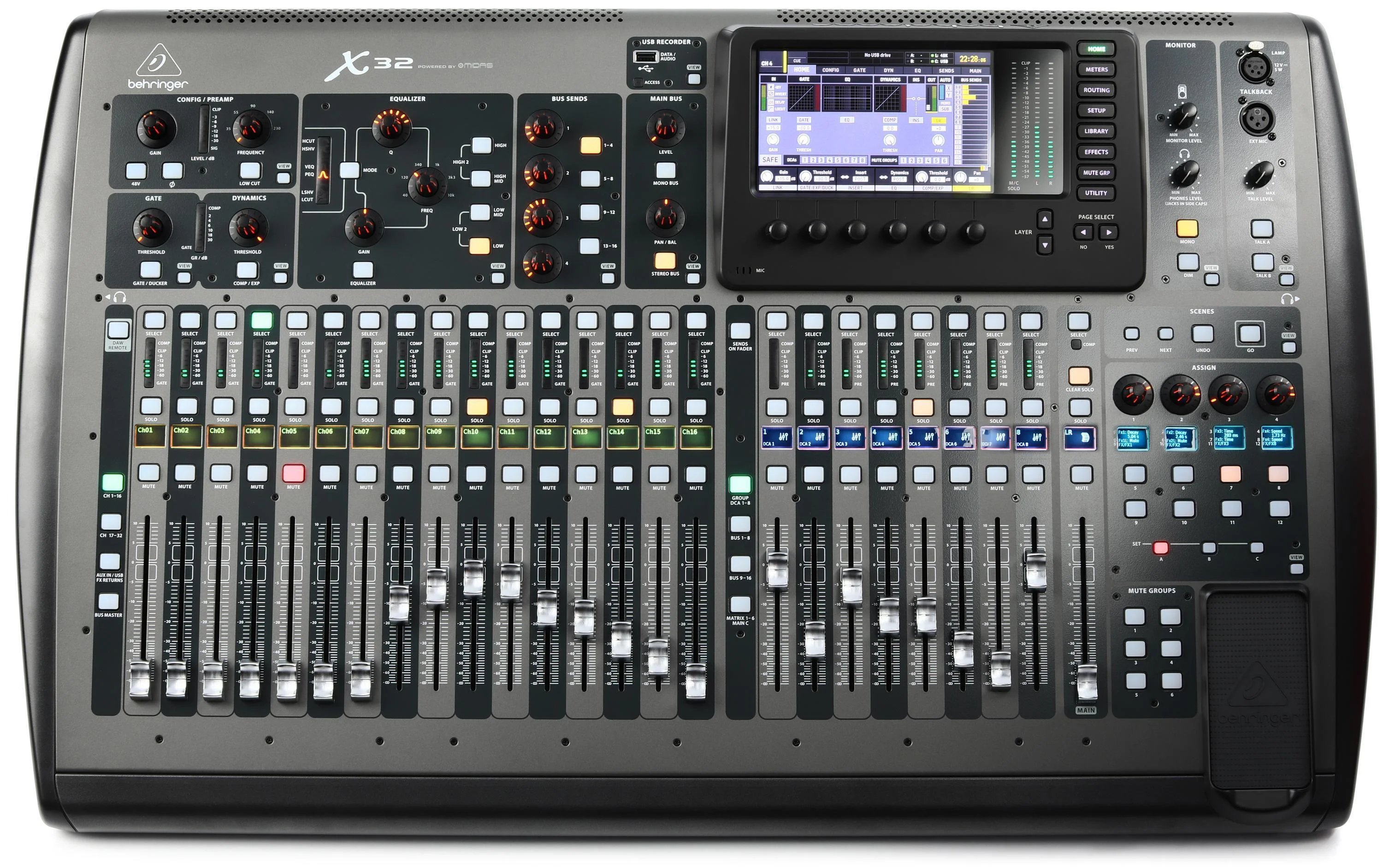
Understand the Two Different Mixes
Here’s the key: your in-room audio and your streaming audio can and should be different:
- Room mix: What the congregation hears (controlled by your main speakers)
- Streaming mix: What online viewers hear (controlled by your USB/streaming output)
You can adjust these independently. The streaming audio doesn’t affect the room, and vice versa.
Calibrate Your Mixer’s Streaming Level
Most mixers have separate outputs for the room and for streaming:
- Access your mixer’s menu or web interface
- Look for USB Output Settings, Card Sends, or Aux Sends (varies by mixer)
- Find the USB Master Output Level or equivalent
- Set it to a standard level: typically -18dB to -12dB (not 0dB, which is very loud)
- If the streaming audio was too quiet, increase the USB output level slightly (e.g., from -18dB to -12dB)
- If it was too loud, decrease it (e.g., from -6dB to -12dB)
- Test the stream and adjust in small increments
A good starting point is -12dB USB output, then adjust from there based on viewer feedback.
Adjust Individual Channel Levels for Streaming
Some mixers let you route specific channels to the USB output. For example, you might send the pastor’s mic and worship music to USB, but not the room ambient mix:
- In your mixer, identify which channels are feeding the streaming mix
- For each channel, look for a USB Send or Card Send knob
- Set the pastor’s mic to a strong level (around -6 to -3dB from peak)
- Set worship music to a slightly lower level (around -12 to -9dB)
- Keep crowd noise or room ambient lower or off
This gives viewers a clear, professional mix without the in-room reverb and ambient noise.
Adjust OBS Audio Levels
If your mixer’s USB output is correct but the stream is still off:
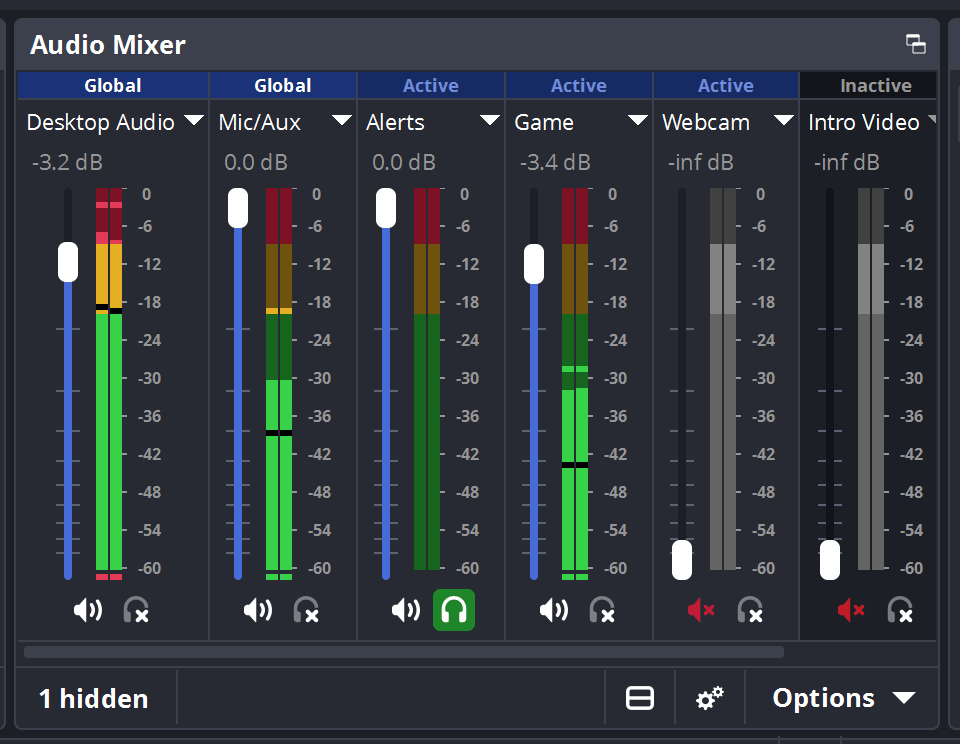
- In OBS, go to the Audio Mixer at the bottom
- Find your mixer input
- Look for the volume slider (usually labeled with a microphone icon)
- If too quiet, drag the slider to the right to increase volume
- If too loud, drag it to the left to decrease
- Watch the meter next to the slider — aim for around -18 to -6dB during normal speech
- Test the stream and adjust
Ideal levels show peaks around -12dB (speech) to -6dB (music) with no clipping (red).
Set OBS Compressor/Limiter to Prevent Peaking
A dynamic range compressor can help keep levels consistent:
- In OBS, click your audio source in the mixer
- Right-click and select Filters
- Add a Compressor filter
- Set Ratio to around 4:1 (moderate compression)
- Set Threshold to around -20dB
- This prevents sudden peaks from clipping
A limiter is even better:
- Add a Limiter filter instead
- Set Threshold to -3dB
- This prevents any audio above -3dB, protecting against clipping
Use Normalization for Consistent Levels
Some streaming platforms let you enable audio normalization:
- On YouTube, go to Stream settings and look for Loudness normalization (usually set to LUFS target)
- YouTube typically uses -14 LUFS normalization
- Facebook also has loudness normalization settings
- If available, enable it — this helps platforms automatically adjust audio to standard loudness
This won’t fix your OBS source levels, but it’s an extra safeguard.
Create a Test Stream to Check Levels
Before Sunday:
- Start an unlisted or private test stream on YouTube
- Stream for 5 minutes of music and speech
- Ask two people to watch on separate devices and report the volume:
- “Is it too loud, too quiet, or just right?”
- “Can you hear the pastor clearly?”
- “Is the music overpowering the speaking?”
- Adjust mixer USB levels or OBS volume based on feedback
- Do another 5-minute test and confirm
- Once satisfied, you’re ready for Sunday
Document Your Final Settings
Once you get levels right, write them down:
- Mixer USB Master Output Level: _______ dB
- Mixer Pastor Mic Level: _______ dB
- Mixer Music Level: _______ dB
- OBS Audio Source Volume: _______ %
Save this as a text file or print it. Before each service, verify these settings are correct.
Troubleshoot Inconsistent Levels
If levels are good one week but wrong the next:
- Someone may have adjusted the mixer’s faders or USB output between services
- Always check your documented settings before going live
- Consider locking your mixer’s faders or putting tape over the USB output level knob as a reminder
Quick checklist:
- Mixer USB output set to -12dB (starting point)
- OBS audio source volume set appropriately
- Individual channel USB sends configured (if applicable)
- Peak levels around -12dB in OBS meter (no clipping)
- Compressor or limiter enabled to prevent peaks
- Test stream confirms viewers hear good levels
- Settings documented for next service
Fix it at the source: Why your church livestream sounds bad, and how a separate stream mix fixes it, and the three classic livestream audio problems.