Your stream audio has a loud echo or feedback loop — sometimes the whole congregation hears itself a split-second delayed, or worse, it builds into a loud squeal. This usually happens when the room’s audio is being picked up by a microphone and sent back out through speakers, creating a closed loop. We can break that loop in seconds.
The Most Common Cause: Room Microphone Picking Up Stream Audio
The most likely culprit is a room microphone or broadcast speaker picking up the live stream audio, which then gets sent back into the stream:
- Identify the room mic: Is there a wireless lavalier on the pastor, a ceiling mic, or a room ambient mic feeding into your mixer?
- Locate the broadcast speaker: Where are you monitoring the stream (in the booth, on a speaker in the room, etc.)?
- Separate them physically: Move the room microphone away from any speakers playing the stream back
- Mute the stream’s audio during service: In OBS or your mixer, ensure the live stream audio isn’t feeding into the room’s speakers (only use it for online viewers, not for the in-person congregation)
If the pastor is wearing a wireless mic and you’re playing back the stream audio on a speaker in the sanctuary, the room mic will pick it up and cause feedback. Solution: Monitor the stream on headphones in the booth only, not on a room speaker.
Check OBS Monitoring Settings
If you’re using OBS and monitoring your mixed audio while streaming:
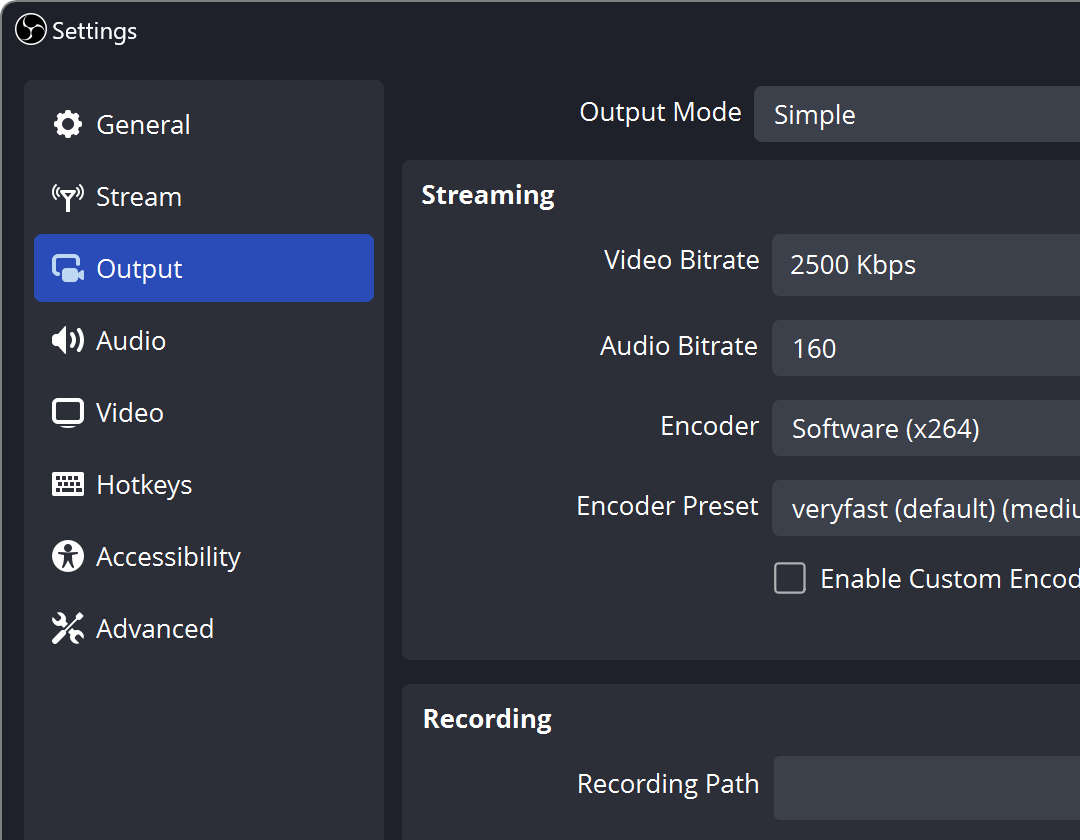
- In OBS, click Settings > Audio
- Look for Monitoring Device settings
- If monitoring is enabled, verify it’s set to Headphones or a specific output device — NOT to the system speaker
- If monitoring is routed to the room speaker, that audio feeds back to your mics and causes echo
- Disable monitoring entirely if you don’t need to hear the mix while streaming
Better practice: Use headphone monitoring only, and never route stream audio to a room speaker during the service.
Disable PC Audio Feedback in OBS
OBS sometimes creates a feedback loop if the mic is plugged into the PC and OBS is also monitoring PC audio:
- In OBS, go to Settings > Audio
- Under Audio Monitoring, set it to Monitor Off (or set it to headphones, not speakers)
- Verify Desktop Audio source in OBS is muted if you don’t need system audio on the stream
- Test the stream — echo should stop
Use a Feedback Suppressor in Your Mixer
If the echo persists despite separating mics and speakers, use your mixer’s built-in feedback suppressor:
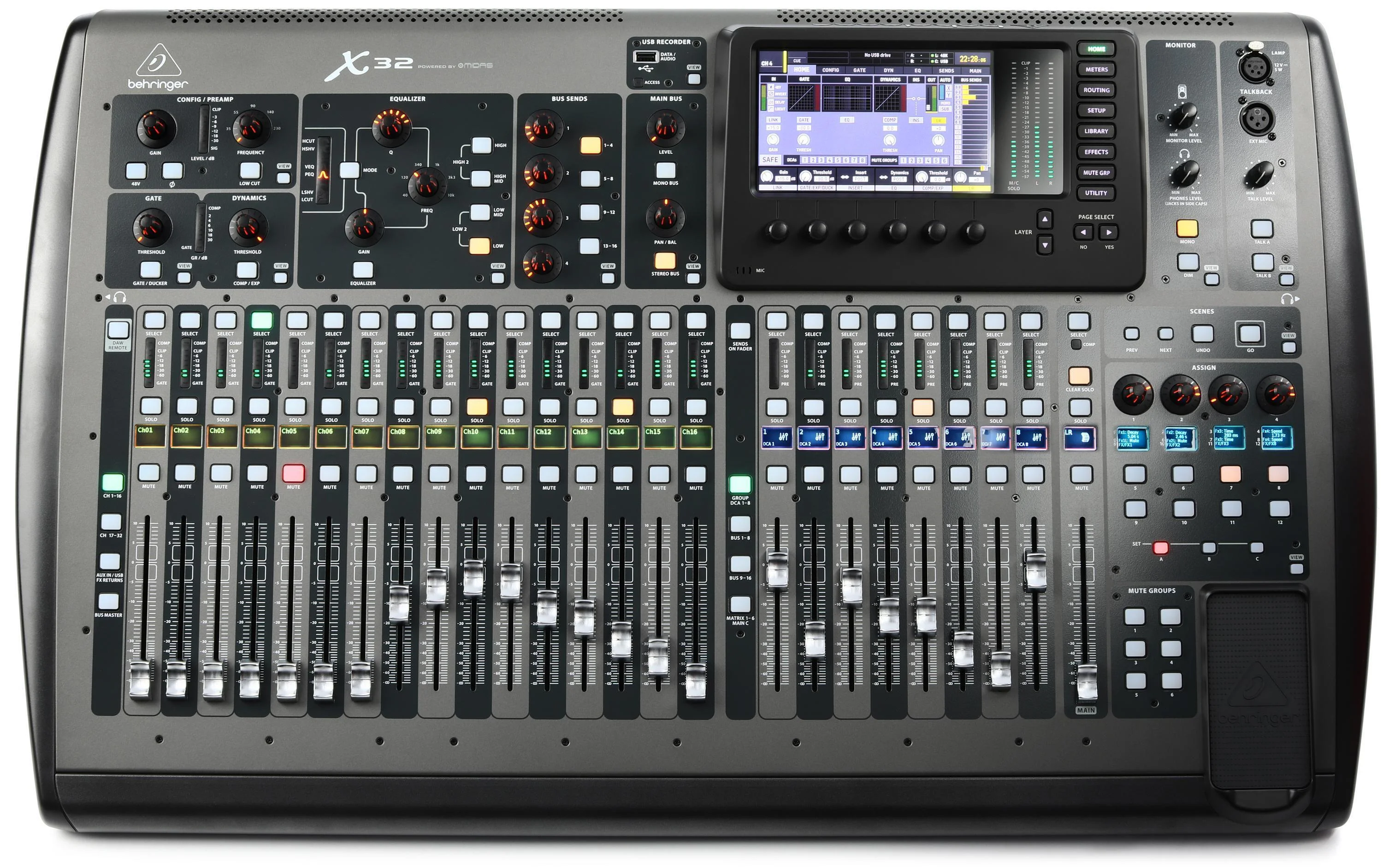
- In your mixer (Behringer X32, Yamaha TF1, etc.), access the channel that’s feeding the stream
- Look for Feedback Suppressor, Anti-Feedback, or Notch Filter
- Enable it and adjust the frequency to target the feedback tone (usually a high-pitched squeal in the 2–4kHz range)
- Test and fine-tune
- As a fallback, enable a high-pass filter on room mics to cut low frequencies (feedback is usually high-frequency)
This is a last-resort fix — better to eliminate the feedback source itself.
Check for Multiple Audio Path Loops
If you have multiple streams or outputs going to different places, verify none of them create a loop:
- Is the stream audio feeding back into the mixer? Check your OBS audio sources — make sure you’re not sending the stream output back into the mixer input.
- Are there multiple recording or streaming outputs? Make sure only one is active at a time.
- Is the ATEM or other hardware device creating a loop? Verify audio routing in the switcher — don’t route the stream output back to the input.
Draw a simple diagram:
Mixer Output → OBS → Stream
↑                    ↓
Mics only (NOT stream audio coming back)
Test Before the Service
Before Sunday:
- Do a 2–3 minute test stream with everyone in the sanctuary
- Have someone outside the building watch the stream on a phone or computer
- Ask them to confirm: “Do you hear any echo, delay, or feedback?”
- If yes, perform the fixes above
- Test again
- Once clean, you’re safe to go live
Wireless Mic Specific: Check Channel Separation
If you’re using wireless microphones, ensure they’re not interfering:
- Verify wireless mic frequencies don’t overlap with streaming audio frequencies
- If you have multiple wireless mics, ensure they’re on different frequencies
- Check if a wireless mic is accidentally picking up the stream’s audio output (this happens if a monitor speaker is too close to a mic receiver)
- Move wireless mic receivers away from any room speakers
Quick checklist:
- Room mics are separated from stream audio speakers
- Stream audio is NOT being routed back into the room
- OBS monitoring is disabled or set to headphones only
- No PC audio loop in OBS settings
- Test stream confirmed echo-free
Fix it at the source: Why your church livestream sounds bad, and how a separate stream mix fixes it, and the three classic livestream audio problems.