Your stream audio has crackling or popping sounds, especially during quiet moments or under load. It’s distracting and unprofessional. This is usually a sample rate mismatch, USB buffer configuration, or ground loop — all fixable without replacing hardware. Let’s clean up the audio.
Check for Sample Rate Mismatch
The most common cause of crackling is different devices using different sample rates:
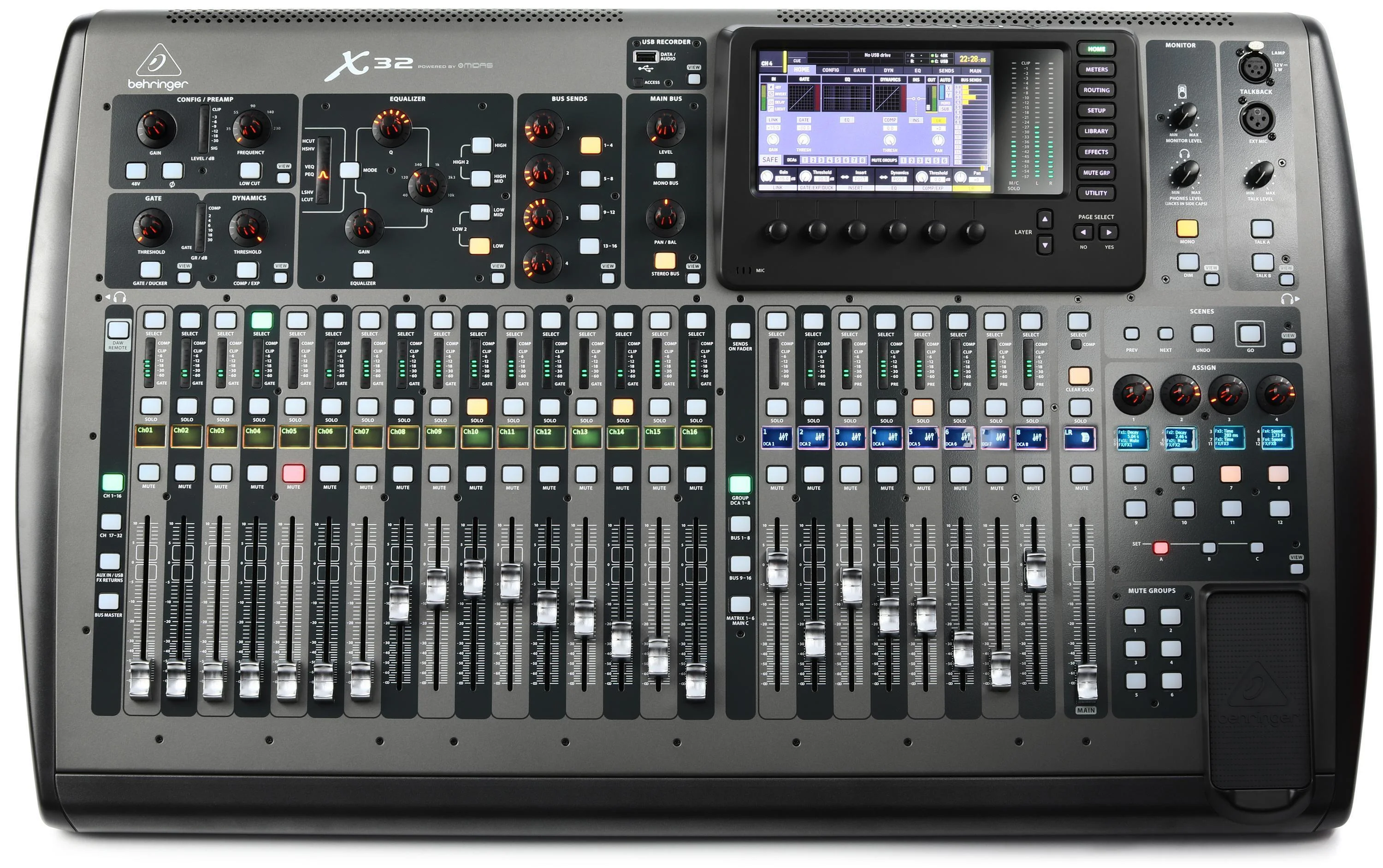
- Check your mixer’s sample rate (access the mixer’s menu or web UI)
- Most modern mixers default to 48kHz
- Some older ones might be 44.1kHz
- Write down the mixer’s sample rate
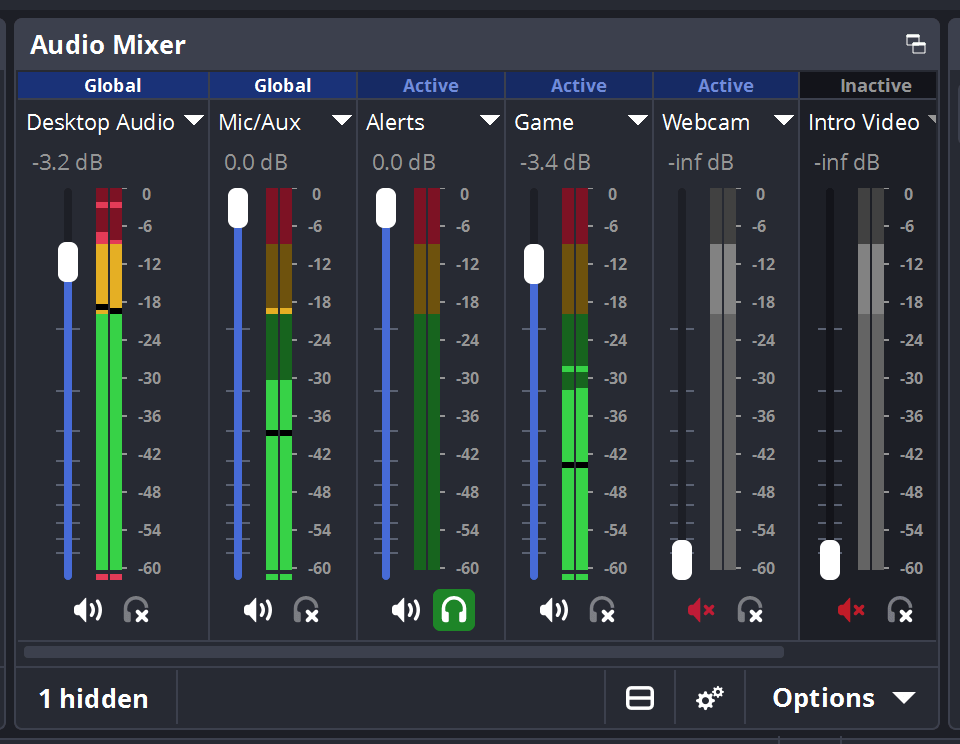
- Check OBS sample rate: Go Settings > Audio > Sample Rate
- Set it to 48kHz (the most common for streaming)
- If your mixer is 44.1kHz, set OBS to 44.1kHz instead
- Check Windows audio settings (if using Windows):
- Right-click the speaker icon > Open Volume mixer
- Find your mixer device, right-click > Properties
- Go to Advanced tab
- Set the sample rate to 48kHz, 24 bit
- Make sure all three match: Mixer, OBS, and Windows should all be the same sample rate
- Restart OBS after changing settings
If a device is using 48kHz and another is using 44.1kHz, the audio engine has to resample on the fly, causing dropouts and crackling.
Adjust USB Buffer Size
USB audio buffers that are too small cause underruns and pops. If your mixer has USB audio settings:
- Access the mixer’s menu or web interface
- Look for USB Settings, Buffer, or Latency
- If buffer is set to very low (e.g., 32 samples), try increasing it to 256 samples or 512 samples
- Higher buffer = more latency but fewer pops
- Test and find the sweet spot (usually around 256–512 samples)
For streaming (not live monitoring), a small amount of latency is acceptable. Prioritize audio stability over low latency.
Check OBS Audio Bitrate
OBS’s audio bitrate should be high enough to avoid compression artifacts:
- In OBS, go Settings > Output > Streaming
- Look for Audio Bitrate
- Set it to 128 kbps or higher (160 kbps is ideal for stereo)
- Lower bitrates (64 kbps or less) cause compression artifacts and pops
- Click Apply and test
Your upload speed can support higher bitrate — using 128–160 kbps for audio is very reasonable and costs minimal bandwidth.
Eliminate Ground Loop Noise
If you’re hearing a low-frequency hum or buzz underneath the crackling:
- Locate the power cable going into your mixer
- Route it away from your audio cables (especially microphone cables)
- If possible, plug the mixer into a different power outlet than other equipment
- Consider using a ground loop isolator (inexpensive device, £10–20) between your mixer and PC
Ground loop hum is caused by multiple devices sharing power and ground connections. Separating the power outlet or adding a ground isolator usually fixes it.
Check for Driver Issues (USB Mixer)
Outdated or corrupted drivers can cause audio artifacts:
- Visit the mixer manufacturer’s support page
- Download the latest USB driver for your mixer
- Uninstall the current driver: Device Manager > Sound devices > right-click mixer > Uninstall device
- Restart the PC
- Install the latest driver
- Restart the PC again
- Test the audio
Driver updates sometimes fix audio stability issues.
Reduce Background Processes
If your streaming PC is running too many programs, it can cause audio underruns:
- Close unnecessary applications during the stream (email, web browsers, etc.)
- Disable Windows updates during the service
- Close antivirus scans
- If using OBS, verify GPU/CPU encoding settings aren’t maxing out your CPU
Look at your Task Manager (Ctrl+Shift+Esc) — if CPU usage is above 80%, close some programs.
Test with Different Cables
Damaged or poor-quality USB cables can cause intermittent audio corruption:
- If you have a spare USB cable, try swapping it in
- Test the stream with the different cable
- If crackling stops, the original cable was the problem — replace it
- USB cables wear out, especially if they’re frequently unplugged and replugged
Power Cycle Everything
If crackling is new and intermittent:
- Power off the mixer and PC
- Wait 30 seconds
- Restart the mixer first
- Wait for full boot
- Restart the PC
- Open OBS and test the stream
Sometimes audio drivers get into a bad state and a clean restart fixes it.
Test Before Going Live
Before the Sunday service:
- Do a full 10–15 minute test stream on YouTube or Facebook (private/unlisted)
- Listen carefully for crackling, pops, or artifacts
- If you hear any, stop the stream and apply the fixes above
- Test again
- Once you get 10 minutes of clean audio, you’re safe to go live
Quick checklist:
- Mixer, OBS, and Windows all set to same sample rate (48kHz)
- USB buffer not set to extreme low (aim for 256+ samples)
- OBS audio bitrate is 128kbps or higher
- Latest USB drivers installed
- No ground loop hum (power cables separated from audio cables)
- Background processes closed during service
- Test stream confirmed crackling-free
Fix it at the source: Why your church livestream sounds bad, and how a separate stream mix fixes it, and the three classic livestream audio problems.