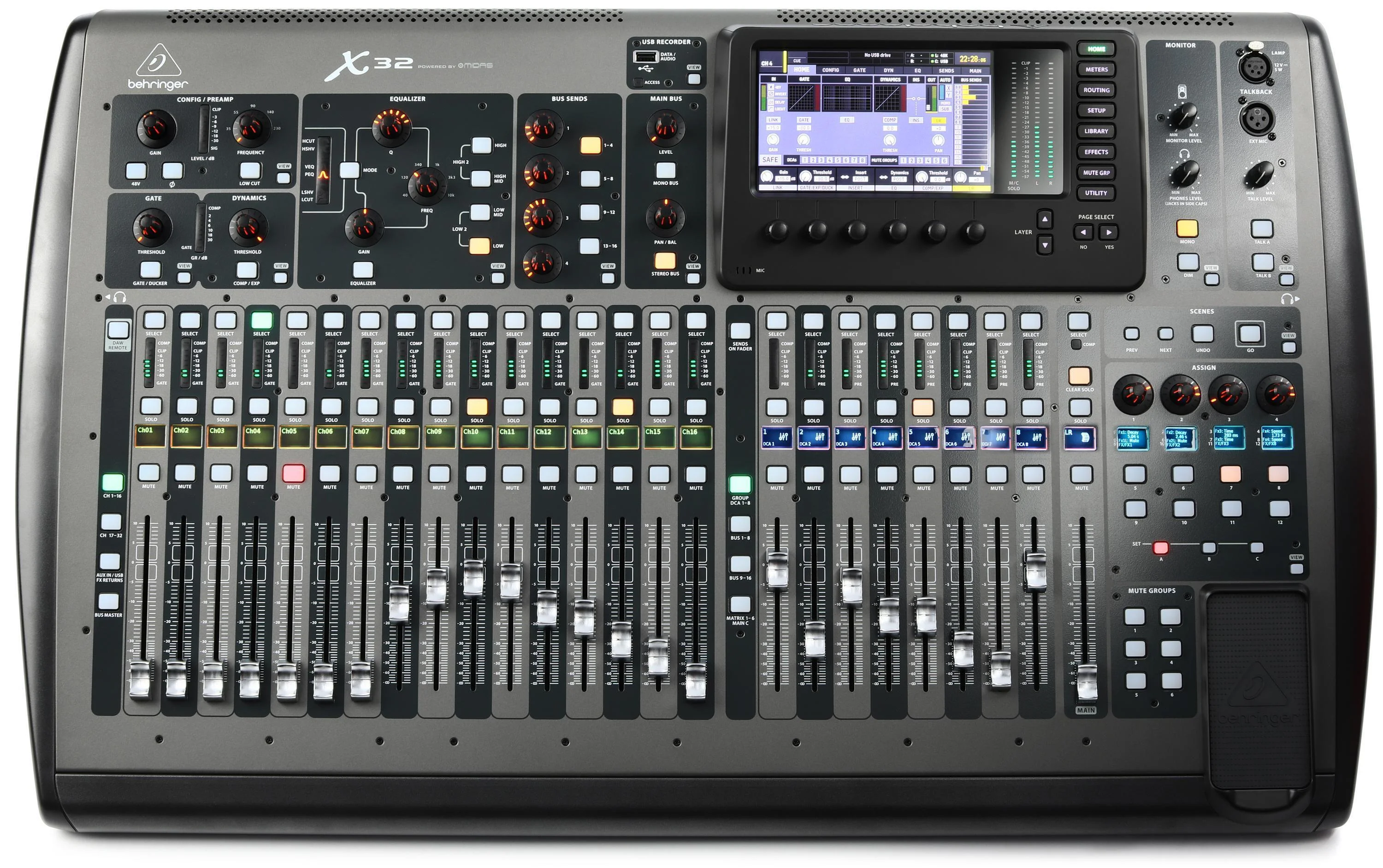
Your Behringer X32 is plugged in via USB, but Windows and OBS don’t see it as an audio device. It’s connected, it’s powered, but you can’t route audio from it. This is almost always a USB cable type issue or driver problem. Let’s get the X32 recognized in minutes.
Step 1: Check Your USB Cable Type
The X32 requires a USB-B cable, not a standard USB-A cable:
- Look at the X32’s USB port on the back — it should be a USB-B port (square, slightly recessed)
- Look at the cable going to your PC — what type is the connector going into the X32?
- If it’s a small rectangular USB plug (USB-A), that’s wrong — replace it
- You need a USB-A to USB-B cable (standard printer cable)
- If you don’t have one, borrow from a printer or buy one cheaply (£5–10)
Using the wrong cable type is the #1 reason X32 USB fails.
Step 2: Verify the X32 USB Output Is Routed
The X32 needs to be configured to send audio out via USB:
- On the X32, press Menu or Setup
- Navigate to Routing or Card Sends (check your X32 manual for exact menu path)
- Look for USB Send or USB Output
- Verify it’s set to output the Main Mix (or the mix you’re using)
- Set the USB send level to a normal level (not muted or at zero)
- Save the setting
Without this, the X32 won’t send any audio to USB.
Step 3: Install X32 USB Driver
The X32 requires a driver:
- Visit behringer.com/support
- Search for X32 USB Driver
- Download the Windows 10/11 driver (match your OS)
- Disconnect the X32 from USB
- Install the driver and restart your PC
- Reconnect the X32 via USB
- Wait 10 seconds for Windows to recognize it
Step 4: Check Windows Audio Device Settings
- Go Settings > Sound > Volume mixer (Windows 10/11)
- Scroll down and look for your X32 in the device list (it might be labeled “X32” or “Behringer”)
- If you see it, set it as the Default Device (right-click > Set as default)
- If you don’t see it, the driver didn’t install correctly — restart the PC and try again
Step 5: Verify Sample Rate Matches
The X32 defaults to 48kHz sample rate. OBS must match:
- On the X32 display, check the current sample rate (usually shown in the setup menu)
- In Windows, verify the X32 audio device is set to 48kHz (not 44.1kHz or other)
- Right-click the X32 in Sound settings > Properties > Advanced
- Set to 48kHz, 24-bit
- In OBS, go Settings > Audio > Sample Rate
- Set to 48kHz to match the X32
- Click Apply in OBS
If sample rates don’t match, you’ll get artifacts or no audio.
Step 6: Add X32 as Audio Source in OBS
- In OBS, go Settings > Audio
- Under Microphone or Desktop Audio, click the dropdown
- Look for “Behringer X32” or similar
- Select it
- Click Apply and OK
- In OBS’s Audio Mixer panel, you should now see levels from the X32
If the X32 doesn’t appear in the dropdown, the driver isn’t installed (go back to step 3).
Step 7: Check X32 USB Cable Port Quality
Sometimes the X32’s USB port or your PC’s USB port is damaged:
- Inspect both the X32’s USB-B port and your PC’s USB-A port for:
- Bent or damaged pins
- Debris or lint
- Loose fit
- If the connector feels loose or wiggly, try a different cable or port
- Use a USB 2.0 port on your PC if available (USB 3.0 sometimes causes issues with older equipment)
Step 8: Update X32 Firmware
Outdated firmware can cause USB issues:
- Visit behringer.com/support
- Download the latest X32 Firmware
- Follow Behringer’s instructions to update the firmware
- This usually involves connecting the X32 to your PC and running an updater
- After firmware update, the X32 may reassert USB control — restart your PC
Step 9: Use X32-Edit for Remote Control (Not Audio)
If USB audio isn’t working, the X32 still has an Ethernet remote option:
- Connect the X32 to your network via Ethernet
- On your PC, download X32-Edit (free app)
- Control the X32 remotely over the network
- Audio still has to come over USB (once it works) or an optional Dante card; remote control doesn’t carry audio
This is a workaround, but USB audio should be your primary goal.
Step 10: Test Audio
Before the service:
- Play audio through the X32 (talk into a mic, or route audio through a channel)
- In OBS, watch the Audio Mixer panel — do the levels react?
- If meters are moving, the USB connection is working
- Record a short test stream to verify audio is captured
X32 USB audio checklist:
- Using USB-A to USB-B cable (not wrong cable type)
- X32 USB Send routed to Main Mix in X32 menu
- X32 driver installed from Behringer website
- X32 appears in Windows Sound settings
- X32 set as default audio device
- Sample rate is 48kHz on X32, Windows, and OBS
- OBS Audio settings shows X32 as Microphone or Desktop Audio
- Test audio confirms levels are moving in OBS mixer
Fix it at the source: Why your church livestream sounds bad, and how a separate stream mix fixes it, and the three classic livestream audio problems.