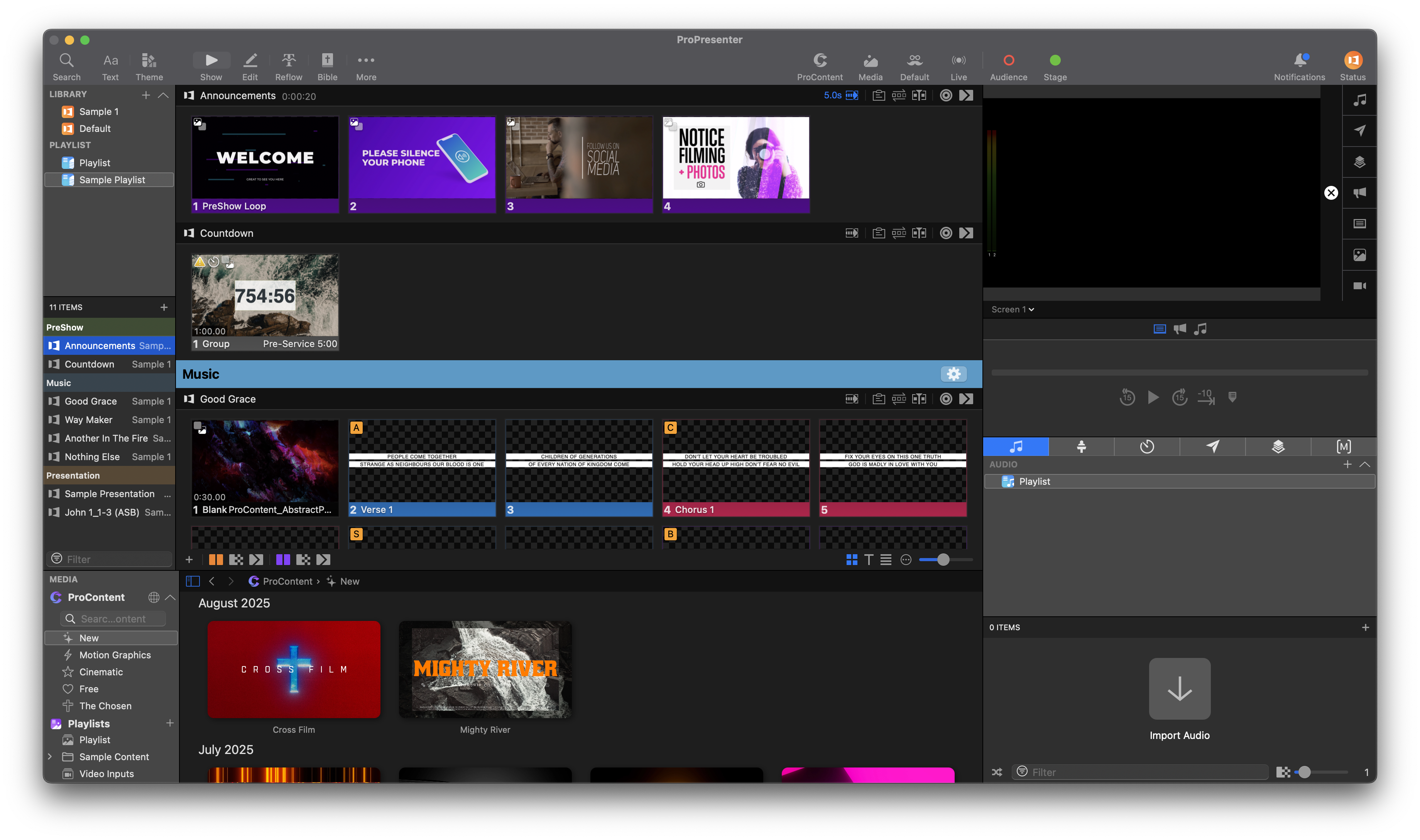
ProPresenter crashes mid-service or becomes sluggish and unresponsive. Your presentation stalls, slides advance slowly, or the application quits without warning. Performance issues are frustrating, but they’re usually solvable with methodical troubleshooting. This guide walks you through the most common causes and fixes for ProPresenter instability.
Understanding the Root Causes
ProPresenter performance issues fall into a few categories. Memory exhaustion (your Mac running out of RAM) causes crashes when loading large presentations. Corrupted media files (broken video files, oversized images) cause crashes when ProPresenter tries to playback them. Outdated graphics drivers cause rendering lag or crashes. Background processes consuming CPU cause sluggishness.
Identify your symptom first. Does ProPresenter crash (completely quits)? Does it freeze (unresponsive for 10+ seconds)? Does it stutter (slides advance slowly)? Each symptom points to different causes.
Checking Available Memory and VRAM
Open Activity Monitor (Applications → Utilities). Look at the Memory tab. You’ll see “Memory Used,” “Memory Available,” and “Memory Pressure.” If Memory Pressure is yellow or red (not green), your Mac is running low on RAM. Close unnecessary applications (web browsers, email, other apps) to free RAM for ProPresenter.
ProPresenter recommends at least 16GB RAM on Mac, though it can run on 8GB if you’re careful. If your Mac has only 8GB and you’re running multiple applications (email, calendar, web browser) alongside ProPresenter, that’s your problem. Close everything except ProPresenter during service.
Additionally, check GPU VRAM (graphics card memory). Go to System Report (Apple → System Report) and look for graphics information. Your Mac will list how much VRAM your GPU has. ProPresenter uses VRAM for video playback and rendering. If you’re playing 4K video or have very large presentations (100+ slides), VRAM exhaustion can cause stuttering.
Addressing Corrupt or Oversized Media
Large video files or corrupted media are common crash culprits. If ProPresenter crashes when opening a specific presentation, media within that presentation is likely the cause.
Try removing media from the problematic presentation one file at a time until the crash stops. This identifies the problematic file. Once identified, replace it with a different version or reduce its file size.
For videos, ProPresenter works best with files under 500MB and resolution under 1080p. If you have a 4GB 4K video, compress it to 1080p and reduce file size to 200–300MB. ProPresenter will play it more reliably.
For images, ensure they’re optimized for screen display (72 DPI, not 300 DPI). Large unoptimized images (50MB+) can cause lag or crashes. Run image files through an image optimizer to reduce file size while maintaining visual quality.
Updating Graphics Drivers
Outdated graphics drivers cause stuttering and crashes. Update your Mac’s drivers by going to Apple → System Preferences → Software Update. Keep your Mac fully updated.
For external GPU (if you have a Thunderbolt graphics card), check the manufacturer’s website for driver updates. Install the latest driver for your specific GPU model.
After updating, restart your Mac and test ProPresenter. Many performance issues resolve after a driver update.
Clearing Caches and Temporary Files
ProPresenter caches files to speed up repeated playback. Over time, caches become corrupted. Clear ProPresenter’s cache by going to ProPresenter → Preferences → General and look for a “Clear Cache” or similar option. Click it to purge the cache.
Additionally, restart your Mac. Restarts clear system-level caches and temporary files that might be causing issues.
If ProPresenter continues crashing after clearing caches and restarting, the issue is probably more fundamental (corrupted media, insufficient RAM, driver issues).
Launching ProPresenter in Safe Mode
ProPresenter has a safe mode that disables plugins and third-party extensions. If ProPresenter crashes in normal mode but runs fine in safe mode, a plugin or extension is the cause.
To launch ProPresenter in safe mode, hold Shift while launching the application. The UI might look slightly different (with fewer options), but core functionality is intact.
Use safe mode presentations to confirm the application itself is stable. If you can present without crashes in safe mode, the problem is a plugin or extension. Identify which plugin is problematic (usually the most recently installed one) and disable or uninstall it.
Creating a Fresh Library
Sometimes ProPresenter’s library becomes corrupted. Songs won’t load, or playlists behave unpredictably. Try creating a fresh library from scratch.
Go to ProPresenter Preferences → Library and look for an option to reset or backup your library. Back up your current library (save a copy), then reset ProPresenter’s library to factory defaults.
Re-import your songs from your Planning Center account or manually add them. This often fixes library corruption issues.
If the library was huge (hundreds of songs), creating a fresh library also improves performance because you’re not searching through bloated data structures.
Reducing Presentation Complexity
Large presentations (100+ slides) with complex animations and video can cause lag. If you notice sluggishness on slide advance or animation rendering, simplify your presentation.
Remove unused slides. Disable animations you don’t need. Replace high-resolution backgrounds with lower-res versions. Trim unnecessary objects from slides.
Some churches create separate presentations for different service segments rather than one massive presentation. This keeps each presentation lightweight and responsive.
Monitoring CPU Usage
Open Activity Monitor and look at ProPresenter’s CPU usage (the percentage in the “%CPU” column). If it’s consistently above 50%, something is consuming excessive processing power.
If CPU is high when proPresenter is idle (no slides playing), a background process might be running. Look for update checks, cache building, or media analysis happening automatically. These are usually harmless but temporarily disable them to free CPU for presentation playback.
Disabling Unused NDI Output
If you’re sending NDI output (for streaming), that consumes CPU and memory. If you’re not actively streaming, disable NDI output to free resources.
Go to ProPresenter Preferences → Network and toggle “Send NDI Output” off during rehearsal or non-streaming services. This frees RAM and CPU for better interactive performance during the actual presentation.
Recovery and Backup
If ProPresenter crashes during a service, close the application completely. Restart your Mac if possible (30 seconds of restart time is better than a crashed presentation). Launch ProPresenter again and reload your presentation. Most presentations recover without data loss.
To protect against data loss, save your presentations frequently. ProPresenter saves automatically, but you can also manually save by pressing Cmd+S.
Maintain backups of important presentations. Once a month, copy your ProPresenter library to an external drive or cloud storage. If your Mac fails, you can restore your library on another Mac.
When to Escalate
If you’ve tried all these steps and ProPresenter remains unstable, the issue might be your Mac’s hardware failing (failing hard drive, failing RAM). Ask an Apple Genius or Mac technician to run hardware diagnostics.
Alternatively, if your Mac is very old (5+ years), upgrading to a current-generation Mac might be more practical than troubleshooting an aging system.
Prevention Is Better Than Cure
Prevent most performance issues through good practices: keep your Mac updated, close unnecessary applications during service, maintain a well-organized media library (no corrupted or oversized files), and update ProPresenter regularly.
Do a full presentation run-through a week before service to catch performance issues early. If your presentation is sluggish during rehearsal, fix it before Sunday when it matters.
ProPresenter is robust software, and most performance issues are fixable. Take them methodically, starting with the simplest fixes (close other apps, clear cache, restart) and escalating to more complex ones (removing corrupted media, updating drivers) only if needed.