Alpha keying is a professional technique that gives churches broadcast-quality graphics without chroma key (green screen). Instead of relying on color to separate graphics from background, alpha keying uses transparency—ProPresenter sends a “fill” output (the graphics) and a “key” output (transparency map), and the ATEM switcher composites them cleanly over live video.
The result looks polished: graphics appear perfectly layered over camera feeds with no color fringing or halos. This technique is common in professional broadcasts and increasingly accessible to churches with ATEM hardware. This guide covers the setup, configuration, and troubleshooting.
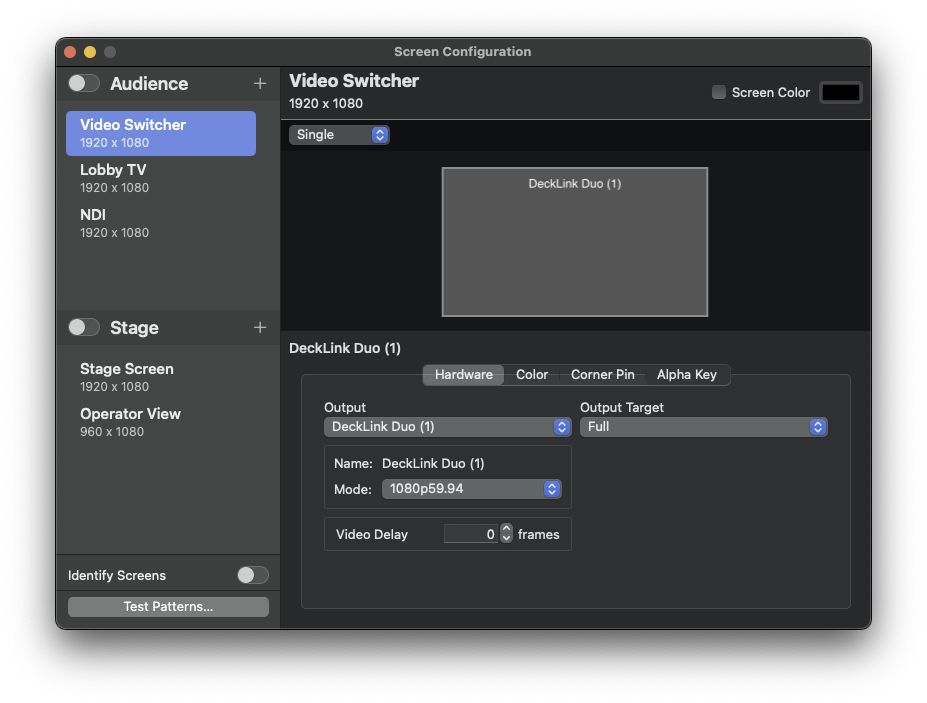
Understanding Alpha Keying
In chroma key (green screen), the key source (camera) is keyed against a color—the ATEM removes all green pixels and replaces them with transparency. This works but has limitations: green fringing around objects, sensitivity to lighting, difficulty keying fine details like hair.
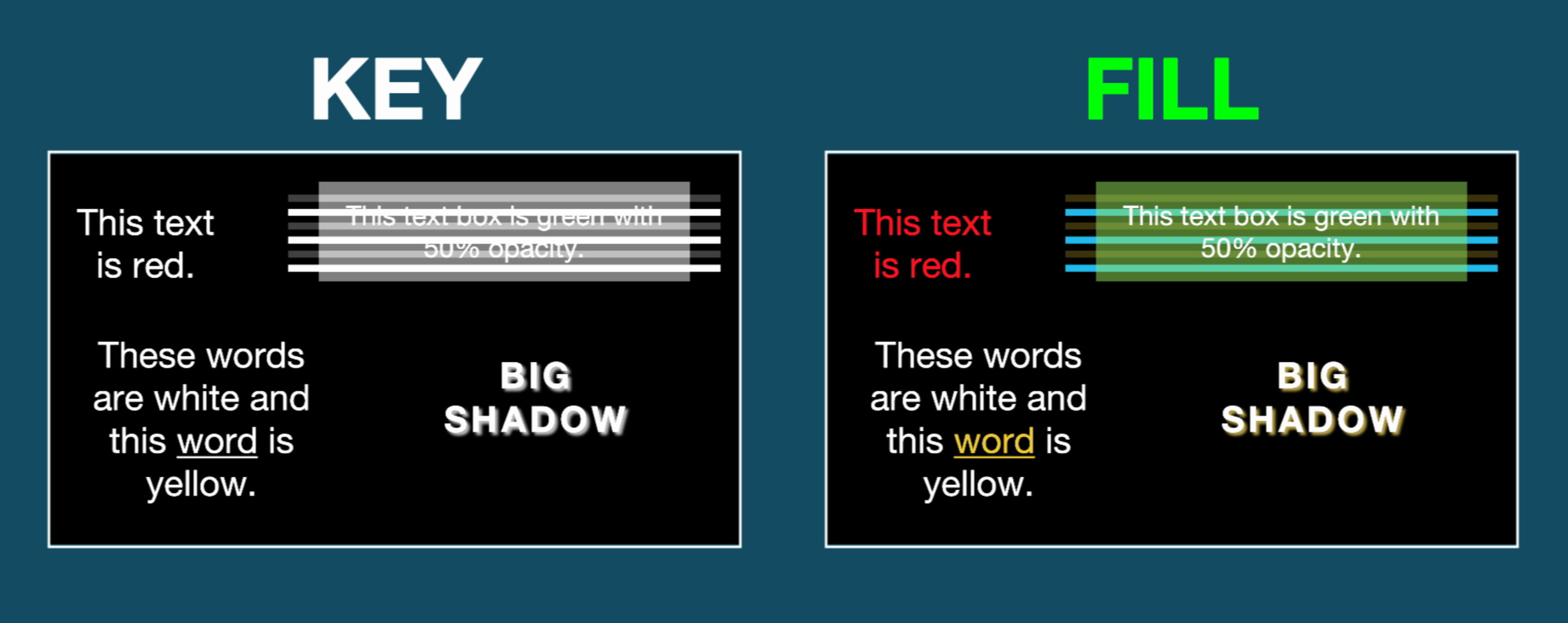
Alpha keying is superior. The graphics source (ProPresenter) sends two outputs: one showing the actual graphics (the fill), and one showing transparency information as a black-and-white mask (the key). The ATEM uses this mask to know exactly which pixels are transparent and which are opaque. The result is perfectly clean compositing with no color contamination.
ProPresenter’s “alpha keyer” exports both fill and key simultaneously, allowing ATEM to composite them cleanly. This requires two video outputs from your ProPresenter computer: one for fill, one for key.
ProPresenter Output Configuration
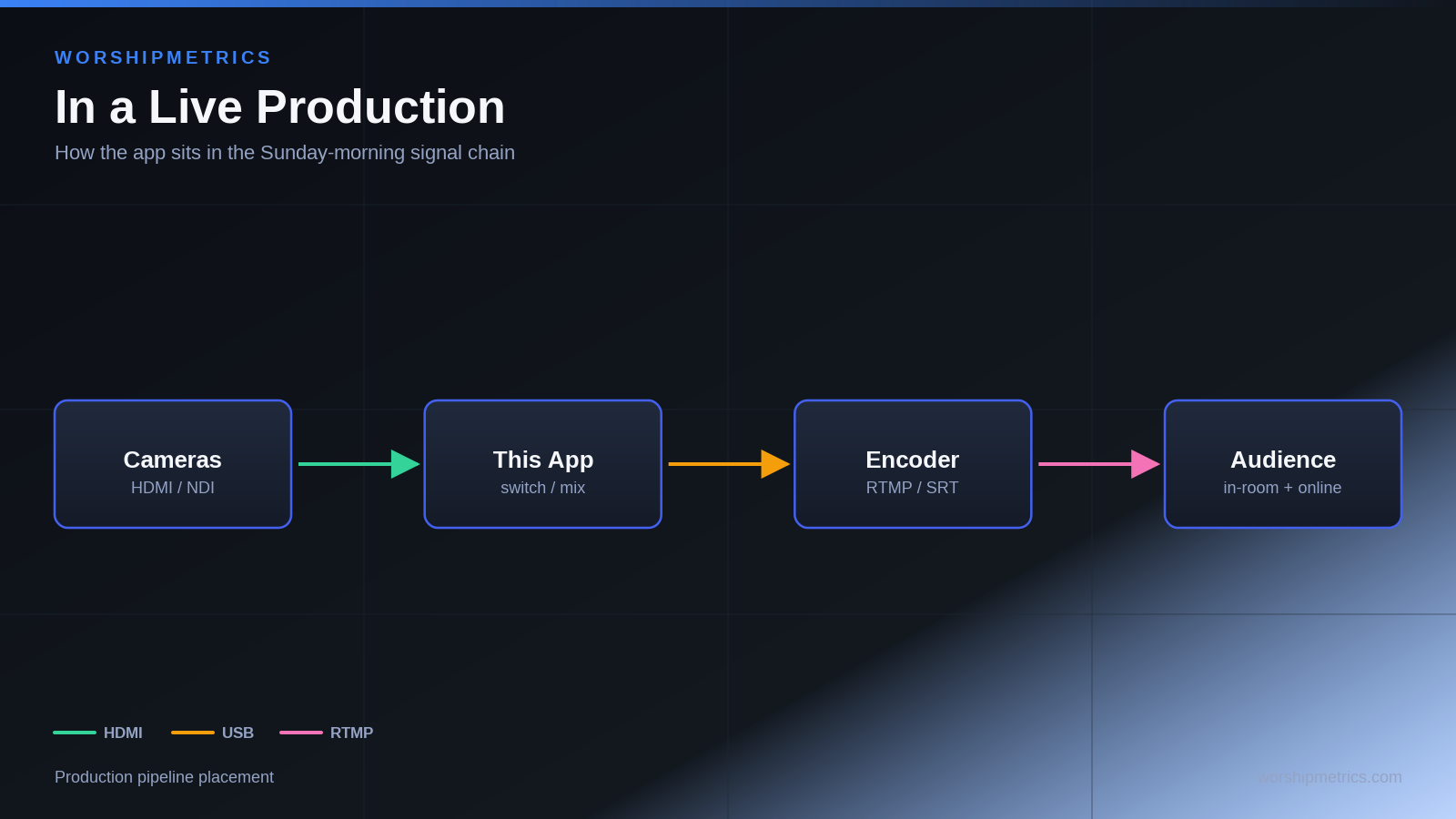
To enable ProPresenter alpha keying, you need two video output devices connected to your Mac. ProPresenter will send fill to one and key to the other. Options include:
USB video capture cards (Blackmagic Mini Recorder, Magewell USB) are affordable ($150–300 each) and work reliably. You’ll need two of them—one for fill, one for key.
Thunderbolt video outputs (if your Mac supports them) are more expensive but professional-grade and eliminate cables.
Blackmagic DeckLink PCI card (for Mac Mini with slots) is specialized and rarely used in churches but available if needed.
Most churches use two USB video capture cards. Purchase them, connect them to your Mac via USB 3, and confirm they’re recognized in System Preferences → System Report.
In ProPresenter, go to Preferences → Outputs and assign one capture card to “Main Output” and another to “Alpha Key Output.” ProPresenter will now send fill video to the first card and key video to the second.
Connecting to ATEM Mini
Physically connect both ProPresenter video outputs to the ATEM Mini. ATEM Mini has four HDMI inputs. Connect the ProPresenter fill output to HDMI input 1, and the ProPresenter key output to HDMI input 2 (or any two inputs you’re dedicating to ProPresenter).
Configure these inputs in ATEM Software Control. Open the application and go to Inputs. Verify both ProPresenter inputs are detected and named clearly (“ProPresenter Fill” and “ProPresenter Key”).
Setting Up the Upstream Keyer
In ATEM Software Control, go to Keyers → Upstream Keyer 1. This is where you configure the keying effect.
Select Keyer Type: “Luma Key” or “Chroma Key” — no, wait, for alpha key, you select the fill input and the key input separately. In the ATEM interface, you’ll see options for “Source,” “Key Source,” and “Key Type.”
Set Source to your ProPresenter fill input (HDMI 1). Set Key Source to your ProPresenter key output (HDMI 2). Set Key Type to “Luma” because you’re using a black-and-white mask as transparency information.
Adjusting Keyer Parameters
Once configured, the upstream keyer composites ProPresenter graphics over whatever camera is your program input. The graphics appear overlaid with perfect transparency—no halos or fringing.
Fine-tune the keyer by adjusting Gain and Lift. Gain controls how bright the key mask needs to be before pixels are considered transparent. Lift controls the floor—at what point white becomes fully opaque. Start with default values (Gain 1.0, Lift 0.0) and adjust only if you see artifacts.
Most alpha keys work perfectly with defaults. If graphics have slight ghosting or transparency issues, adjust Gain first. Increase Gain to make transparency more aggressive (more transparent), or decrease it to make transparency less aggressive (more opaque).
Testing the Setup
Create a test presentation in ProPresenter with obvious graphics: a solid colored box, text, a logo. Launch the presentation and switch to the fill/key output. Open ATEM Software Control and enable upstream keyer 1.
Switch a camera input to program and apply the upstream keyer. You should see the ProPresenter graphics composited cleanly over the camera feed. The graphics should have no color fringing, no green edges, and smooth, clean transparency.
If the keying is inverted (graphics are transparent, background is opaque), you’ve likely set the keyer to the wrong type. Try different keyer types (Luma, Chroma) until it inverts correctly.
Why Alpha Key Is Superior to NDI
Unlike NDI (which sends one video signal and layers in OBS/vMix), alpha keying happens in hardware on the ATEM. The ATEM is doing the compositing, not your computer. This means better performance and more reliable quality.
Additionally, alpha keying allows you to use ATEM’s advanced effects: you can adjust graphics brightness, apply transitions, or even key graphics on top of other graphics. NDI is simpler to set up but less flexible.
Practical Workflow
In a typical service, your ATEM inputs include camera 1, camera 2, ProPresenter fill/key, and other sources. Your director switches between cameras and applies the upstream keyer whenever they want ProPresenter graphics. When graphics are not needed, they disable the keyer and the upstream keyer is not visible.
Some churches pre-configure the upstream keyer with specific settings for different graphics types: one keyer setup for lyrics (bright, opaque), another for prayer request overlays (semi-transparent), another for lower-third graphics. But this is advanced—most churches use one keyer with consistent settings.
Troubleshooting
If graphics don’t appear, confirm both ProPresenter outputs are connected to the ATEM and detected. Open ATEM Software Control and check that you can see video on both inputs.
If graphics appear inverted (black text on white, or completely transparent), change the keyer type or invert the key in ProPresenter settings.
If graphics have colored fringing or ghosts, your key input signal is corrupted. Check cable connections and confirm your video capture cards are transmitting stable signals.
If the ATEM can’t detect ProPresenter outputs, restart the ATEM and your ProPresenter computer. Reseat all cables. If issues persist, try connecting ProPresenter to different ATEM inputs to isolate whether the problem is the input port or the ProPresenter output.
When Alpha Keying Is Worth It
Alpha keying is worth the complexity if your church has ATEM hardware and needs professional-quality graphics. It’s particularly valuable for churches with multiple cameras and complex graphics layers.
If you’re using OBS or vMix only (no ATEM), alpha keying isn’t available—stick with NDI. If you’re using a basic ATEM setup with minimal graphics, NDI is probably simpler and sufficient.
Alpha keying is the professional’s choice for graphics compositing. It requires specialized equipment and setup knowledge, but the results are broadcast-quality. For ambitious church productions with skilled technical directors, it’s worth the investment.