Your worship leader needs to see the current slide, know what’s coming next, and stay on time. The stage display is ProPresenter’s answer—a second screen (or network display) showing information tailored for the person on stage. Unlike the congregation’s view (which shows lyrics and graphics), the stage display shows the current slide, next slide preview, speaker notes, and a countdown timer. This guide walks you through configuring stage display exactly as your worship leader needs it.
Understanding Stage Display
In a typical church, the congregation sees lyrics and graphics on a large screen. The stage display is a separate monitor or iPad positioned where your worship leader can glance at it without turning around. It shows what slide is currently displayed, what slide is coming next, and sometimes speaker notes or time information.
ProPresenter can send stage display to a dedicated monitor (if you have a second display physically on stage), or wirelessly to an iPad or laptop (which your worship leader holds or places on a music stand). The wireless approach is cleaner—no cables running to the stage—and more flexible.
Configuring Stage Display in ProPresenter
Open ProPresenter Preferences → Displays. In the left sidebar, you’ll see “Stage Display.” Make sure it’s assigned to a physical monitor if you have one, or configured for network delivery if you’re using an iPad.
If you’re using an iPad, go to ProPresenter Preferences → Network and enable “Broadcast Stage Display over Network.” ProPresenter will assign a network address to the stage display. Next, download the free ProPresenter Remote app on your iPad. Open the app and it will automatically discover ProPresenter on your network. Tap to connect and the stage display appears on your iPad.
Customizing Stage Display Layout
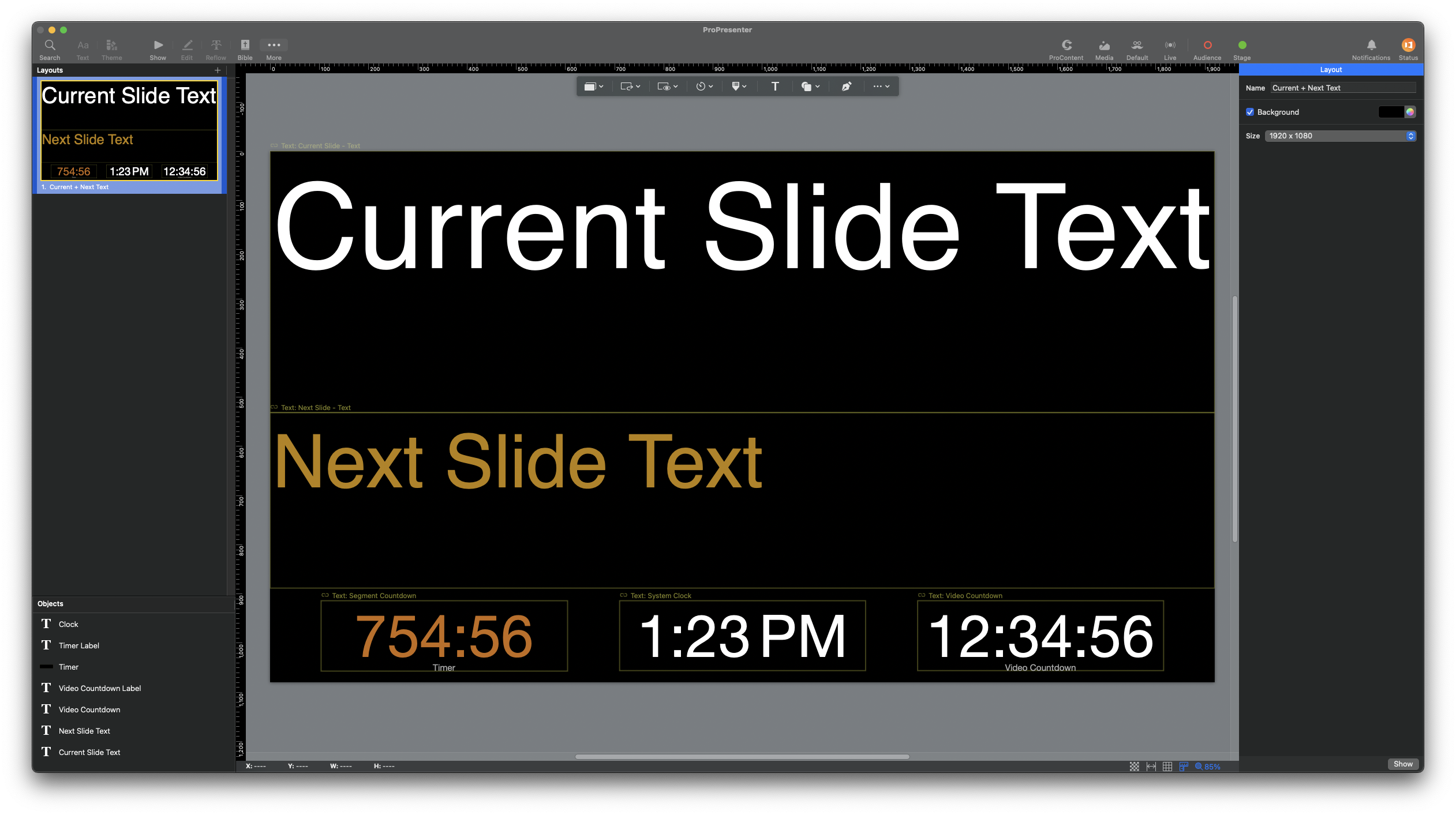
The stage display shows multiple pieces of information. By default, it shows the current slide (large), the next slide (preview), speaker notes, and time information. Customize what appears based on your worship leader’s needs.
Go to ProPresenter Preferences → Stage Display and you’ll see checkboxes for different elements. Enable “Current Slide” (large display of the slide your worship leader should be on). Enable “Next Slide” (preview of the upcoming slide so they prepare mentally). Enable “Notes” if your pastor writes notes for the worship leader to follow. Enable “Clock” if you want a time display.
Some worship leaders want minimal information (just current and next slides). Others want detailed notes for song key changes or movement cues. Ask your worship leader what they need and customize accordingly.
Positioning the Stage Display
If you’re using a physical monitor, place it on a music stand or small tripod at the stage edge, angled so your worship leader can see it without excessive turning. Height should be eye level or slightly below—not so low they’re looking down constantly, not so high they’re looking up.
If you’re using an iPad, they can hold it, place it on a music stand, or set it on a small table. ProPresenter scales the display to any screen size, so it works on anything from a 7-inch iPad Mini to a 12-inch iPad Pro.
Distance matters. Your worship leader should be able to see the text clearly from 3–5 feet away. Test by having them stand where they’ll be during service and confirming they can read the slides without squinting.
Customizing Font and Text Size
If text is too small or hard to read, adjust it. Go to ProPresenter Preferences → Stage Display and look for text size settings. Increase font size for larger displays or if your worship leader has difficulty seeing. Some churches use very large fonts (48pt or larger) so information is instantly readable.
Choose a clean, readable font. Avoid decorative fonts that are hard to read at a glance. Montserrat, Arial, or similar sans-serif fonts work well.
Adding a Countdown Timer
Many churches use a timer during worship to keep songs within expected length. A 3-minute timer reminds the worship leader “we have 3 minutes left for this song, wrap up by then.”
Enable the timer in Stage Display preferences. Set a default duration (typically 3–5 minutes for songs, 1–2 minutes for transitions). During service, click the timer and it counts down visibly on the stage display. Your worship leader sees time remaining without having to check their phone.
Some worship leaders find timers helpful; others find them stressful. Ask for feedback and adjust based on preference.
Managing Multiple Worship Leaders
If you have multiple worship leaders, you might want to customize stage display for each. One might prefer lots of notes; another might prefer minimal information. ProPresenter doesn’t support per-person profiles, but you can work around this.
Create a standardized stage display layout that works reasonably for everyone, then verbal communicate any special requests. “Sarah, for your set, we’ll show notes for the key changes. Marcus, your notes are minimal—just slides.” This flexibility reduces complexity.
Alternatively, you can create two different ProPresenter playlists: one with detailed notes (for worship leaders who want them) and one with minimal notes (for those who don’t). Use the appropriate playlist for each worship leader’s set.
Using Stage Display Notes Effectively
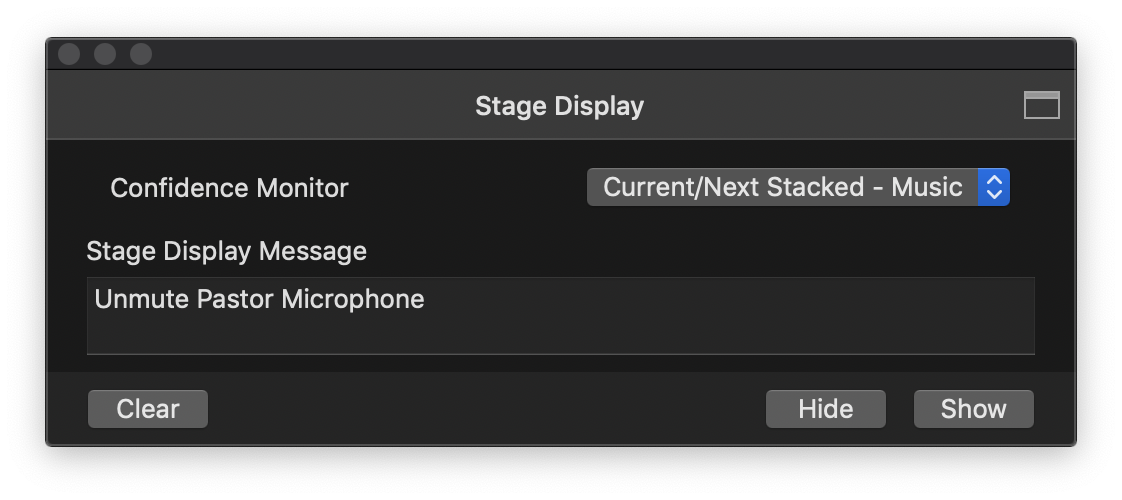
Speaker notes in ProPresenter can contain anything: movement cues, key changes, transition notes, or reminders. Write them in a way your worship leader will understand. Short, clear phrases work best. “Key change up one half step,” “Transition to prayer,” “Repeat verse twice.”
Avoid novel-length notes—they’re hard to scan quickly during a song. Keep notes to one or two lines per slide.
Wireless Stage Display Stability
If you’re using an iPad or laptop for stage display, it connects to your network wirelessly. Wireless can be unreliable in some sanctuaries due to interference or distance. If you experience frequent disconnections, try a few fixes.
Move your WiFi router closer to the stage, or add a WiFi extender. Ensure your iPad has the latest iOS and ProPresenter app version. If interference persists, switch to a wired connection: run an Ethernet cable to a small network switch at the stage, then connect your stage display device via Ethernet. Wired is more reliable than WiFi, especially in WiFi-congested environments (many people’s phones and devices all using the same WiFi).
Testing Stage Display Before Service
Before your first Sunday with stage display, do a full walkthrough. Have your worship leader stand on stage with the stage display device and go through a practice set. They should confirm they can read everything, the information is useful, and they understand how to interpret it.
Pay attention to timing—are they advancing slides too fast or too slow? Stage display should feel intuitive, not require conscious thought. If your worship leader has to stare at the display to understand what’s happening, something is misconfigured.
Make small adjustments based on feedback. If they say “I can’t read the time,” increase font size. If they say “I have too many notes,” trim them down. After service, ask for feedback and iterate.
Common Issues
If stage display frequently disconnects from the network, the WiFi is probably overloaded. Add a dedicated WiFi network for production devices (separate from your main congregation WiFi), or switch to wired Ethernet.
If your worship leader says “I keep advancing slides too fast,” they might need next-slide preview to be larger. Increase preview text size or reposition elements so next-slide is prominent.
If your worship leader says “I don’t need this information,” disable elements they don’t use. Simpler display = faster comprehension.
Professional Touch
Stage display, done well, makes your worship leader feel supported and confident. They’re not wondering what song comes next or when their set ends—they’re fully present in the moment. This confidence translates to better worship leading, which improves the entire service experience.
Invest time in customizing stage display for your worship leader’s preferences. The few hours you spend on setup pay dividends every single service through smoother transitions and more engaged worship leaders.