A professional stream feels intentional. When your director switches from worship to sermon, a one-second fade signals to viewers that something meaningful is changing. When an announcement segment ends, a quick stinger with your church’s branding transitions you smoothly to the next element. These small visual moments separate amateur streams from polished productions.
Transitions are the effects between scenes. OBS includes built-in options (fade, cut, wipe) and supports custom animated overlays called stingers. This guide walks you through setting up both, then explains how to build a consistent visual language that tells viewers your church cares about the details.
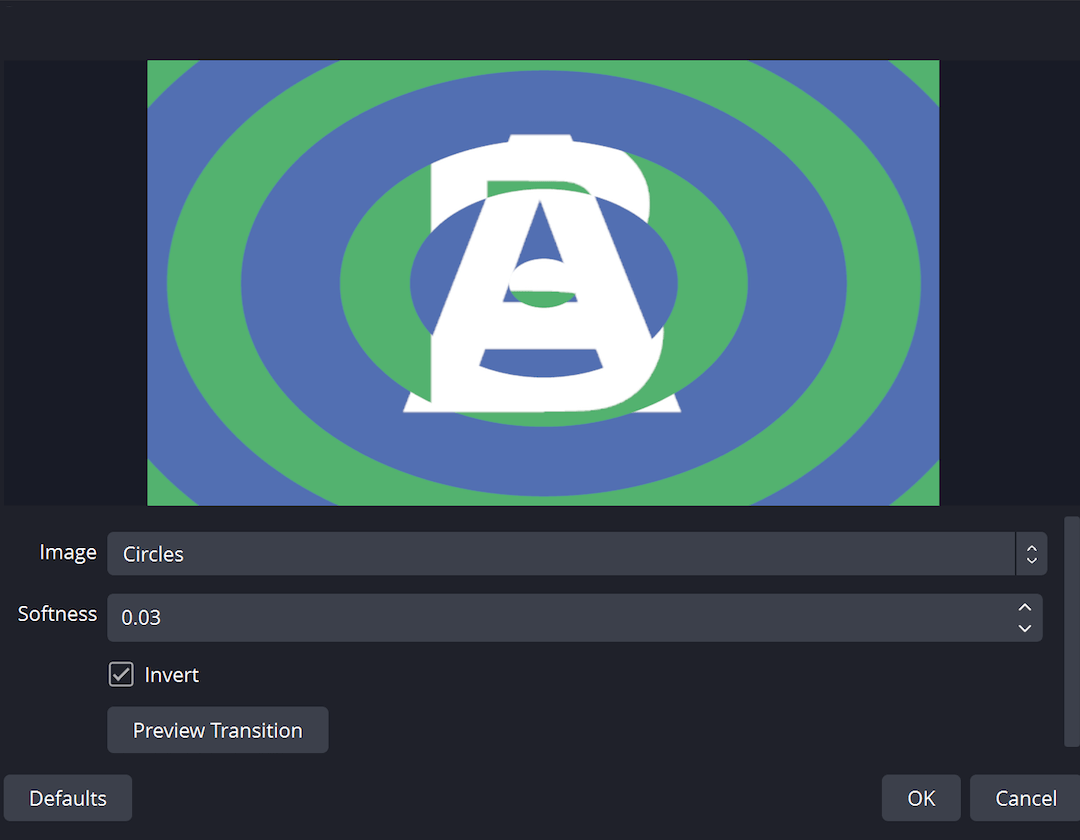
Understanding OBS’s Built-In Transitions
When you highlight a scene in OBS’s Scenes panel, the lower left corner shows the transition dropdown and duration. By default, OBS uses a “Cut” transition (instantaneous switch) with no delay. This is perfect for between-camera switches where you want reaction-speed timing. Your director clicks a scene and viewers see the new image immediately.
For transitions between major service segments, a “Fade” transition feels more intentional. Set the duration to 500–1,000 milliseconds (half to one second). When your director switches from worship to sermon, video fades to black for that duration, then fades in the sermon scene. Viewers perceive a pause—a moment to shift attention. This psychological effect is powerful and professional.
Other built-in transitions include Wipe, Slide, and Stinger. Wipe moves one scene across the other (left to right, top to bottom). Slide pushes one scene out while pulling another in. Both can feel stylized—appropriate for certain moments (opening, special segments) but distracting for routine switching. Use them sparingly.
Creating Custom Stinger Transitions
A stinger is a short animated video (typically 500–1,500 milliseconds) that plays as a transition. Your church logo spins or zooms, or your brand colors flash—whatever fits your visual identity. Stingers are more sophisticated than fade/wipe transitions and make your stream feel produced.
To create a stinger, you need a video file with an alpha channel (transparency). If you’re comfortable with motion graphics, use Adobe After Effects or free alternatives like DaVinci Resolve or HitFilm Express to create a short animated clip. Export it as ProRes 422 with alpha channel (on Mac) or PNG sequence (on Windows). The animation should be 15–30 frames at 30 FPS, resulting in a 0.5–1 second clip.
Many churches use simpler approaches. Create a static image with your church logo and colors in Photoshop or Canva, then animate it in OBS itself using Source Filters. Go to a scene, right-click a source, and add a Filter → Zoom Blur or Fade to create simple motion. This isn’t as polished as a pre-made animation but requires no video editing software.
If you want pre-made stingers without creating them, several stock motion graphics sites (Envato Elements, Shutterstock) offer church-branded stinger packs. Download your stinger in MP4 format with alpha channel (transparency).
To apply the stinger in OBS, select a scene and in the lower left, change the Transition dropdown to “Stinger Transition.” Then click the “Stinger Transition” preview and select your stinger video file. Set the Transition Point to “0 (Start)” and Duration to match your stinger length (usually 500–1000 ms). Now when you switch to this scene, the stinger animation plays during the transition.
Consistency Across Your Production
The power of transitions isn’t individual moments—it’s the pattern. Create a transition strategy that viewers unconsciously learn to recognize. For example, worship always transitions to sermon with a 1-second fade and a stinger. Between worship songs, use an instantaneous cut. Announcements always transition in with a stinger. Prayer requests use a simple fade with no stinger.
This consistency teaches viewers what to expect. They begin to feel the rhythm of your service through visual cues alone. It’s subtle, but it’s the difference between a livestream that feels like someone pointing a camera at your sanctuary and a production that respects viewer experience.
Document your transition strategy. Create a simple chart: “Worship → Sermon: Fade 1 sec + Stinger,” “Sermon → Announcements: Fade 500ms, no stinger,” etc. Share this with anyone who might direct your stream. New directors learn the pattern quickly and apply it consistently.
Practical Considerations for Church Services
Avoid stingers for every transition. If you use stingers between all scenes, they become noise. Reserve them for major segment changes: opening, worship to sermon, announcements, offering, closing. Routine camera switches use simple cuts or fast fades.
Keep stinger duration short. A 1.5-second stinger feels slow mid-service. Aim for 500–800 milliseconds. Viewers are patient during planned segment transitions, but they’re impatient during rapid scene changes.
Test transitions with your director before service. Have them practice switching between scenes using the transitions you’ve configured. They should feel natural—not too abrupt, not too slow. Timing is personal; what feels right to one director might feel sluggish to another. Adjust based on feedback.
Some directors prefer predictable transitions (same transition duration for all similar moments), while others like variety. Experiment to discover your team’s preference. If you have multiple directors, establish standards so viewers experience the same rhythm regardless of who’s directing.
Creating a Visual Brand
Transitions contribute to your church’s visual brand. Over months, your congregation begins to associate your fade timing, stinger style, and color scheme with worship. This is powerful. When a church member watches your YouTube channel while traveling, they recognize your stinger immediately—it feels like home.
Maintain consistency across video length and content. A 10-minute highlight reel should use the same stingers and transitions as your full service. A special event stream should feel visually connected to your normal Sunday stream. This coherence builds trust and recognition.
As your church’s visual style evolves, update stingers and transitions together. Don’t swap your stinger style mid-year; wait until your next design refresh cycle. Gradual evolution feels intentional; constant changes feel chaotic.
Transitions are invisible when they work and obvious when they don’t. The best transitions are ones your viewers don’t consciously notice but feel intuitively. Spend an hour setting up your basic transitions, document them, and you’ve built a foundation that lasts for years. Your stream will feel more professional immediately.