The foundation of a smooth church stream isn’t fancy graphics or multiple cameras—it’s well-organized scenes. A scene in OBS is a complete visual layout for a moment in your service. How you structure and name these scenes determines whether your director can smoothly switch through a 90-minute service or fumbles searching for the right layout mid-worship.
This guide walks you through designing a scene collection that mirrors your actual service flow, naming them intuitively, and setting up transitions so your stream feels professional and intentional.
Understanding Scene Structure for Your Service
Think of your scene collection as a storyboard for your worship service. You’ll have scenes that repeat (like “Main Cameras” for sermon) and scenes that appear once (like “Opening Welcome”). The key is organizing them logically so your director or volunteer knows exactly where to find each scene without thinking.
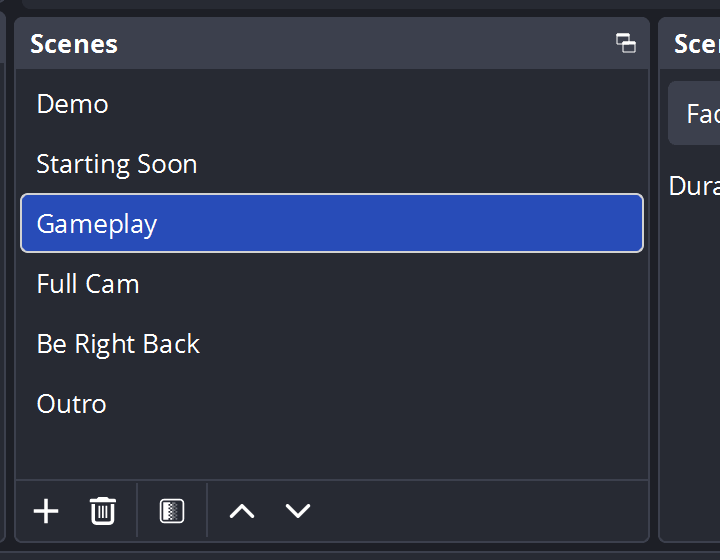
Start by mapping your actual service flow. What happens first? Opening announcements? A welcome video? Worship? Sermon? Prayer request display? Offering? Closing? For each major segment, you need at least one scene. Write this down. A typical service might look like this: Service Start (welcome graphic), Worship (camera plus slides from ProPresenter), Sermon (cameras), Prayer Requests (graphic display), Offering (video), and Closing (camera). That’s six scenes for a standard Sunday.
Naming Scenes for Clarity
Your scene names should describe exactly what the viewer will see when that scene is active. Avoid vague names like “Scene 1” or “Live Feed.” Instead, use descriptive names like “Opening Welcome,” “Worship with Slides,” “Sermon Wide,” and “Prayer Requests Graphic.” If you have multiple variations of a scene (a “Sermon Close-Up” alongside a “Sermon Wide”), prefix them clearly so related scenes sit together alphabetically in OBS.
Some churches find it helpful to number scenes in the order they appear, like “01 Opening,” “02 Worship,” “03 Sermon,” though this requires renumbering if you change service flow. Others use location-based names: “Stage Left Camera,” “Center Stage,” “Graphics Only.” Choose a naming system and stick with it. When a new volunteer joins your tech team, they should understand your scene naming within 30 seconds.
Building Your Service Flow Scenes
Create your opening scene with a static welcome graphic or your church logo. This is the first thing viewers see, so it should feel intentional. Add a source (an image file from your computer) and size it to fill the preview. This scene might stay active for 30 seconds to a few minutes while the service is beginning.
Your worship scene is typically the most complex. You’ll likely have a camera feed showing the worship team and perhaps slides from ProPresenter displayed as an NDI source. If you’re using ProPresenter, add that NDI source to this scene and position it as an overlay—perhaps in the bottom third of the frame while cameras take the upper two-thirds. This layering gives viewers both the musicians and the lyrics.
The sermon scene depends on your setup. If your pastor delivers from a fixed lectern, position your camera to show them clearly. If they move around the stage, you might have a wide shot that captures movement better. Some churches create two sermon scenes: “Sermon Wide” for when the pastor moves, and “Sermon Close” for when they’re at the lectern. Your director can switch between them to maintain engagement.
Create a dedicated scene for prayer requests, offering videos, or any graphic overlays. A “Prayer Requests” scene might display a static image or motion graphic with your church’s colors while a member shares prayer needs over audio. An “Offering” scene could be a simple background that lets audio (the offering message) play without visual distraction. These scenes give your production intentionality—not everything needs to be a camera feed.
Handling Multiple Camera Sources
If you have multiple cameras (via NDI, USB capture cards, or hardware inputs), create distinct scenes for different arrangements. “Two-Camera Worship” might position the lead vocalist on the left and drummer on the right. “Single Camera Sermon” uses just one source centered. This approach lets your director switch between layouts without frantically adjusting source positions mid-stream. Group related multi-camera scenes together in your scene list so they appear consecutively.
When naming multi-camera scenes, indicate which cameras are active. “Cameras 1 and 3” is clearer than “Dual.” If you’re using PTZ (pan-tilt-zoom) cameras, you might have scenes like “Wide Stage” and “Zoom Presenter” that reflect the actual lens position. Your director should know instantly what they’re switching to.
Setting Up Transitions
Transitions are the visual effect between scenes—a fade, a cut, a slide, or a custom animated overlay. In OBS, highlight a scene and look at the lower left of the screen. You’ll see a transition selector and duration. A “cut” transition is instantaneous, perfect for switching between cameras or when you need reaction-quick timing. A fade transition (default duration: one second) is gentler and works well between major service segments.
For church services, most transitions should be cut or fast fade (300–500 milliseconds). Slow dissolves or elaborate animated transitions distract from the content. The exception is moving between major segments—from worship to sermon, use a one-second fade to signal to viewers that something is changing. This visual cue helps them shift attention and is a simple but professional touch.
You can set a default transition for all scenes (apply to all), or customize transitions per scene. Right-click a scene to “Duplicate Scene” if you want multiple copies with different transitions applied. This is useful if you have a “Worship Main” with a fade transition and “Worship to Graphic” with a cut transition—the same layout, but different transition behavior depending on what comes next.
Creating Scene Collections for Different Service Types
Once you’ve built a scene collection for your standard Sunday service, save it. In OBS, select Profile → Manage Profiles, then Create New. Name it “Sunday Service.” You can now create additional collections for special events. A “Special Events” collection might have scenes for Christmas, Easter, or guest speakers with different layouts. A “Midweek Service” collection might be simpler, with fewer cameras and graphics.
Switching between scene collections in OBS takes one click (Profile menu), so maintaining multiple collections isn’t overwhelming. It also means you’re not constantly tweaking your Sunday setup for one special service.

Testing Your Scene Workflow
Before streaming on Sunday, practice switching scenes rapidly. Open OBS, load your scene collection, and click through all scenes in order, then backward. This rehearsal reveals which scenes are missing, which transitions feel wrong, and whether your naming makes sense under pressure. If your director fumbles switching to a scene in this low-stress practice, they’ll definitely stumble during a live service when dozens of people are watching.
Do a full dry-run with audio. Start the opening scene, transition to worship at your planned time, switch to sermon, and so on. Practice the actual timing and pacing. Some directors prefer long transitions between major changes; others like instant cuts. Your preference will emerge during this rehearsal.
Well-organized scenes transform OBS from a potentially overwhelming tool into an intuitive production system. Your director focuses on timing and pacing, not searching for layouts. That simplicity is what allows volunteers to step into the director’s seat confidently, which is the hallmark of a sustainable church streaming program.