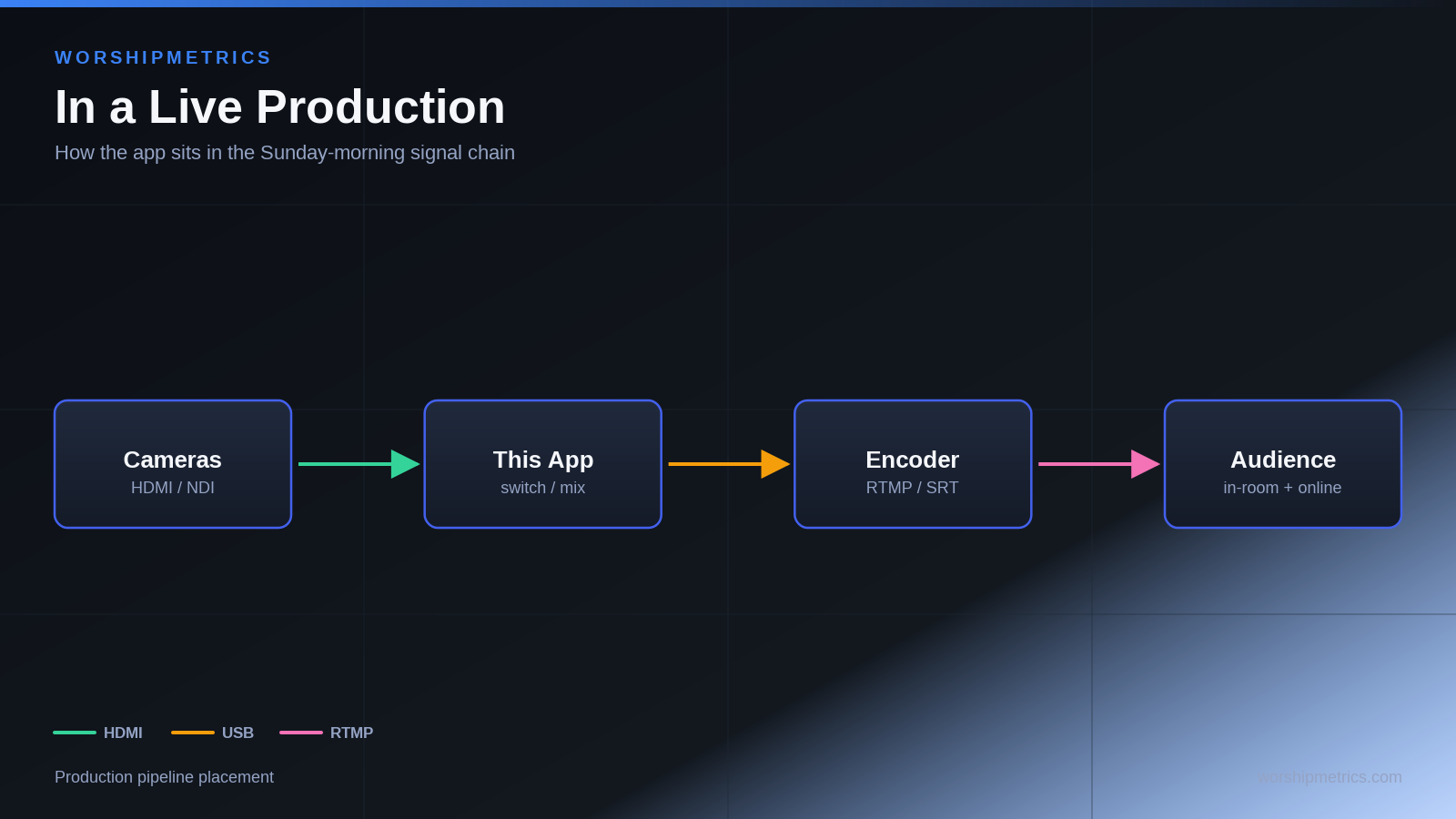
ProPresenter and OBS are a natural pair. ProPresenter displays worship lyrics, sermon notes, and graphics on screens in your sanctuary, while OBS captures those graphics and sends them to online viewers. Rather than running a separate graphics computer or manually switching between slide deck and camera feeds, you can send ProPresenter’s output directly to OBS via NDI. Your director controls one system—OBS—and ProPresenter slides appear in the stream automatically.
This integration simplifies productions and creates a unified experience: online viewers see slides synchronized with what your in-person congregation sees. This guide walks you through enabling ProPresenter NDI, receiving it in OBS, handling sync issues, and fixing the most frustrating problem—ProPresenter NDI disappearing mid-stream.
Enabling ProPresenter NDI Output
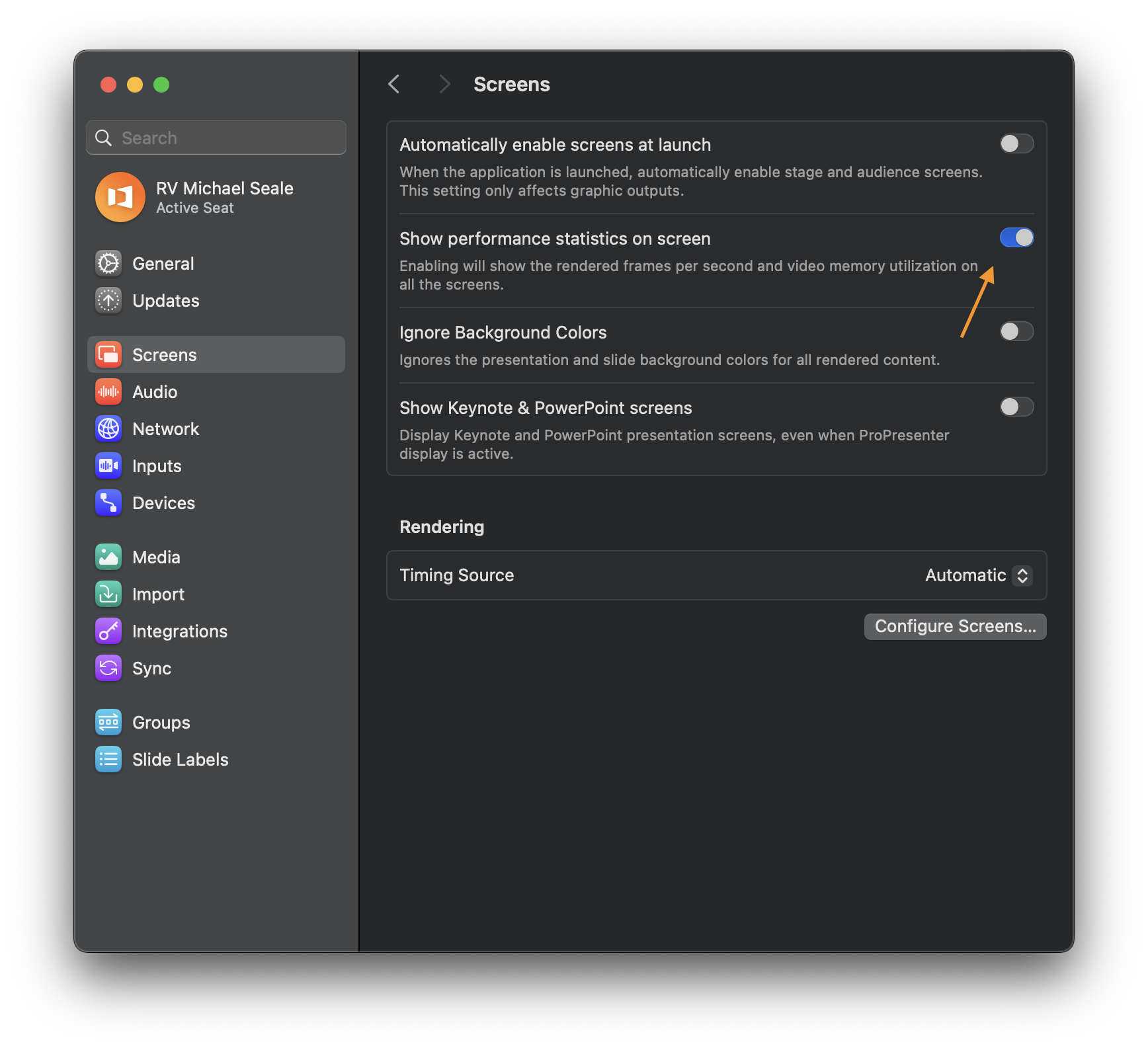
ProPresenter 7 and later versions support NDI built-in (no plugin required). Open ProPresenter and go to Preferences → Network. Look for the NDI section and enable “Send NDI Output.” ProPresenter will now broadcast its presentation as an NDI source on your network.
Confirm that ProPresenter is on the same network as your OBS computer. Both devices should be connected to the same Ethernet switch and subnet. If you’re unsure, ask your IT person to verify they’re on the same network segment. ProPresenter NDI won’t appear in OBS if they’re on different networks or VLANs.
Launch ProPresenter and play a presentation (any presentation will do for testing). The NDI source should be active. If OBS is running on the same network, it will discover ProPresenter NDI within 10–15 seconds.
Adding ProPresenter NDI to OBS
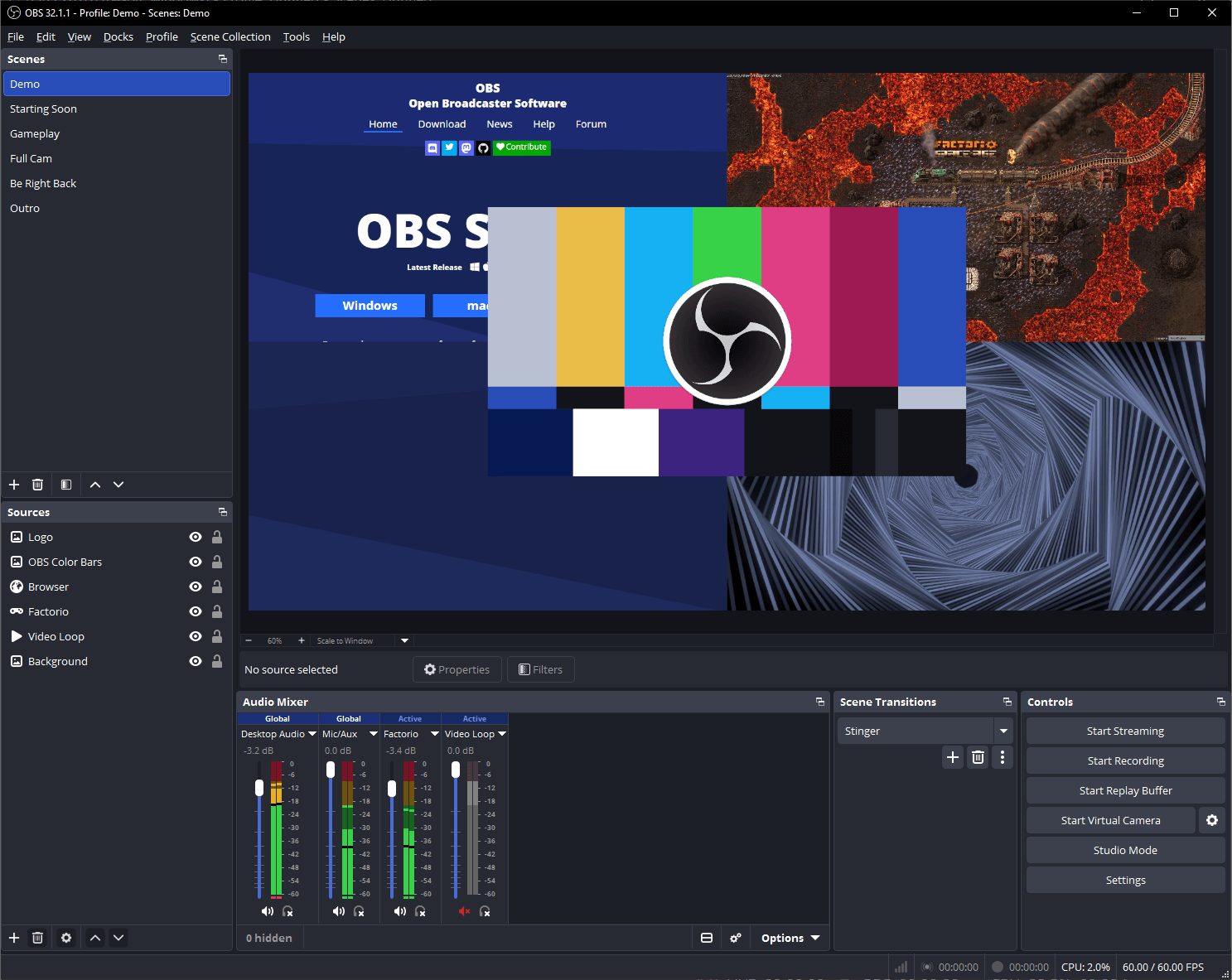
In OBS, right-click in the Sources panel and select “Add Source,” then “NDI Source.” A dropdown will list all NDI devices on your network. You should see your ProPresenter computer listed by name or hostname (like “ProPresenter_Main” or “CHURCH-GRAPHICS”). Click it and OBS will begin receiving ProPresenter’s video feed.
Position the ProPresenter source in your scene. In a typical church production, ProPresenter occupies the lower third of the frame, with cameras filling the upper two-thirds. The camera’s subject (worship leader, speaker) appears above the lyrics or notes. Adjust the source’s size and position by dragging the corners in the preview.
Alternatively, some churches layer ProPresenter as a full-screen source and switch to it when slides are the main focus. For example, during the welcome or announcements, switch OBS to a scene where ProPresenter is full-screen. When worship begins, switch back to cameras with ProPresenter as a lower-third overlay. This approach gives more screen real estate to slides when they’re the primary focus.
Handling Multiple NDI Sources
You may have multiple NDI sources: one or more cameras, plus ProPresenter. OBS lets you layer all of them simultaneously. In a typical worship scene, you might have two cameras (left side for worship leader, right side for drummer) and ProPresenter as an overlay in the bottom third. All three sources are active in the same scene.
The layering order matters. In OBS’s Sources panel, sources are stacked top-to-bottom. The topmost source appears on top visually. If you have ProPresenter positioned as an overlay, it should be above the camera sources in the panel so it appears on top. Drag sources up and down to reorder them.
If a source is partially transparent or has an alpha channel (like ProPresenter, which can have a transparent background), it overlays cleanly over sources below it. If you want a source to fully block sources beneath it, position it below in the Sources panel (or make sure it fills the entire frame).
Sync and Latency: The Challenge
ProPresenter NDI introduces about 50–100 milliseconds of latency. Your in-person congregation sees slides on the sanctuary screen instantly (no latency), but online viewers see them 50–100ms later because that’s the time required to send NDI video across the network, receive it in OBS, and encode it for streaming.
This latency is imperceptible to viewers—far less than a typical internet connection’s latency. However, if you’re syncing ProPresenter with audio (for example, a music video playing with live audio), you might notice the video lags behind the sound. This is a limitation of NDI and streaming in general. Professional productions sometimes compensate by delaying audio slightly to match video, but this is uncommon in churches.
More commonly, the latency concern is psychological rather than practical. Your director sees ProPresenter advance a slide and wonders if it’s appearing in the stream. It is—just 50–100ms later. To verify sync during a service, have someone watching the stream on their phone or tablet relay any observations. Odds are the sync feels natural to online viewers.
Troubleshooting: ProPresenter NDI Disappears
The most common problem during services is ProPresenter NDI vanishing from OBS mid-stream. Video from ProPresenter turns black and doesn’t return. This usually means one of two things: ProPresenter crashed, or the network connection dropped.
First, check ProPresenter. Switch to the ProPresenter computer’s display and confirm the application is still running and showing a presentation. If the presentation is frozen or the application crashed, restart ProPresenter. The NDI source should reappear in OBS within 10–15 seconds.
If ProPresenter is running but NDI still won’t appear, the network connection has probably dropped. Check the Ethernet cable connecting the ProPresenter computer to the network switch. Reseat the cable firmly (push until you hear a click) and wait 20 seconds. The connection should reestablish.
If the cable is fine, the problem is your network. Some IT environments have network monitoring that occasionally drops connections for security scanning. Ask your IT person if they’re performing network maintenance during service times. Alternatively, the network switch itself may have failed. Swap the network cable to a different port on the switch and test.
To prevent mid-stream NDI loss, ensure ProPresenter and OBS are on stable, dedicated network connections. Avoid WiFi for either device—use Ethernet cables. WiFi signals are prone to interference and disconnection in sanctuaries with many people and devices. A temporary network congestion (10+ phones connecting to WiFi) can drop ProPresenter NDI briefly.
Backup Plan for NDI Failure
During a service, if ProPresenter NDI drops, you need a plan. Option one: have a USB camera connected to OBS as a backup. If ProPresenter NDI fails, hide the ProPresenter NDI source (click the eye icon) and switch OBS to the camera-only view. Service continues uninterrupted.
Option two: create a static image in OBS (a graphic saying “Please stand by”) and use it as a placeholder. If ProPresenter NDI fails, switch OBS to that scene. Viewers see a branded message rather than black video.
Option three: have your ProPresenter operator quickly close and reopen the presentation in ProPresenter. This often reestablishes the NDI signal within 10–20 seconds. But this requires your ProPresenter operator to be watching for failures, which adds pressure.
Most churches use a combination: a USB backup camera for immediate failover, plus training ProPresenter operators to monitor NDI status. If NDI drops, your ProPresenter operator knows to restart it while your OBS director switches to the camera backup. By the time the operator has restarted, ProPresenter NDI should be back online and the director switches back.
Best Practices for ProPresenter NDI in OBS
Test the setup before every service. Open both ProPresenter and OBS, play a presentation in ProPresenter, and confirm NDI appears in OBS. This 30-second test catches problems before they hit your live audience.
Monitor the NDI connection during the service. Assign a tech volunteer to watch ProPresenter and OBS on a secondary monitor. If NDI drops, they alert the director immediately so they can switch to the backup camera.
Keep your ProPresenter computer and OBS computer on the same network switch with a short Ethernet cable. Don’t route through multiple switches or long cable runs, which introduce latency and failure points.
Update ProPresenter and OBS regularly. Newer versions have bug fixes for NDI stability. Keep both applications current.
ProPresenter NDI integration is powerful and reliable when your network is solid. Spend time on network setup (gigabit switch, proper cabling) and you’ll have years of smooth integration. The result is a seamless experience where online viewers feel like they’re sitting in your sanctuary watching the same worship experience.