
The PreSonus StudioLive 32S’s sophisticated architecture enables professional streaming workflows where you simultaneously maintain independent FOH and streaming mixes. Rather than relying on a single mix serving both purposes, you can optimize each mix for its specific audience, ensuring both your in-person congregation and online viewers receive excellent audio.
Creating Independent Streaming Infrastructure
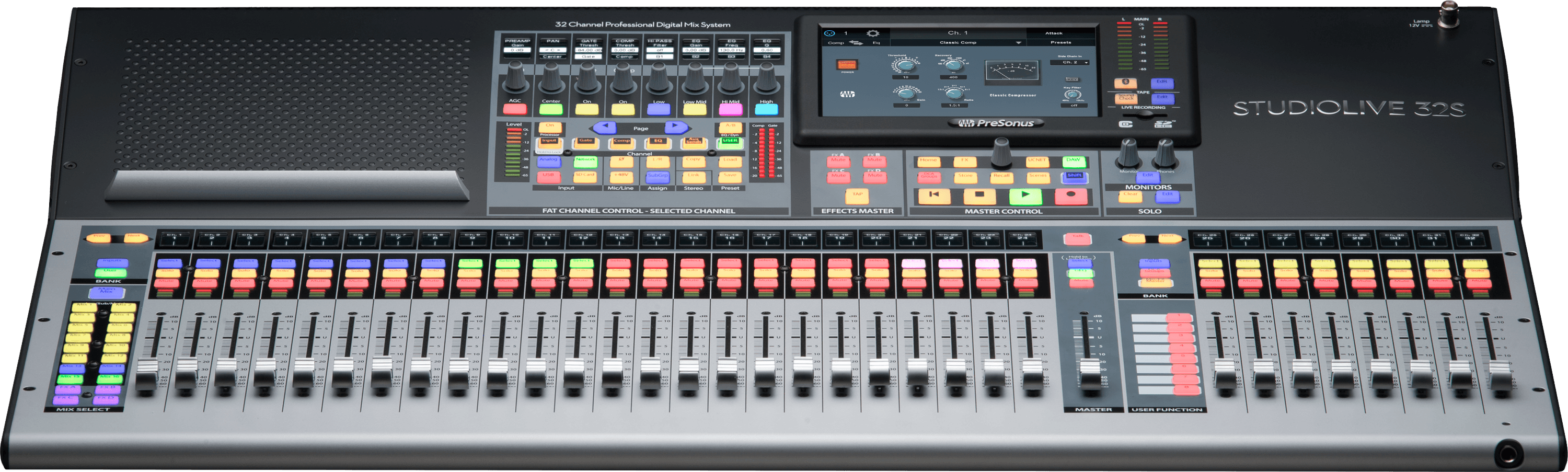
The StudioLive 32S’s flexible mixing architecture allows you to dedicate specific buses to streaming. Create a Flex Mix specifically for streaming—perhaps Flex Mix 1. This bus receives carefully selected audio sources at levels optimized specifically for broadcast to online audiences.
This streaming bus is completely independent from your main mix. Your FOH operator can make aggressive adjustments to the main mix—ducking music for announcements, making dramatic dynamic mixes—without affecting what your streaming audience hears. Your streaming audio remains consistent and professional regardless of what’s happening in the live mix.
Configuring Streaming Bus Audio Sources
In your streaming Flex Mix, include only the essential sources that define your service for online viewers. A typical streaming mix might include: lead vocal, backup vocals, sermon microphone, keyboard, acoustic guitar, and backing track. Exclude ambient room mics—these add character to live PA but distract headphone listeners.
Set each source’s level in your streaming mix to emphasize intelligibility and clarity. You might set lead vocal levels 2-3 dB hotter than in your main mix, ensuring voices cut through clearly. You might reduce instrument levels slightly, keeping them supportive rather than dominant.
Processing Your Streaming Mix
Apply processing specifically optimized for streaming to your Flex Mix. The StudioLive’s comprehensive processing makes this straightforward.
Add gentle compression to smooth dynamic range. A ratio around 4:1 with moderate threshold creates consistency. Add a limiter set to -1 dB to prevent any unexpected peaks from clipping your stream. Apply parametric EQ optimized for headphone listening—perhaps a slight presence peak around 3-4 kHz and a gentle reduction below 100 Hz.
This processing-heavy approach to streaming audio creates a mix that sounds professional over the internet through consumer devices.
USB Audio Configuration
Connect a USB cable from the StudioLive 32S to your streaming computer. The StudioLive will appear as a multi-channel USB audio device in your computer’s sound settings.
Navigate to the StudioLive’s USB setup and configure which outputs feed your USB connection. Specifically route your streaming Flex Mix to USB rather than your main mix. This ensures your streaming computer receives the optimized streaming audio rather than your main PA mix.
Integrating with OBS
Open OBS Studio and navigate to Settings > Audio. In the Microphone dropdown, select your StudioLive 32S. OBS will begin receiving audio from your mixer’s USB output.
In the Audio Mixer panel, monitor levels and set the input to feed OBS at appropriate level. Target average levels around -18 dB with peaks at -12 dB. Adjust either the StudioLive’s Flex Mix fader or OBS’s input level to achieve this balance.
Multi-Platform Streaming
To stream to multiple platforms at once—YouTube, Facebook, Twitch, your website—add the free Multiple RTMP Outputs plugin to OBS or use a relay service like Restream. The StudioLive’s USB audio feeds OBS; OBS handles the complexity of sending that audio to multiple destinations.
This unified approach means one quality streaming mix reaches all your online communities simultaneously.
Simultaneous Recording and Streaming
OBS can simultaneously stream and record locally. Enable Local Recording in OBS’s settings. Your stream gets broadcast while also saving to your computer for archive.
These recordings become valuable assets. Edit them for podcast production, create highlights for social media, or maintain them as permanent ministry archives.
Scene Integration for Streaming
Save your complete streaming configuration as scenes within the StudioLive. Create scenes like “Worship - Streaming Mix” and “Sermon - Streaming Mix” that capture your ideal streaming audio for different service segments.
During services, recall the appropriate streaming scene alongside your main mix scene. This automation ensures consistency in your streaming audio even as the main mix changes dynamically.
Dynamic Adjustments During Services
While your streaming scene provides a baseline configuration, you might make subtle adjustments during services. If a particular vocalist sounds too quiet, boost them slightly in the streaming mix. If background music is overwhelming speech, reduce it.
The advantage of having an operator focused on streaming audio is that these adjustments happen responsively, adapting to each service’s unique dynamics while maintaining overall broadcast quality.
Backup Streaming Capability
For critical installations where streaming failure would be unacceptable, maintain redundant streaming capability. A second computer running OBS provides backup streaming if your primary computer encounters problems.
Both computers can connect to the same StudioLive USB output, or configure the mixer to send to multiple USB devices. This redundancy ensures that technical issues don’t interrupt your online broadcast.
Monitoring Streaming Quality
During your first few livestreams, monitor the broadcast from a different device using headphones. Does the audio sound clear? Are levels consistent? Is there any distortion or clipping? Are there unexpected audio dropouts?
These observations help you fine-tune your streaming configuration. Most issues are minor and easily corrected through small adjustments to your Flex Mix or processing settings.
Network Streaming vs Local USB Audio
USB audio is entirely local to your computer—it doesn’t depend on internet connectivity. Even if your internet connection becomes congested or unstable, your local USB audio quality is unaffected.
This separation between local audio quality and internet streaming capability means temporary internet issues might cause video buffering, but your audio remains clean and stable.
Long-Term Streaming Archive
As you accumulate recorded streams over months and years, maintain organized archives. Create folder structures by year and date. This organization makes it easy to locate specific services if members want to access past broadcasts.
Some churches eventually have enough archived content to create a searchable sermon library, enabling members to find and revisit services based on topics or dates.
Your PreSonus StudioLive 32S now provides professional streaming capability with independent audio optimization for online viewers. Combined with your main mix optimization for in-person worship, you deliver excellent audio to both audiences simultaneously.