
The XR18 is an excellent choice for churches that need to stream services while maintaining independent control over the live sound. Just like the larger X32, the XR18 can create a separate auxiliary mix bus dedicated to streaming. This means your in-room audio and your online audio can have completely different levels and processing, each optimized for its medium.
Setting Up Your Streaming Auxiliary Bus
The XR18 has multiple auxiliary outputs available. For streaming, you’ll dedicate one—let’s say Aux 1—as your streaming mix. In the X Air app, select Aux 1 and configure which input channels feed into it.
For most churches, you want all active channels going to Aux 1 so your streaming audience hears the full service. However, you have flexibility to customize. If you want to emphasize the vocal for online viewers, increase the send level from the vocal channel to Aux 1. If you want to reduce drums for streaming (many churches find this improves the viewer experience), decrease their send level to Aux 1.
Navigate through the X Air app to the Aux 1 section. For each input channel, you should see a send level to Aux 1. Adjust these send levels to dial in your streaming mix. The channel’s fader position on the main mix doesn’t change—only the send level to Aux 1 changes. This is the power of auxiliary buses: two completely independent mixes from the same input channels.
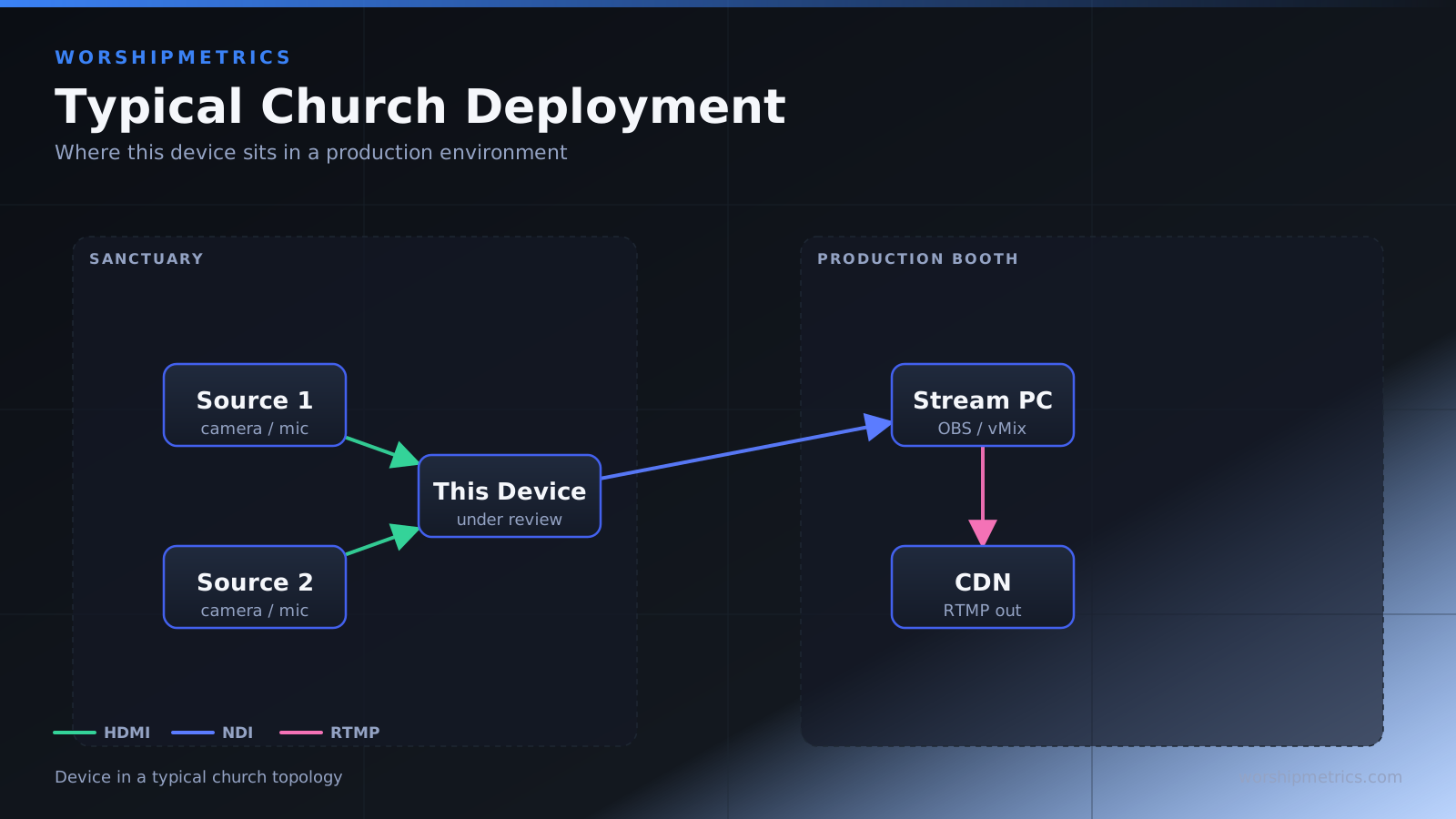
Configuring USB Audio Output
The XR18 can send audio to your streaming computer via USB. Connect the XR18 to your streaming computer using a standard USB cable. In the XR18’s network settings (accessible through the app or through the mixer’s setup menu), enable USB audio.
Go to the USB Send configuration and select Aux 1 as the output to send over USB. Now the stereo mix from Aux 1 flows directly to your streaming computer’s USB input.
Connecting to OBS
In OBS, add a new audio input source. Click the plus button in the Sources panel and select “Audio Input Capture.” In the device dropdown, select “Behringer XR18 (USB Audio)” or similar.
OBS now receives the stereo stream from your XR18’s Aux 1 output directly. Set the input level in OBS so that your loudest peaks reach about -12 dB on the OBS meter. This leaves headroom for unexpected loud moments.
Connecting to vMix
In vMix, go to Settings > Audio > Add Audio Input. Select “Behringer XR18” from the device dropdown. vMix receives the Aux 1 stereo mix.
Set audio levels so peaks sit around -12 dB. vMix offers some built-in audio processing if you want to apply compression or EQ, but the XR18 should already deliver a well-mixed signal.
Independent Mixing Workflow
Here’s how the workflow plays out during a service. Your house engineer operates the main mix, adjusting faders and effects for the in-room experience. Their focus is making sure the congregation hears great audio balanced for your physical space’s acoustics.
Meanwhile, your streaming engineer (or the same person wearing two hats) manages Aux 1, adjusting send levels from each channel to optimize the streaming mix. They want the vocal prominent for online viewers. They want the drums slightly less aggressive. They want the backing track audible but supporting the vocal.
Both engineers are controlling the same XR18, but they’re focused on completely different mixes. Changes one makes don’t affect the other’s mix.
Monitoring Your Streaming Audio
In the X Air app, you can assign Aux 1 to your headphone output to monitor the streaming mix. This is essential during the service. While your main mix plays out to the speakers, you hear Aux 1 on your headphones, verifying that your streaming audio is staying clean and properly balanced.
The app’s metering shows you the Aux 1 output level in real-time. You can see whether your streaming audio is hitting the right levels before it reaches OBS or vMix.
Handling Audio Delay
One challenge with streaming is that audio and video often have different processing times, leading to lip-sync issues. The XR18 doesn’t specifically address this, but OBS and vMix both have audio delay adjustment features. If your video is coming from a camera on the stage and your audio is coming from the XR18, you might need to add slight delay to the audio so it stays in sync with the video.
This is outside the scope of mixer configuration, but it’s something to be aware of as you test your streaming setup.
Backup Audio Path
Some churches maintain a backup audio path in case the USB connection fails mid-service. They might route Aux 1 to a stereo analog output on the XR18, and have that output connected to a second computer running streaming software as a backup. If the primary USB connection drops, the backup immediately takes over.
The XR18 provides the analog outputs needed for this backup setup, making it more resilient than some competing mixers.
Troubleshooting USB Streaming Issues
No audio in OBS or vMix: Verify that the XR18 is set to send USB audio. Check that Aux 1 is routed to USB output. On your computer, confirm the XR18 is selected as the audio input device. In OBS/vMix, verify the audio source is set to the XR18.
Clipping on stream: The Aux 1 level is too hot. Either reduce send levels from individual channels to Aux 1, or reduce the Aux 1 main output fader. Aim for -12 dB peaks.
USB connection drops intermittently: Try a different USB cable. Avoid USB hubs if possible; connect directly to the computer. Ensure the cable is firmly seated at both ends. If using a long cable, upgrade to an active USB extension cable.
Streaming mix is very different from main mix: This is expected—you’ve intentionally configured them differently. But if you want them to be identical, set all send levels from channels to Aux 1 equal to the channels’ main faders.
Weekly Workflow
Your typical streaming preparation: Before service, load your Sunday scene. Do a quick sound check on both the main mix and Aux 1. Verify that OBS/vMix is receiving audio from the XR18. Start streaming. During service, monitor both mixes—main through speakers and Aux 1 through headphones. After service, save any scene adjustments. Export a backup.
The XR18’s flexibility for streaming is one of its major strengths. You’re not forced to compromise between live and online audio quality. Both get proper attention.
Expanding Your Streaming Capabilities
Once comfortable with basic streaming, consider adding video synchronization or additional processing. Record your stream to disk as a backup. Create different scene variations for different service elements. Integrate your streaming setup with your video production software.
The XR18 is the mixing engine; everything else—video, lighting, graphics—works alongside it. As your streaming production grows more sophisticated, the XR18 grows with you.
For the livestream: Why your church livestream sounds bad, and how a separate stream mix fixes it, and setting up a stream mix.