
Getting clean, well-mixed audio into your streaming software is essential for church broadcasts. The Behringer X32 excels at this because it can send a completely independent mix to OBS or vMix without affecting what your congregation hears in the sanctuary. This separation between your “house mix” (what people in the room hear) and your “stream mix” (what online viewers hear) is a game-changer for worship production.
Understanding the X32’s USB Audio Interface Mode
The X32 functions as a USB audio interface, which means your streaming computer can connect to it via USB cable and receive up to 16 channels of audio simultaneously. This is far more powerful than simply plugging a microphone into your streaming computer. Instead of dealing with inconsistent audio levels or missing channels, you get professional-quality signal straight from your mixer, where your audio engineer has already balanced everything.
To enable USB audio on your X32, first connect a standard USB 2.0 cable from the USB port on the rear panel of the mixer to the USB port on your streaming computer. Next, go to the Setup menu on the mixer and navigate to IO. Look for the USB section. Enable “USB Audio” if it’s not already on. The X32 will now appear as an audio device in your streaming computer’s operating system.
On your Windows PC, open the Sound settings and ensure that the Behringer X32 is selected as your recording device. On Mac, open System Preferences and go to Sound. You should see “Behringer X32” listed. Once selected, the X32 becomes your computer’s primary audio input. When you launch OBS or vMix, you’ll see the X32 showing up in the audio device dropdown menus.
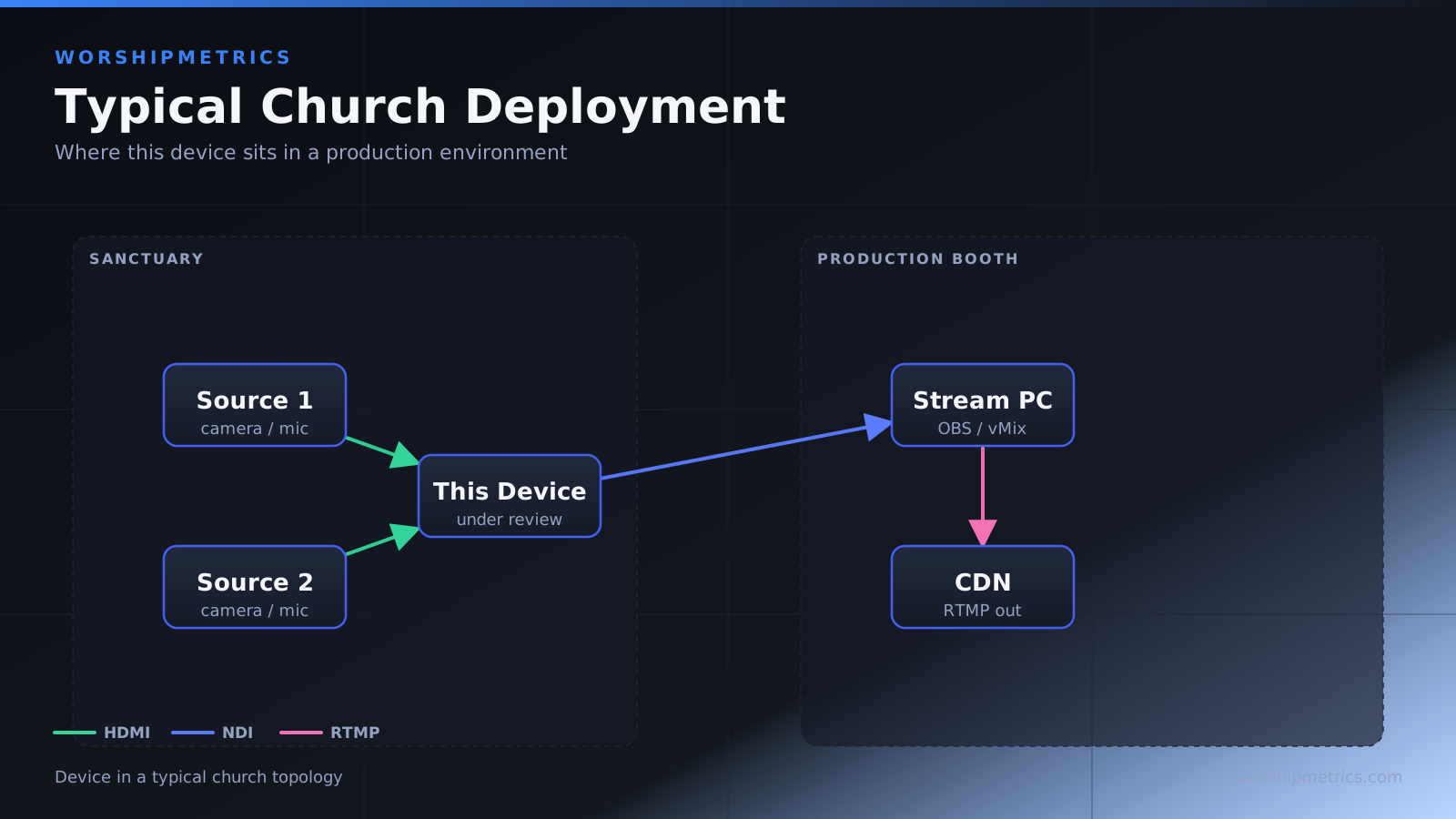
Creating a Separate Streaming Auxiliary Bus
The real power of the X32 for streaming comes from its six auxiliary buses. These are independent stereo mix outputs that let you create multiple different mixes from the same input channels. Your house mix stays on the main L/R output going to your sanctuary speakers, while your stream mix can be completely different.
To set up a streaming aux bus, select the first auxiliary output (Aux 1) by pressing the Aux 1 button on the console. This brings up the Aux 1 mixing interface on the screen. Now, individually select each input channel and decide if it should go to Aux 1. For most churches, you’ll want all channels going to Aux 1 so your streaming audience hears everything. However, this is where customization happens—if you want to emphasize the lead vocal for online viewers or remove certain channels entirely, you can adjust each channel’s send level to Aux 1.
Once you’ve configured which channels feed Aux 1, you need to route Aux 1 to the USB outputs that your streaming computer will receive. Go to the Setup menu, then IO, then USB Send. Here you’ll see options for which mixer outputs to send over USB. Select Aux 1 as your streaming source. This routes the stereo output of Aux 1 directly to your streaming computer through the USB connection.
Routing USB Output to OBS
In OBS, add a new audio input source by clicking the plus button in the Sources panel and selecting “Audio Input Capture.” The audio device dropdown will now show “Behringer X32 (USB Audio CODEC).” Select it. OBS will now receive the Aux 1 stereo mix from your X32 directly. Set the audio levels in OBS so that your loudest peaks (music, speaking) hit around -12 dB on the OBS meter. This leaves plenty of headroom for unexpected loud sounds.
The USB audio path also handles your computer’s system sounds, so you may want to create a separate audio output track if you’re using system notifications that you don’t want on stream. In OBS settings, go to Audio and ensure your streaming audio output is set to only monitor the Behringer input, not your computer’s other audio sources.
Routing USB Output to vMix
vMix works similarly to OBS. In vMix, go to Settings and navigate to Audio. Click “Add Audio Input” and select “Behringer X32” from the dropdown. vMix will begin receiving the stereo stream from your X32’s Aux 1 output. Like OBS, set your audio levels so peaks sit around -12 dB. vMix also offers the ability to select specific USB channels if you want more granular control, but for most churches, the simple stereo setup works perfectly.
One advantage of vMix is that it includes built-in audio mixing controls. You can adjust input levels, add EQ, and even compress audio within vMix if you want additional control. However, it’s best practice to do the bulk of your mixing on the X32 itself, then use vMix’s controls only for fine-tuning.
Managing Stream Mix Versus Room Mix
The beauty of using an auxiliary bus is that your streaming audio and sanctuary audio are completely independent. Your lead vocalist might be high in the house mix for people who can see the stage, but if you want to emphasize them more for online viewers (who can’t see the performance), you simply increase their send level to Aux 1 on the X32. Drum levels, backing track volumes, acoustic guitar presence—all of these can be different between your two mixes.
This flexibility means you’re not forced to compromise between what works well for people in the room and what works well for your online community. Many churches find that streaming audiences prefer slightly more vocal-focused mixes and less live percussion emphasis, since they can’t see the visual context of a drummer performing. You can dial in those preferences on Aux 1 without changing a single fader on your main mix.
Solving Common Audio Problems
Double audio or echo: If you’re hearing two copies of the audio, you likely have the X32’s main output also going into your streaming computer’s microphone input. Disable the microphone input on your streaming computer or unplug any secondary audio cable from the computer.
Missing channels: If some instruments or microphones aren’t reaching your stream, go back to Aux 1 and verify that the missing channel has a non-zero send level. Select the channel by pressing its fader, then rotate the encoder above the fader to adjust the Aux 1 send until you hear the channel in your stream.
Clipping or distorted audio: This usually means either the channel is too hot at the input stage (adjust the channel’s preamp gain down), or the Aux 1 output level is set too high (reduce the Aux 1 faders). Aim for -12 dB on your loudest peaks at the OBS or vMix input level meter.
No audio at all from the USB: First, verify that the USB cable is firmly seated in both the X32 and your computer. Next, go to the X32 Setup menu and confirm that USB Audio is enabled in the IO section. On your computer, check that the Behringer X32 is selected as the recording device in your audio settings. In OBS, verify the audio source is actually set to the X32.
Feedback or noise on stream: If you hear a low hum or feedback, it’s typically a ground loop caused by multiple audio cables connecting your X32 to different devices. Use balanced XLR cables for all audio connections and avoid daisy-chaining ground connections. If you have multiple audio devices connected to your computer, ensure only one is set as the default recording device.
Testing Before Your Stream
Before you go live, do a complete test run. Have someone speak into each microphone while watching both the house mix and the stream audio in OBS or vMix. Verify that all channels are present, levels are appropriate, and there’s no unwanted noise or echo. Record 30 seconds of this test audio and play it back to catch any issues you might have missed during the live test.
The X32’s USB audio capability transforms it from a capable live mixer into a professional streaming production tool. Once you’ve dialed in your settings and saved them as a scene, you’ll be able to replicate this exact setup week after week with minimal adjustment, giving your streaming audience consistent, professional audio quality.
For the livestream: Why your church livestream sounds bad, and how a separate stream mix fixes it, and setting up a stream mix.