
The Magewell USB Capture HDMI usually works immediately after installation, but occasionally connection problems arise. The capture device might not appear in OBS or vMix, video might be black, or the software might not recognize the USB Capture despite correct driver installation. This guide helps diagnose and fix these issues.
USB Capture Not Appearing in OBS or vMix
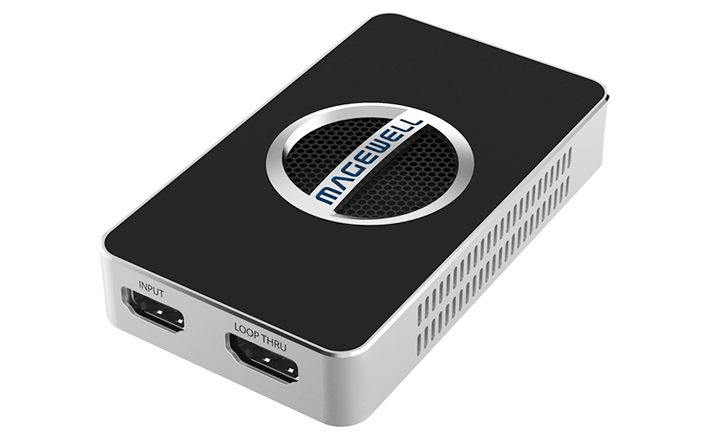
The most common issue is the capture device not appearing in your software’s device list. Several factors can cause this.
First, verify the driver installed correctly. On Windows, open Device Manager (right-click Start menu and select Device Manager). Look for Imaging Devices and expand it. You should see “Magewell USB Capture” or similar listed. If nothing Magewell-related appears, the driver didn’t install.
Download the driver again from Magewell’s website, ensuring you select the correct version for your operating system (Windows 10 or Windows 11). Run the installer and follow the prompts carefully. If the installer reports an error, take note of the exact error message and search Magewell’s support documentation.
On Mac, open System Report (Apple menu > About This Mac > System Report) and navigate to USB. You should see your Magewell USB Capture listed under USB devices. If it doesn’t appear, ensure the driver installed correctly and restart your computer.
After confirming the driver installed, restart OBS or vMix completely. Sometimes the software caches device lists on startup and needs to be restarted to recognize new hardware.
Black Screen or No Video in Preview
If the USB Capture appears in OBS or vMix but the preview shows black (or is completely absent of video), several things could be wrong.
Verify your HDMI source is powered on and actively outputting video. If you’re capturing from a camera, ensure it’s in video output mode (not standby or menu mode). If you’re capturing from a mixer, ensure the output you’re capturing from is actually active.
Check your HDMI cable. Faulty HDMI cables are a surprisingly common cause of black screens. Try a different HDMI cable if one is available. Visually inspect the HDMI connectors for bent pins or damage.
Ensure your HDMI cable is fully seated on both ends. Push the connector in firmly until it clicks. Partial connections often result in black screens even though the device technically detects signal.
Try a different HDMI source to isolate whether the problem is your USB Capture or your HDMI source. If a second camera or video source works, the original source might be outputting a resolution the USB Capture doesn’t support.
HDCP Signal Blocking (Protected Content)
HDCP (High-bandwidth Digital Content Protection) is a copy protection scheme used by some video sources. When a device outputs HDCP-protected content, capture devices like the USB Capture cannot capture the signal. You’ll see a message like “HDCP Protected Content Detected” or simply a black screen.
HDCP is commonly found on sources like streaming devices (Netflix, Disney+), Blu-ray players, or some professional cameras outputting protected content. For church streaming, HDCP is rarely an issue unless you’re trying to capture from a streaming device or protected media player.
If your HDMI source is outputting HDCP-protected content, you’ll need to work around it. Some sources have settings to disable HDCP (check your device’s menu). For streaming devices, HDCP is often mandatory and can’t be disabled—in this case, you’ll need a different video source.
Alternatively, insert an HDCP stripper device in your HDMI chain. These small devices accept HDCP-protected HDMI input and output unprotected HDMI, allowing your USB Capture to work. Search for “HDMI HDCP stripper” online to find compatible devices.
USB Bandwidth and Connection Issues
The Magewell USB Capture requires adequate USB bandwidth. If your USB connection is unstable, you might see intermittent black screens, dropped frames, or repeated connection losses.
Ensure the USB Capture is connected to a USB 3.0 port, not USB 2.0. USB 3.0 ports (typically blue) provide much more bandwidth than USB 2.0 ports (typically black). If your computer has limited USB 3.0 ports, prioritize the USB Capture to one of them.
Avoid USB hubs if possible. Connect directly to your computer’s USB port. USB hubs add latency and reduce available bandwidth, especially when other devices are also connected to the hub. If you must use a hub, ensure it’s a powered hub (with its own power supply), not a passive unpowered hub.
Check what else is connected to your USB bus. If you have multiple external drives, other video devices, or high-bandwidth peripherals connected to USB, they might be competing for bandwidth with your USB Capture. Disconnect unnecessary USB devices and test again.
If you’re running multiple USB Capture devices simultaneously, ensure each is connected to a separate USB port. Modern computers with multiple USB 3.0 ports can typically handle two USB Capture devices, but three or more might exceed bandwidth limits.
Resolution and Frame Rate Mismatches
If OBS or vMix recognizes your USB Capture but the video is black or corrupted, you might have a resolution mismatch. The resolution you’ve selected in OBS or vMix must match the resolution your HDMI source is outputting.
In OBS, right-click the USB Capture input and select Properties. Check the Resolution dropdown. If your HDMI source outputs 1080p60, select 1080p60. If it outputs 1080p30, select 1080p30.
If you’re unsure what resolution your HDMI source outputs, try common options like 1080p30 or 1080p60 one at a time. Once you find a resolution that displays video, you’ve identified your source’s output format.
Some video sources output specific resolutions only. For example, many older cameras output 1080p30 fixed, and attempting to capture at 1080p60 results in a black screen or dropped frames. Similarly, some mixers output 720p exclusively. Document your HDMI source’s output format in your church’s AV documentation so you can quickly reconfigure if equipment is replaced.
Driver Compatibility with Older Operating Systems
If your church is running older versions of Windows (7 or 8) or older Mac OS versions (pre-10.13), the Magewell USB Capture might not have driver support. Magewell periodically drops support for older operating systems in new driver releases.
Check Magewell’s website for the driver compatibility statement. If your OS is no longer supported, you have two options: upgrade your operating system, or downgrade to an older driver version that supported your OS (if available on Magewell’s archives).
For churches running older hardware, this is a strong reason to upgrade to a newer computer. Windows 10 and later, along with modern Mac OS, offer better support for AV equipment and better overall security.
Reinstalling Drivers Completely
If you’ve tried basic troubleshooting and the USB Capture still isn’t recognized, completely remove and reinstall the driver.
On Windows, open Device Manager, find your USB Capture under Imaging Devices (or look for unknown devices), right-click it, and select Uninstall Device. Check the box to delete the driver files, then click Uninstall.
Disconnect the USB Capture from your computer. Restart your computer completely. Download the latest Magewell driver and install it fresh. Then reconnect the USB Capture.
On Mac, driver removal is less direct since Mac OS integrates capture device drivers more deeply. Instead, manually locate the Magewell kernel extension in Library/Extensions and drag it to Trash (you’ll need admin privileges). Restart your computer, then install the latest driver and reconnect your USB Capture.
Testing with a Different Computer
If you’ve exhausted basic troubleshooting, test the USB Capture on a different computer if one is available. Borrow a laptop or test on your church office computer. If the USB Capture works on another computer, the problem is likely your primary computer’s configuration, USB infrastructure, or driver installation.
If the USB Capture doesn’t work on any computer, the device itself might be faulty. Contact Magewell support with details of your troubleshooting steps. They can provide firmware updates or arrange a replacement if the hardware is defective.