
Multi-campus churches face a unique challenge: distributing a high-quality video feed from the main venue to satellite locations without relying on public internet platforms. While YouTube and Facebook are excellent for public broadcasting, they’re often unreliable for internal campus-to-campus distribution due to transcoding delays, platform instability, or bandwidth throttling. SRT (Secure Reliable Transport) addresses this problem by creating a dedicated, low-latency connection between your main encoder and receiving stations at other campuses.
Understanding SRT vs RTMP for Multi-Campus Distribution
RTMP (Real-Time Messaging Protocol) is what YouTube and Facebook use. It’s simple, widely compatible, and well-established, but it’s not optimized for low-latency local network streaming. SRT is a newer protocol specifically designed for reliable, low-latency video transport over unpredictable networks. It automatically recovers from packet loss, adapts to changing network conditions, and keeps latency predictable—crucial when the main stage and satellite campus need to stay roughly in sync for live worship.
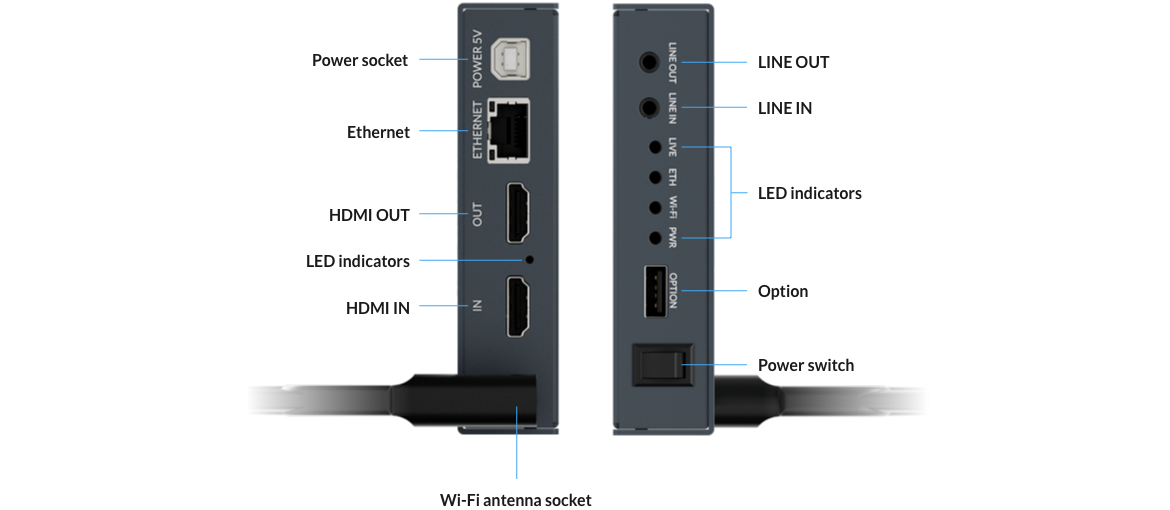
The Magewell Ultra Encode HDMI supports SRT natively, allowing you to stream the main service feed directly to receiving stations in other buildings or across town. Instead of your satellite campuses pulling the feed from YouTube (with its inherent 10-30 second delay), they receive the feed directly from your main encoder with only a 2-3 second latency.
SRT Caller vs Listener Mode
SRT operates in two fundamentally different modes: caller and listener. Understanding the difference is essential for proper multi-campus configuration.
In caller mode, the Magewell encoder actively initiates the connection to a receiver. The encoder connects to a known IP address and port at your satellite campus. This is straightforward to configure if your satellite location has a stable, publicly routable IP address. You simply tell the encoder “send SRT stream to IP 203.45.67.89 on port 5000” and the encoder connects and starts streaming.
In listener mode, the Magewell encoder sits passively and waits for remote receivers to connect to it. Instead of the encoder pushing out to satellites, the satellite locations pull the feed from the main venue. This is more practical for churches spread across large geographic areas where campus IP addresses might change or where firewall rules make outbound connections from satellites difficult.
For most multi-campus churches, listener mode is easier to manage. Your main encoder stays at headquarters, your IT team configures it once, and each satellite location opens an SRT connection to the main encoder whenever they want to receive the broadcast. If a satellite location goes offline temporarily, the encoder simply stops sending to that receiver—no reconfiguration needed at the main venue.
Configuring Listener Mode on the Encoder
Access the Magewell Ultra Encode HDMI’s web interface and navigate to the Streaming or Destinations section. Instead of selecting RTMP, select SRT from the protocol dropdown. You’ll now see different configuration options.
Choose Listener mode. The interface will ask you to specify a listening port—a network address where the encoder will wait for incoming connections. Choose an unused port above 1024, such as 5000 or 6000. Some churches use port 9999 to make it memorable. Write down this port number; you’ll need it when you configure the receiving stations.
The encoder will also ask if you want to enable SRT encryption and passphrase protection. For internal multi-campus distribution, encryption is a nice security feature to prevent unauthorized access to your feed. Set a passphrase like “ChurchStream2024”—something your satellite locations will know but outsiders won’t easily guess. Each receiving station will need this exact passphrase to connect.
Configure the encoder’s video bitrate and codec settings within the SRT destination. Unlike RTMP streaming to YouTube, where YouTube can handle variable bitrate and performs its own transcoding, SRT requires consistent encoding. Set a fixed bitrate like 5000 kbps for a high-quality 1080p60 feed that won’t overwhelm your internal network. If your link between campuses is over a WAN (Wide Area Network) connection rather than LAN, you may want to reduce this to 3000-4000 kbps to account for potential congestion.
Receiving the SRT Feed at Satellite Campuses
Once your main encoder is configured and broadcasting in SRT listener mode, each satellite location needs a way to receive and display that feed. This could be a second Magewell Ultra Encode HDMI configured as an SRT receiver, an OBS installation with SRT source support, or a dedicated streaming client.
If your satellite campuses are running OBS (Open Broadcaster Software), configuring an SRT source is straightforward. In OBS, add a new source and select “Media Source” or “Custom Protocol Source” depending on your OBS version. Enter the SRT connection string in the format srt://[main-encoder-ip]:5000?passphrase=ChurchStream2024. OBS will connect to your main encoder and display the live feed in the preview.
If your satellite locations don’t have computers available, you might use IP-based video displays or streaming receivers that support SRT natively. Some churches deploy Magewell receivers or other hardware decoders at each satellite location, allowing campus staff to simply plug an HDMI cable into the receiver and see the main feed appear on their screens within 2-3 seconds.
Optimizing Latency for LAN vs WAN
The “latency” in SRT refers to the delay between what’s happening on stage at the main venue and when it appears on screens at satellite locations. For worship experiences, you want this delay to be as small as possible so that music, announcements, and live moments feel synchronized.
On a LAN (Local Area Network) connecting campuses within the same building or nearby buildings with dedicated fiber connections, you can achieve 1-2 second latency with aggressive SRT settings. Set the sender’s buffer to the minimum—often just a few hundred milliseconds. The protocol will adapt as needed, and your local network’s reliability means you don’t need a large buffer for protection against packet loss.
On a WAN (Wide Area Network) connecting distant campuses over internet connections, you need more buffer to protect against packet loss and network jitter. Increase the sender’s buffer to 500 milliseconds or more. This adds latency but ensures your WAN connection’s unpredictability won’t cause stream interruptions or visible glitching. The trade-off is that satellite venues will see the feed with a 3-5 second delay instead of 1-2 seconds, which is still acceptable for worship contexts.
Test your SRT connection before your first live service by streaming from the main venue to a satellite campus and measuring the actual latency. Some configurations naturally run tight (1-2 seconds) while others run looser (5-8 seconds) depending on network conditions and buffer settings. Document what works for your setup so you can reproduce it reliably every service.
Redundancy and Failover Considerations
What happens if your main encoder fails or loses power during a service? Your satellite campuses lose the SRT feed. For critical services, some larger churches deploy a backup encoder at the main venue. Both encoders receive the same HDMI input, but only one is designated as the “primary” in SRT configuration. If the primary fails, satellite campuses manually switch to receiving from the backup encoder—a rare but possible contingency.
Alternatively, configure your satellite campuses to have a fallback destination like a YouTube Live stream. If the SRT connection drops, the campus can quickly switch to receiving the YouTube version of the service. This creates a two-tier system: SRT for normal operations with optimal latency, YouTube as the fallback if the primary system fails.
For most churches, a single well-configured SRT system is sufficient. The protocol’s built-in redundancy and error recovery make it inherently more reliable than RTMP or public platforms, especially when running on dedicated network infrastructure between campuses.