Stream failures are stressful, especially when they happen during a live service. The Magewell Ultra Encode HDMI is reliable, but issues do occasionally surface—usually related to network connectivity, platform authentication, or HDMI signal problems. This guide helps you quickly diagnose and resolve the most common failure scenarios.
Black Screen: No Video Input Detected
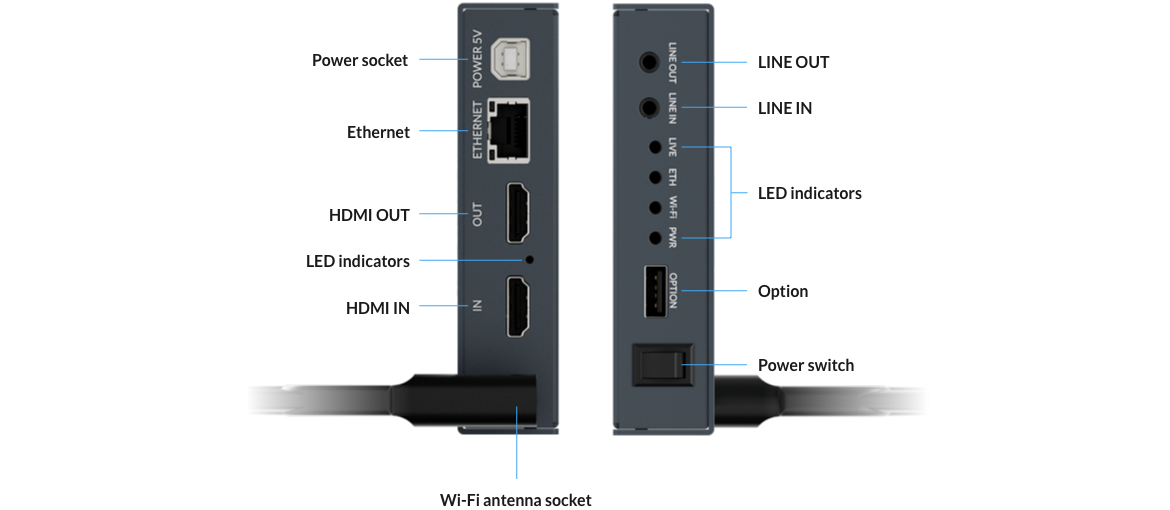
If your encoder shows “No HDMI Signal” in the web interface or the encoder dashboard displays a black screen, the issue is upstream of the encoder itself. Start by checking your physical HDMI connections.
First, verify the HDMI cable connecting your video source to the encoder is firmly seated on both ends. Push the cable connector in completely—partial connections are a common source of intermittent black screens. If the cable is loose, reconnecting it usually restores the signal immediately.
Next, confirm your video source is actually outputting video. If you’re using a video mixer or switcher, ensure it’s powered on and the output you’re connected to is active. Some mixers have multiple outputs (main out, aux out, etc.), and you might be connected to an inactive port. Try a different output on your mixer or switch to a known-good video source like a test pattern or backup camera to isolate whether the problem is your source or the encoder.
Test with a different HDMI cable if one is available. HDMI cables can fail, especially if they’ve been rolled up and unrolled repeatedly or bent sharply. A faulty cable might work intermittently or only at certain resolutions, leading to flaky black screen issues that are maddening to troubleshoot.
If you’ve confirmed the cable is good and your video source is actually outputting video, but the encoder still shows no signal, the encoder’s HDMI input port may be damaged. This is rare but possible if the unit has been dropped or if something has impacted the back panel. Contact Magewell support for hardware replacement, as the input connector may not be user-serviceable.
Stream Connected but No Video Transmitted
The encoder connects to YouTube or Facebook successfully—you see a green “Connected” status in the web interface—but viewers see a black screen or no video appears on the platform. This usually indicates a signal format incompatibility or encoding issue.
Check the encoder’s input detection in the web interface. The resolution and frame rate should match what your video source is outputting. If you’re sending 1080p60 from your mixer but the encoder detects 720p30, something is misconfigured. Go back to your video source and verify its output settings.
Navigate to the encoder’s Input Settings or Auto-Detection options and manually set the resolution and frame rate to match your source. Some encoders have a quirk where they default to 720p30 even when receiving a 1080p60 signal. After you set the correct input resolution, the encoder should immediately begin detecting and encoding the proper signal.
If the resolution and frame rate are correct but video still isn’t transmitting, check your encoding bitrate settings. If your encoder is set to an extremely high bitrate that exceeds your available upload bandwidth, it may fail to initialize the stream at all. Temporarily lower the bitrate to 4000 kbps and test again. Once the stream connects, you can incrementally increase it.
Intermittent Stream Drops During Service
The stream starts fine, but partway through the service (perhaps 30 minutes in, or during an especially demanding scene), the encoder loses connection. You might see “Connection Lost” or “Reconnecting” messages in the web interface. On the platform side, viewers see the stream freeze or disappear.
This is almost always a network issue, not an equipment failure. The most common cause is insufficient upload bandwidth. During the initial moments of streaming, your bandwidth might seem adequate, but if other activities spike on your network (someone starts downloading a file, automatic backups begin, etc.), your upload bandwidth gets consumed and the stream is starved.
Check your actual upload speed by running a speed test on a computer connected to the same network. If you’re streaming at 6000 kbps and your upload speed test shows 5500 kbps, you’re right on the edge. Any network fluctuation will cause drops. Reduce your encoder’s bitrate to 4000-4500 kbps to create safety margin.
Additionally, check for network congestion during the service itself. Ask your IT team if there are scheduled backups, updates, or other bandwidth-intensive activities occurring at the time you stream. If backups run automatically every Sunday at 10 AM and your service streams at 10:30 AM, the tail end of the backup might interfere with streaming. Coordinate with your IT team to schedule critical network tasks before or after services.
If your upload bandwidth is genuinely adequate but stream drops are still occurring, the issue might be your router or internet connection quality. Some routers become unstable under sustained high-bandwidth load and begin dropping packets. Restart your router and ensure it’s in good working condition. If drops continue, contact your internet service provider to check for line issues.
Authentication Failed with Streaming Platform
You see “Authentication Failed” or “Invalid Stream Key” in the encoder dashboard. This usually means your stream key has been revoked, changed, or entered incorrectly.
First, verify you copied the entire stream key correctly. Stream keys are long alphanumeric strings, and a single missing character will cause authentication failure. Go back to YouTube Creator Studio or Facebook Creator Studio, copy the stream key again, and carefully paste it into the encoder’s destination settings. Verify character-by-character if necessary.
If the stream key looks correct, the platform may have rotated your key for security reasons. This is common if you don’t stream regularly or if your platform account settings have changed. Generate a new stream key from your platform, paste it into the encoder, and test again.
Some churches use the same stream key for weeks or months. YouTube and Facebook occasionally reset keys without notification, especially if unusual activity is detected on your account. If authentication suddenly fails without any changes you made, assume the platform reset your key and generate a fresh one.
For YouTube, navigate to Creator Studio, go to Live Streaming settings, and look for “Regenerate” or “New Key” options. Copy this new key into the Magewell encoder immediately.
For Facebook, the process varies slightly depending on your page setup. Go to your Page Settings, look for the “Generate New Key” or “Reset Key” option under Live Video settings, and update the encoder.
Network Connectivity: Encoder Can’t Reach Internet
The encoder is connected via Ethernet, but the web interface shows “No Internet Connection” or the encoder can’t reach streaming platforms. This indicates a network problem between the encoder and your internet gateway.
Verify the Ethernet cable is firmly connected to both the encoder and your network switch or router. Check if other devices on the same network can access the internet—pull up a web browser on a computer connected to the same switch and confirm you have internet access.
If other devices have internet but the encoder doesn’t, the issue might be DHCP (automatic IP assignment) failure. The encoder might have been assigned an IP address on your network, but it’s not on the same subnet as your internet gateway. This is a network configuration issue best resolved by your IT team.
Alternatively, access the encoder’s network settings through the web interface (if you can still reach it locally) and manually assign a static IP address. Use an IP address in the same subnet as your router—for example, if your router is 192.168.1.1, assign the encoder 192.168.1.100. Set the gateway to 192.168.1.1 and the DNS server to 8.8.8.8 (Google’s public DNS). Save the settings and restart the encoder.
If your church network has a firewall that restricts outbound connections, the encoder might be blocked from reaching YouTube or Facebook servers. The encoder needs to connect outbound on port 1935 (RTMP) or port 443 (RTMPS for secure connections). Contact your IT team to ensure these ports aren’t blocked by your firewall.
Recovering from an Encoder Crash
Rarely, the encoder might become unresponsive, fail to load the web interface, or crash mid-stream. The most reliable recovery is a power cycle: unplug the power cable, wait 10 seconds, and plug it back in. Let the unit boot fully (usually 1-2 minutes), then access the web interface again.
If the encoder is caught in a recovery loop (continuously rebooting), there may be a firmware corruption issue. Contact Magewell support, as this typically requires firmware re-flashing, which is a manufacturer-level procedure.
For backup redundancy, some larger churches keep a second encoder on hand. If the primary encoder fails during a service, you can quickly connect the backup unit to the same HDMI source and resume streaming with minimal downtime.