The Magewell Ultra Stream HDMI is a compact, standalone streaming appliance designed for churches that want simplicity without sacrificing quality. Unlike software encoders that require a computer, the Ultra Stream is a self-contained box about the size of a small mixer. Connect your HDMI camera or mixer, plug in power and Ethernet, and you’re ready to stream to YouTube or Facebook. This guide walks you through the entire process.
Unboxing and Initial Connections
When your Ultra Stream arrives, you’ll find the encoder unit, a power supply, a network cable, and quick-start documentation. The unit is compact and lightweight, designed to sit on a shelf near your video mixer or camera. Unlike larger professional encoders, it draws minimal power and generates little heat, making it suitable for placement in tight spaces like AV closets or equipment racks.
Connect the power supply to the encoder and plug it into a power outlet. You should see status lights illuminate on the front panel. The encoder is now powering up and preparing its network connectivity. This usually takes 30-60 seconds.
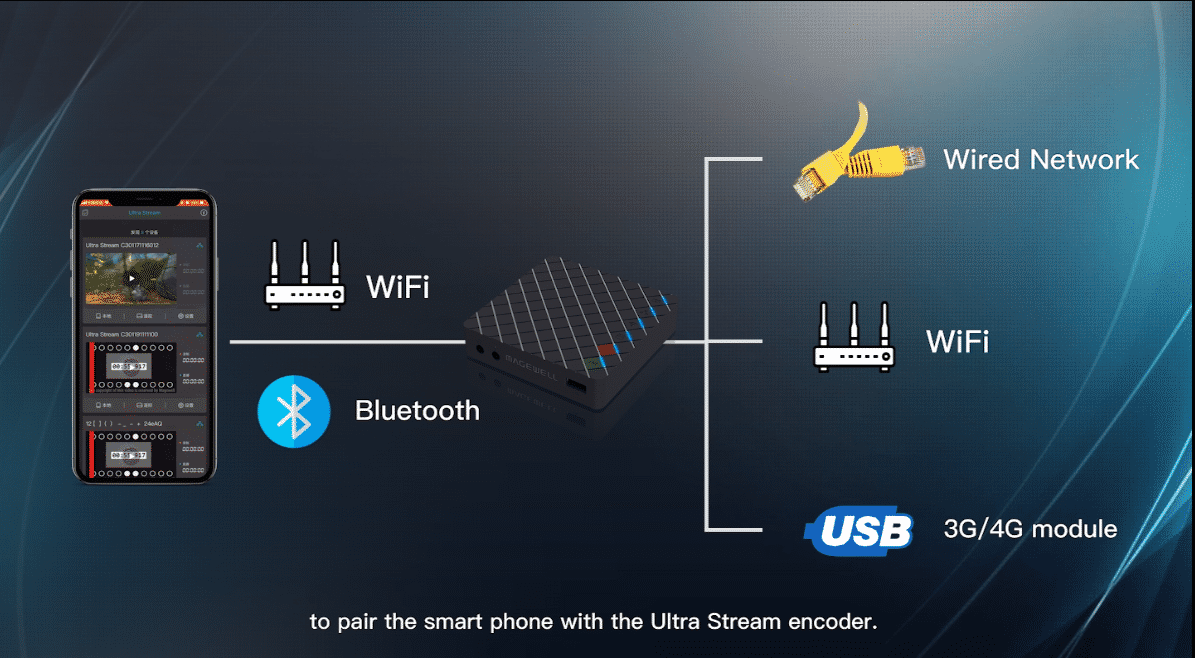
For network connectivity, the Ultra Stream supports both Wi-Fi and Ethernet. For live streaming, Ethernet is strongly recommended. Wi-Fi is useful for configuration and monitoring, but Wi-Fi connections are inherently less stable than wired Ethernet, especially in a church environment where walls, interference, and other wireless devices might degrade signal quality. Use the included Ethernet cable to connect the encoder to your network switch or router.
If Ethernet isn’t available in your streaming location, Wi-Fi is possible but requires careful consideration. Ensure your Wi-Fi signal is strong at the encoder’s location (at least 3-4 bars) and preferably on a 5 GHz band if your router supports it. 5 GHz provides faster, more stable connections than 2.4 GHz, though it has shorter range. Test Wi-Fi streaming thoroughly during a non-critical broadcast before relying on it for a live service.
Accessing the Setup Interface
Once the encoder is powered and connected to your network, access its setup interface through any web browser on a device connected to the same network. In your browser’s address bar, type magewell-stream.local. The encoder’s interface should load within seconds.
If the .local address doesn’t work, try accessing the encoder’s default IP address: 192.168.1.100. This works if your network supports mDNS (Multicast Domain Name System). Some corporate networks or restrictive church IT setups disable mDNS, making .local addresses unavailable.
The interface prompts you to log in. The default username is admin and the default password is 12345. Once logged in, you should immediately change the password to something more secure, especially if your encoder is visible on your church’s main network. Navigate to Settings and update the admin password.
Connecting Your Video Source
The Ultra Stream has a single HDMI input on the back panel labeled “HDMI IN.” Connect your HDMI source here—this is typically your video mixer, switcher, or a direct feed from a camera. The HDMI input accepts standard video formats up to 1080p60.
After connecting your HDMI source, power it on and ensure it’s actually outputting video. The Ultra Stream’s interface should show a green indicator saying “HDMI Signal Detected” along with the detected resolution and frame rate. If no signal is detected, verify your HDMI cable is firmly seated and your source is powered on and outputting video.
The Ultra Stream embeds audio directly from the HDMI input signal. If your HDMI source carries audio, it will be automatically captured and streamed. If your video source doesn’t embed audio (some cameras output video-only), you’ll need to add audio separately. Some churches use a separate audio cable from their audio mixer to inject balanced audio into the video feed upstream, or they configure the Ultra Stream to receive audio from a USB input if available.
Configuring Stream Keys for YouTube
To stream to YouTube, you need a stream key from your YouTube account. Log into YouTube with the account that manages your church’s channel. Navigate to YouTube Creator Studio and click “Go Live” or look for the Live Streaming section.
YouTube displays your stream key—a long alphanumeric string unique to your channel. Copy this key completely, including all characters and symbols. You’ll also note YouTube’s stream URL: rtmp://a.rtmp.youtube.com/live2/.
In the Ultra Stream’s web interface, navigate to the Streaming or Destinations section. Click to add a new stream destination. Select RTMP as the protocol. Paste the YouTube stream URL in the Server URL field and paste your stream key in the Stream Key field. Give this destination a friendly name like “YouTube Live.”
Before going live during a service, test your configuration by clicking Start Streaming. The encoder will attempt to connect to YouTube. Within 15-30 seconds, you should see your video appear in YouTube Creator Studio’s preview. If the connection fails, verify your internet connection and that you copied the stream key correctly.
Configuring Stream Keys for Facebook
Facebook Live requires a similar setup but uses a different URL and authentication mechanism. Log into Facebook with your church’s page account. Navigate to your Page and look for “Go Live” or access Live Video settings.
Facebook provides your stream URL (typically rtmps://live-api-s.facebook.com:443/rtmp/) and your stream key. Copy both. The stream key is unique to your Facebook page and changes if you regenerate it.
In the Ultra Stream’s interface, add another RTMP destination. Paste the Facebook stream URL and stream key. Name it “Facebook Live.” Test the connection and verify your video appears on your Facebook Page’s live preview.
Simultaneous Streaming to Multiple Platforms
One of the Ultra Stream’s strengths is the ability to stream to multiple platforms simultaneously from a single encoder. With both YouTube and Facebook destinations configured, simply click Start Streaming once and the encoder automatically connects to both platforms, sending your video to each.
This is ideal for churches that want to reach both audiences without buying duplicate hardware. However, simultaneous streaming to both platforms does consume additional bandwidth. If you’re streaming 1080p at 6000 kbps to both YouTube and Facebook, your upload bandwidth is sustaining approximately 12,000 kbps total.
Before committing to simultaneous streaming, verify your upload bandwidth can handle the load. Run a speed test and confirm your upload is at least 15-20 mbps to comfortably support dual-platform streaming. If your upload is 10 mbps or less, stream to one platform at a time or reduce your bitrate to 3000-4000 kbps per destination.
Monitoring Stream Health
The Ultra Stream’s web interface displays real-time information about your stream: bitrate, dropped frames, connection status, and viewer counts (for platforms that provide this data to the encoder). Monitor these metrics during your first few streams to understand your system’s normal behavior.
A few dropped frames per minute is normal and usually imperceptible to viewers. If you see hundreds of dropped frames per minute, your bitrate is too high for your available bandwidth, or your network connection is unstable. Reduce the bitrate and test again.
Connection status should show “Connected” in green for each destination. If a platform shows “Connecting” or “Reconnecting” repeatedly, the authentication may have failed or your internet is too slow.
Backup and Failover Considerations
The Ultra Stream is a single point of failure—if it crashes or loses power, your stream stops immediately. For critical services, some churches keep a second encoder as backup or configure their YouTube/Facebook accounts to simultaneously accept streams from a backup location.
More practically, ensure you have a backup internet connection or cellular hotspot available. If your primary internet goes down, you could quickly switch the encoder’s network connection to a cellular hotspot (via Wi-Fi) and resume streaming, though this would rely on mobile data.
For most churches, a single well-configured Ultra Stream streaming reliably to YouTube provides excellent value. The device is mature, rarely fails, and offers straightforward configuration that doesn’t require deep technical expertise.