While most churches rely on HDMI for video connectivity, some larger or more technically advanced churches use SDI (Serial Digital Interface) video infrastructure. SDI offers superior signal integrity over long cable runs and is the standard in professional broadcast facilities. The Kiloview E2 SDI Encoder bridges the gap between professional SDI production equipment and modern streaming platforms. This guide covers setup for churches with SDI infrastructure.
Understanding SDI vs HDMI
HDMI is consumer-grade video connectivity, adequate for distances up to 25-30 feet without signal degradation. SDI is professional-grade connectivity designed for broadcast facilities. It maintains signal quality over longer distances (typically 300+ feet) and is more robust against electromagnetic interference.
If your church has invested in a professional video system with SDI cameras, SDI-equipped mixers, or SDI routing infrastructure, the Kiloview E2 allows you to stream that professional system to YouTube or Facebook without converting to HDMI first.
Churches with HDMI systems don’t need the E2—the standard E1 HDMI encoder is more cost-effective. The E2 is specifically for churches that already have SDI infrastructure in place.
Unboxing and Physical Setup
The Kiloview E2 arrives with the encoder unit, power supply, SDI cables, and documentation. The E2 is the same compact size as the E1 HDMI encoder, so it’s equally portable and fits easily in AV racks or equipment shelves.
Connect the power supply and plug into a power outlet. Status lights illuminate, indicating successful startup. Power consumption is minimal (approximately 5-8 watts), identical to the E1.
SDI video sources connect to the E2’s SDI input using professional BNC connectors (bayonet-style connectors, not threaded like coaxial cables). Ensure your SDI cable is properly rated for digital video, not analog video—the appearance is similar but they’re incompatible.
Connect your SDI source (typically from your video mixer or camera) to the E2’s SDI input. Power on your video source and ensure it’s outputting SDI signal.
Web Interface Access and Configuration
Access the E2’s web interface identically to the E1. Type kiloview.local in a browser on your network, or use the default IP address 192.168.1.100. Default login credentials are username admin and password 12345. Change this password immediately.
Navigate to the Input section. Within seconds of powering on your SDI source, you should see “SDI Signal Detected” with the detected resolution and frame rate. If no signal appears, verify your SDI cable is firmly connected on both ends and your video source is outputting SDI.
The E2 automatically adapts to your SDI source’s resolution and frame rate, just like the E1 does with HDMI.
Streaming to YouTube and Facebook
Configure streaming destinations identically to the E1 HDMI encoder. Navigate to Streaming and add RTMP destinations for YouTube and Facebook. The process is unchanged—enter your stream keys and the platform URLs.
The key advantage is that you’re now streaming from professional SDI sources instead of consumer HDMI. If your church’s SDI system has better quality cameras, better mixing, or better processing than you could achieve with HDMI equipment, the E2 delivers that superior quality to your streaming audience.
Resolution and Bitrate Settings
SDI sources commonly output standard professional video formats: 1080i60, 1080i50, 1080p30, 1080p25, or PAL formats. The E2 detects these automatically.
Configure your bitrate and CBR/VBR settings as you would with the E1. The encoding process is identical—only the input format differs.
Redundancy for Professional Installations
Churches with professional video systems often invest in redundancy at multiple points. If you’re already running redundant SDI cameras and redundant SDI routing, consider whether you want a backup encoder.
Some churches run dual E2 encoders, each connected to a different SDI output of their mixer. If one encoder fails, the other continues streaming seamlessly. This level of redundancy is expensive but appropriate for critical broadcast situations.
Audio Handling with SDI
SDI can carry embedded audio (professional systems often multiplex audio with video). The E2 captures audio embedded in your SDI feed automatically.
If your SDI system doesn’t embed audio, or if you prefer to route audio separately, some professional audio interfaces can provide separate audio to the E2 if it supports USB audio input. Check your specific E2’s specifications for audio input options.
Cable Management in Professional Environments
Professional SDI systems often run cables throughout buildings for camera placement and routing flexibility. Ensure your cables meet professional standards and are properly terminated.
BNC connectors on SDI cables should be finger-tight when connected—don’t use wrenches or excessive force. Damaged or loose BNC connections cause intermittent signal loss or black screens.
Cable length is less critical with SDI than HDMI (professional-grade SDI maintains quality over very long runs), but extremely long cable runs (500+ feet) might require signal amplifiers. Consult with your professional installation contractor if you have questions about your specific SDI infrastructure.
Troubleshooting SDI Connection Issues
If the E2 doesn’t detect your SDI signal, verify that you’re using SDI cables, not HDMI or analog video cables. Visually they’re similar, but they’re incompatible.
Ensure your SDI cable is fully connected on both ends. The BNC connectors should feel solid when twisted.
Verify your video source is powered on and actively outputting SDI. Some professional equipment has standby modes or output selection menus—ensure the correct output is selected and active.
If you see intermittent signal loss (occasional black screens or dropouts), you might have a loose connection or faulty cable. Test with a different SDI cable if available.
Professional Workflow Integration
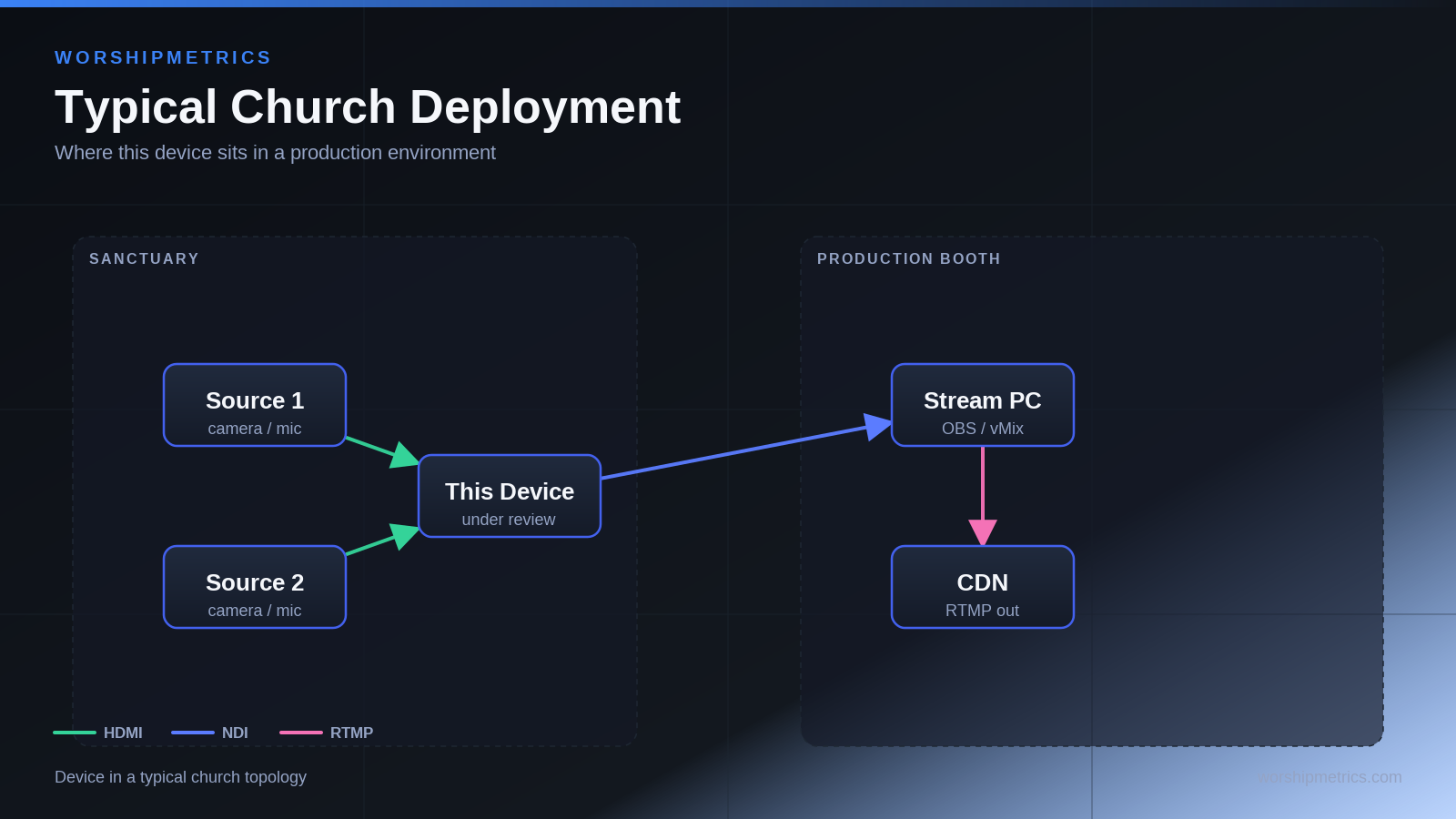
The Kiloview E2 integrates seamlessly into professional workflows. Your video team continues working with familiar professional equipment—professional cameras, professional mixers, professional routing infrastructure. The E2 is simply the bridge that takes that professional signal and feeds it to streaming platforms.
This is valuable because it eliminates the need to convert SDI to HDMI, then capture that HDMI into software. Your professional system’s output goes directly to streaming without conversion loss.
The E2 is an excellent choice for churches that have made significant investments in professional video infrastructure. It allows you to leverage that professional equipment investment for streaming distribution.