
Beyond RTMP streaming to YouTube and Facebook, the Kiloview E1 supports SRT (Secure Reliable Transport), a modern protocol optimized for low-latency, reliable video transport. SRT is particularly valuable for multi-campus churches that want to distribute the main service feed to satellite locations without relying on public streaming platforms. This article explains SRT caller vs listener modes and how to implement each.
Understanding SRT and Its Advantages
SRT is a newer protocol designed specifically for reliable, low-latency video streaming over unpredictable networks. Unlike RTMP (which YouTube and Facebook use), SRT automatically recovers from packet loss, adapts to changing bandwidth conditions, and keeps latency predictable and low.
For churches, SRT enables multi-campus distribution where the main venue streams its feed directly to satellite locations with minimal delay—typically 2-3 seconds instead of YouTube’s 10-30 second inherent delay. This synchronization is crucial for shared worship experiences where music, announcements, and live moments need to feel simultaneous across campuses.
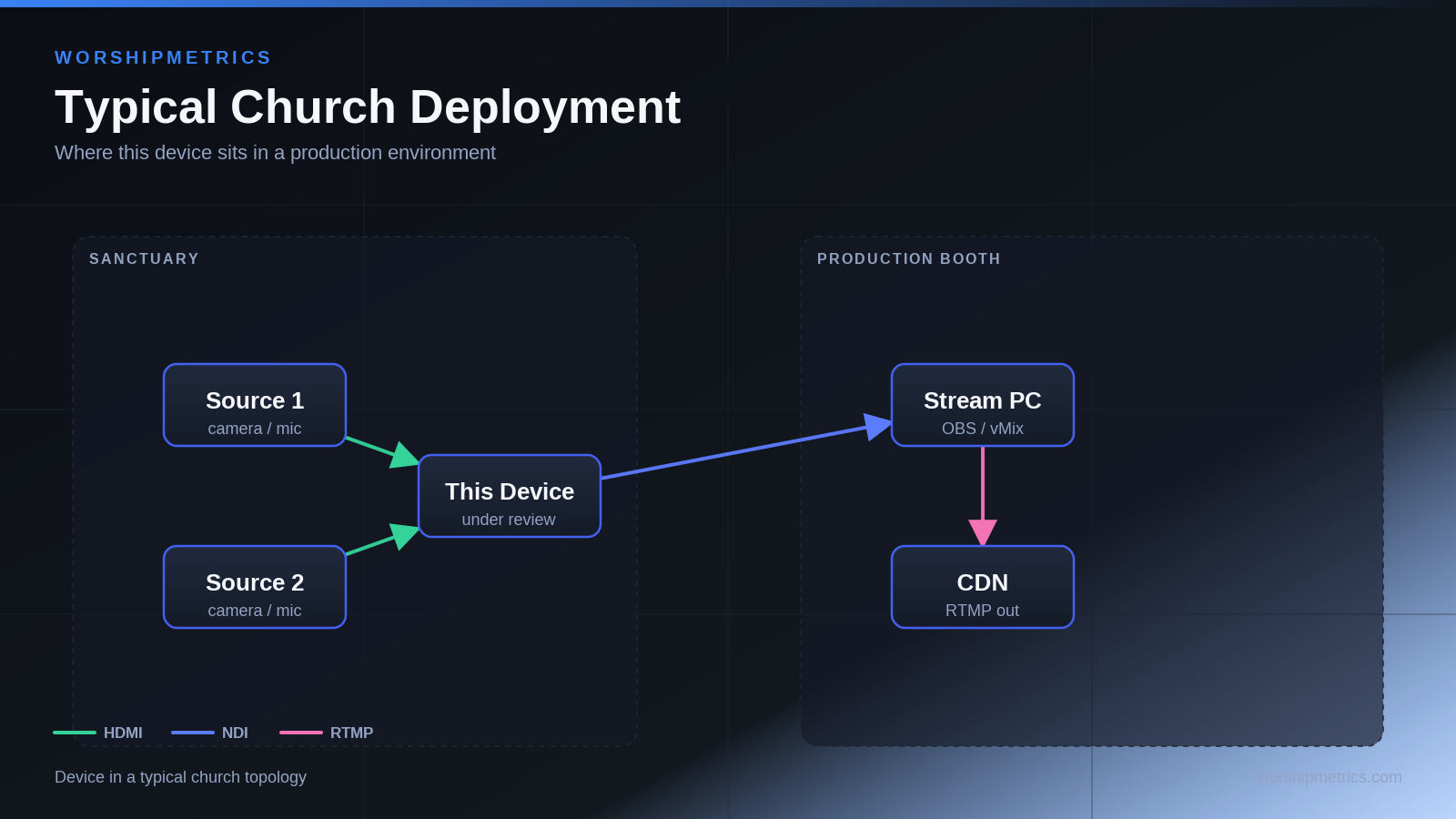
SRT Caller Mode Explained
In caller mode, the Kiloview E1 actively initiates a connection to a known receiver address. The encoder “calls out” to a destination IP address and port, establishing an SRT stream to that location.
Caller mode is appropriate when your satellite campuses have stable, publicly routable IP addresses. You configure the E1 once with “Stream to IP 203.45.67.89 on port 5000” and it connects and begins streaming. If the connection drops temporarily, the E1 automatically reconnects.
The advantage of caller mode is simplicity for the main venue—configure the encoder once and it handles all connection logic. The disadvantage is that satellite locations must have static IP addresses, which can be complex if they’re offices with dynamic IP assignments or if they change locations.
SRT Listener Mode Explained
In listener mode, the Kiloview E1 sits passively and waits for incoming SRT connections. Instead of the encoder pushing to satellites, satellites pull the feed from the main venue. The E1 says “I’m listening on port 5000” and waits for receivers to connect.
Listener mode is more practical for multi-campus churches. Your main encoder stays at headquarters on a known, stable network. Each satellite location’s receiver connects to the main encoder whenever it wants to receive the broadcast. If a satellite goes offline, the encoder simply stops sending to that receiver—no reconfiguration needed at the main venue.
If a satellite location changes networks (moves to a different campus, uses a temporary venue), they simply connect to the same IP and port from their new location. The E1 doesn’t care where the connections come from.
Configuring Listener Mode on the E1
Access the Kiloview E1’s web interface and navigate to Streaming or Destinations. Instead of selecting RTMP, select SRT. Choose Listener mode.
The interface will ask you to specify a listening port—a network address where the E1 waits for incoming connections. Choose an unused port above 1024, such as 5000 or 6000. Document this port number; you’ll need it when configuring receiving stations.
The E1 will also ask about SRT encryption and passphrase protection. Enable these for security. Set a passphrase like “ChurchStream2024”—something your satellite locations will know but outsiders won’t easily guess. Each receiver connecting to your E1 will need this exact passphrase.
Configure the encoding bitrate and codec. For multi-campus SRT distribution, set a fixed bitrate like 5000 kbps. Unlike RTMP to YouTube (where YouTube can handle variable bitrate), SRT requires consistent encoding. This ensures predictable latency and quality.
Connecting OBS as an SRT Source
Many satellite campuses use OBS (Open Broadcaster Software) for their own video production. OBS can receive SRT streams from your main encoder and display them as a video source.
In OBS, add a new source and select Media Source or Custom Protocol Source (depending on your OBS version). In the location field, enter your SRT connection string in this format: srt://[main-encoder-ip]:5000?passphrase=ChurchStream2024
Replace [main-encoder-ip] with the actual IP address of your Kiloview E1 (for example, 192.168.1.50 on your internal network). OBS will connect to your main encoder and display the live feed in the preview.
Test this configuration at a satellite location before relying on it during a live service. Confirm video appears in OBS and that audio is also present (if your original HDMI source includes audio).
Setting Up Caller Mode Alternatively
If you prefer caller mode instead, configure the E1 to actively connect to known receiver locations. You’ll need the IP addresses and ports of each receiving station.
In the E1’s SRT configuration, select Caller mode. Enter the IP address of your first satellite campus receiver and the port it’s listening on. The E1 will attempt to connect.
Configure additional caller destinations for each satellite location. The E1 will simultaneously attempt connections to all configured caller destinations.
The disadvantage is that if a satellite location’s IP address changes (perhaps they move to a different venue), you must manually update the E1’s configuration. Listener mode handles this more gracefully.
Passphrase Security and Management
Your SRT passphrase protects your stream from unauthorized access. Even though you’re distributing internally to known campuses, a passphrase prevents outsiders on your network from accidentally discovering and pulling your main service feed.
Use a strong passphrase—12 characters or more, mixing letters and numbers. Don’t use something trivially guessable like “church” or “12345.”
Distribute the passphrase securely to your satellite locations. Don’t email it in plaintext. Instead, tell it verbally to your satellite tech leads. Update the passphrase every 6-12 months for better security.
Latency Optimization for Multi-Campus
The latency between your main venue and satellite locations depends on network quality and SRT buffer settings. On a LAN (Local Area Network) connecting campuses in the same building or nearby, you can achieve 1-2 second latency with aggressive settings.
On a WAN (Wide Area Network) connecting distant campuses over internet links, set a larger buffer to protect against packet loss. This adds latency—you might see 3-5 seconds delay instead of 1-2 seconds. This is still acceptable for worship contexts.
Test your configuration during a practice run. Measure the actual latency by having someone at the main venue wave to the camera and timing how long it takes to appear at the satellite campus. Document this so you know what to expect during real services.
Multiple SRT Destinations Simultaneously
The Kiloview E1 can support multiple SRT receivers simultaneously in listener mode. If you have three satellite campuses, all three can connect to the E1 at the same time and receive the feed. The E1’s bandwidth consumption is determined by your configured bitrate and the number of connected receivers, but modern network infrastructure handles this easily.
If you’re worried about network capacity, calculate actual bandwidth usage. If you stream at 5000 kbps to three receivers, you’re using approximately 15 mbps of bandwidth. Most church networks can sustain this comfortably.
Redundancy and Failover
If your main E1 encoder fails during a service, satellite campuses lose the SRT feed. For critical services, some churches keep a second E1 as a cold spare. If the primary fails, quickly connect the backup to the same HDMI input and reconfigure its SRT settings.
Alternatively, configure satellite campuses with fallback locations. If SRT fails, they can quickly switch to receiving from YouTube (with its inherent delay) as a backup for the remainder of the service.
Troubleshooting SRT Connections
If your OBS receiver can’t connect to your E1, verify that both are on the same network (or can reach each other across your network). Firewalls might block SRT connections on certain ports—coordinate with your IT team to ensure port 5000 (or whichever port you’re using) isn’t blocked.
Test the connection locally first. Configure a receiver on your main venue’s network before relying on remote satellite campuses.
If latency is higher than expected, your network path might be congested or have high packet loss. Contact your IT team to investigate network quality. Increasing the SRT buffer in your E1’s configuration can help stability but will increase latency further.
The Kiloview E1’s SRT support provides excellent multi-campus distribution capability at a budget price point. With proper configuration and testing, you can reliably distribute your main service feed to satellite locations with minimal latency and no reliance on public streaming platforms.