You’re 15 minutes into the service and YouTube suddenly shows “Stream Offline.” Viewers are trying to refresh and they see nothing. You’ve got maybe 30–60 seconds to get it back before people give up watching. Here’s the fastest way to recover.
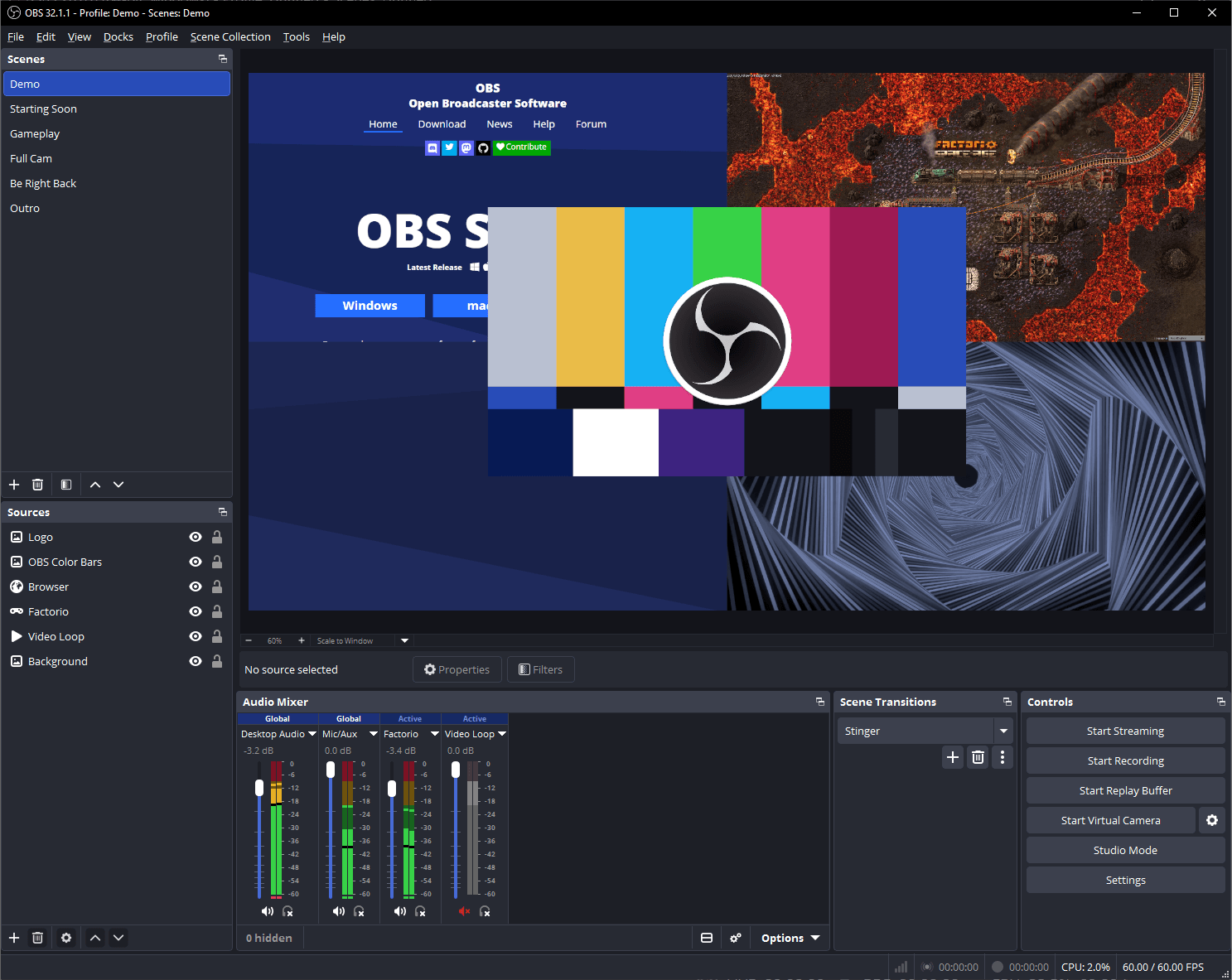
Immediate Recovery: Restart the Stream in OBS
The fastest fix is usually just restarting:
- In OBS, click Stop Streaming
- Wait 5 seconds (let the connection fully close)
- Click Start Streaming again
- Watch the OBS status bar — it should say “Streaming” within 10 seconds
- Check YouTube: the stream should be back online (may take another 5–10 seconds to be visible)
This works 80% of the time. If the stream is back within 15 seconds, viewers may not even notice the brief outage.
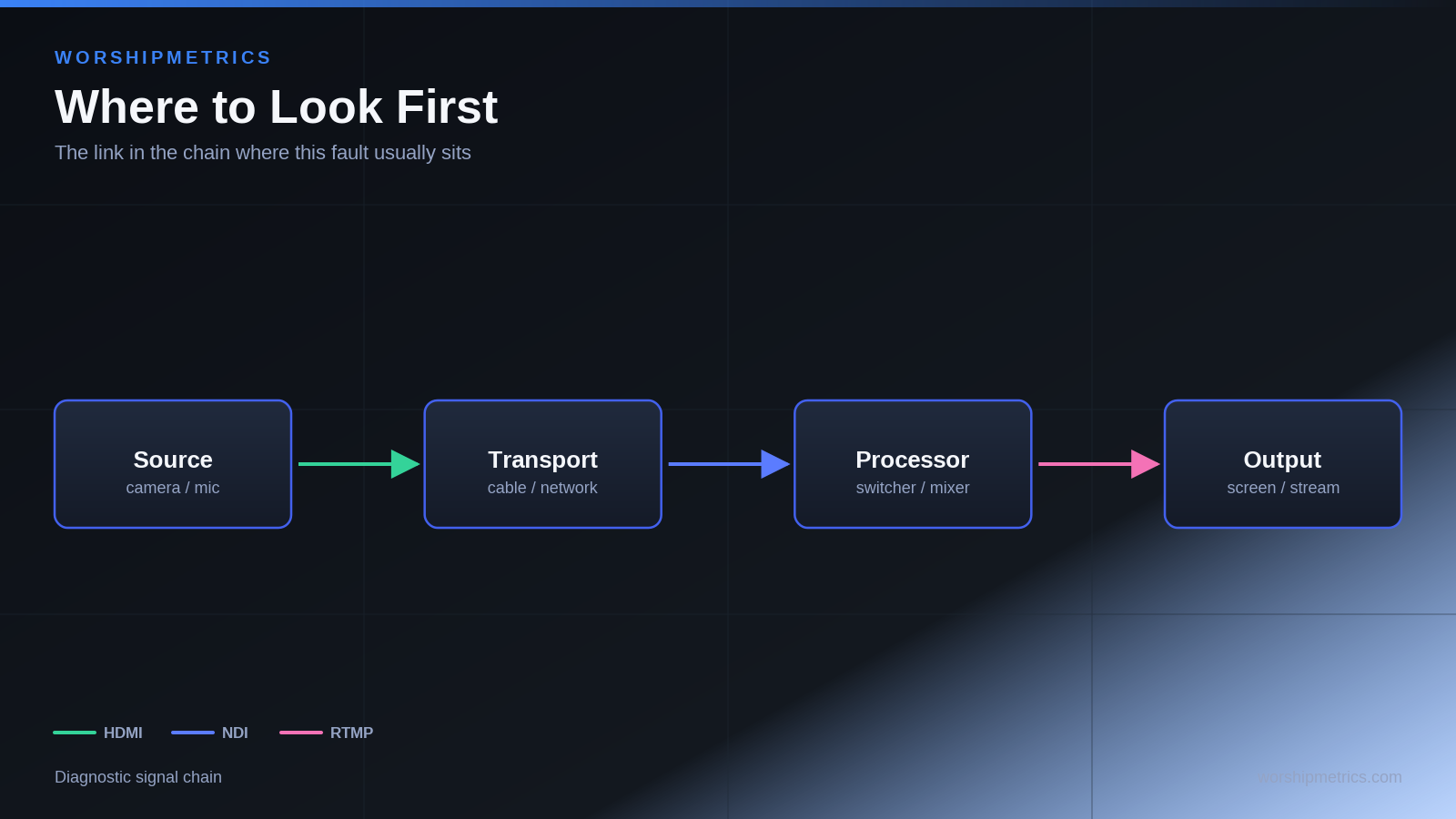
If Simple Restart Doesn’t Work: Check the Network
If the restart didn’t reconnect:
- Open a browser and navigate to youtube.com or a simple website like google.com
- Does the page load? If not, your internet connection is down
- If internet is down, there’s nothing OBS can do — you’re stuck until connection returns
- If internet works, continue to the next step
Verify Your Stream Key Is Still Valid
YouTube stream keys can expire if the stream has been online for very long or if there’s an issue:
- Go to YouTube Studio on a different device (phone, tablet, or second PC)
- Click Go Live or find the active stream
- Look for the RTMP URL and Stream Key (usually under “Set Up Encoder”)
- In OBS, go Settings > Stream
- Compare your OBS stream key to the one in YouTube Studio
- If they don’t match, copy the new one from YouTube Studio into OBS
- Restart the stream in OBS
Why this happens: YouTube’s stream key sometimes changes, especially if the stream has been running for several hours.
Check for Bitrate or Technical Errors
YouTube shows specific error messages on the live stream page:
- Go to YouTube Studio
- Click Analytics or Stream Health
- Look for any red warnings about bitrate, upload speed, or encoding errors
- If there’s a bitrate spike, your upload speed can’t keep up:
- Stop the stream
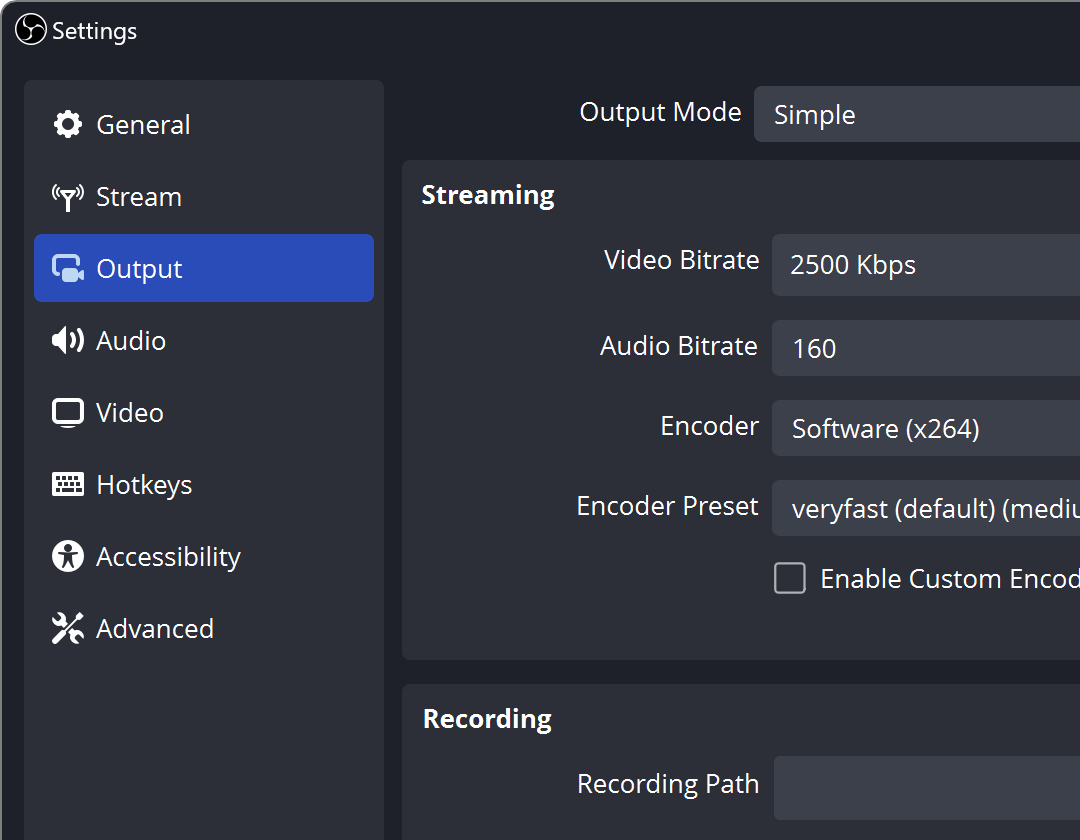
- In OBS, lower the bitrate (Settings > Output > Streaming > Bitrate)
- Restart the stream with lower bitrate
Common Reasons YouTube Disconnects
Bitrate too high for your upload:
- Your PC is trying to send more data than your internet can handle
- YouTube will disconnect after 30–60 seconds of unmanageable bitrate
- Solution: Reduce bitrate in OBS and restart
Stream has been running too long:
- YouTube can occasionally drop streams that run for many hours
- Solution: Stop and restart the stream (which you’ve already done)
Encoder software crashed:
- OBS or your hardware encoder may have crashed silently
- Check if OBS is still running and the status shows “Streaming”
- If OBS crashed, restart it and go live again
Network connectivity issue:
- Brief internet hiccup caused the disconnect
- Usually recovers within a minute if you just restart
Prevent Mid-Stream Outages: Use Auto-Reconnect
OBS has an automatic reconnection feature:
- In OBS, go Settings > Output > Streaming
- Look for Auto-Reconnect checkbox
- Enable it
- Set Reconnect Timeout to 10 seconds
- Set Retry Delay to 2 seconds
- Max Reconnect Attempts to 20 (or higher)
This makes OBS automatically restart the stream if it drops, without you needing to click anything.
Pre-Stage a Backup Stream Key
For critical services (holidays, special events), have a backup:
- In YouTube Studio, you can have multiple stream keys
- Generate a second stream key and save it somewhere
- Before the service, have the backup key written down or copied
- If the main stream fails and won’t reconnect, quickly switch to the backup key in OBS and restart
This is overkill for most services, but useful for high-stakes streams.
Monitor Stream Health During Service
During the live stream, periodically check:
- In OBS: Watch the status bar for frame drops or connection indicators
- On YouTube Studio: Check Stream Health for any warnings (bitrate spikes, encoding errors)
- On the stream itself: Every few minutes, refresh the YouTube Live page as a viewer would. Does it play smoothly?
If you catch a problem early, you can fix it before it causes an outage.
If YouTube Continues Failing
If the stream keeps disconnecting and won’t stay live:
- Lower your bitrate significantly (try 2500 kbps instead of 5000 kbps)
- Reduce resolution to 720p instead of 1080p
- Close all background programs on your streaming PC
- Check your internet upload speed with a speed test
- If upload is under 3 Mbps, it’s too low for reliable streaming — contact your ISP or switch to mobile hotspot
What Viewers See
During a mid-stream outage:
- YouTube shows “Stream Offline”
- Viewers can see the chat and previous stream info, but can’t watch
- When you restart, it may take 10–30 seconds for the video to reappear
- Most viewers will refresh once and try again; if you’re down longer than 30 seconds, many will give up
That’s why speed is critical — get back online in under 30 seconds if possible.
Recovery checklist:
- Stop and restart stream (takes 10 seconds)
- Check internet connection (load a website)
- Verify stream key matches YouTube Studio
- Check for YouTube Stream Health warnings
- If bitrate spike, lower bitrate and restart
- Enable Auto-Reconnect in OBS for next time