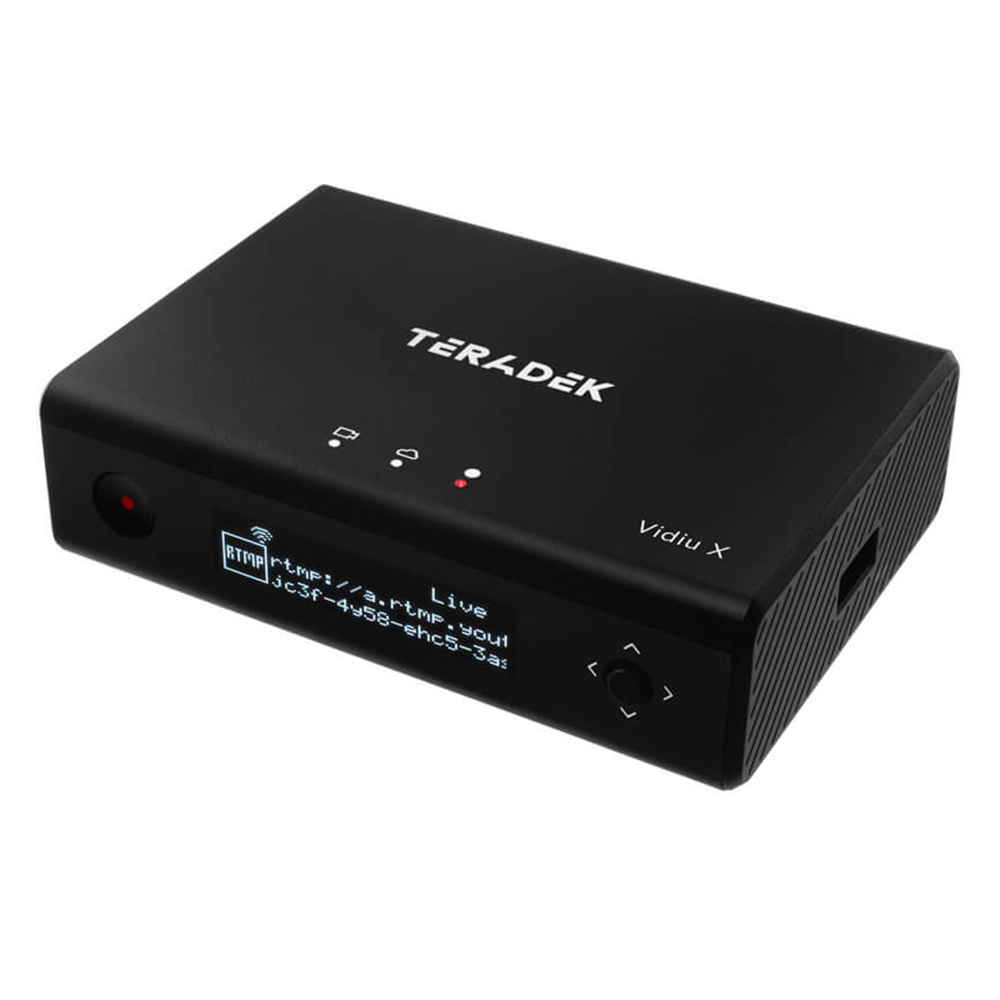
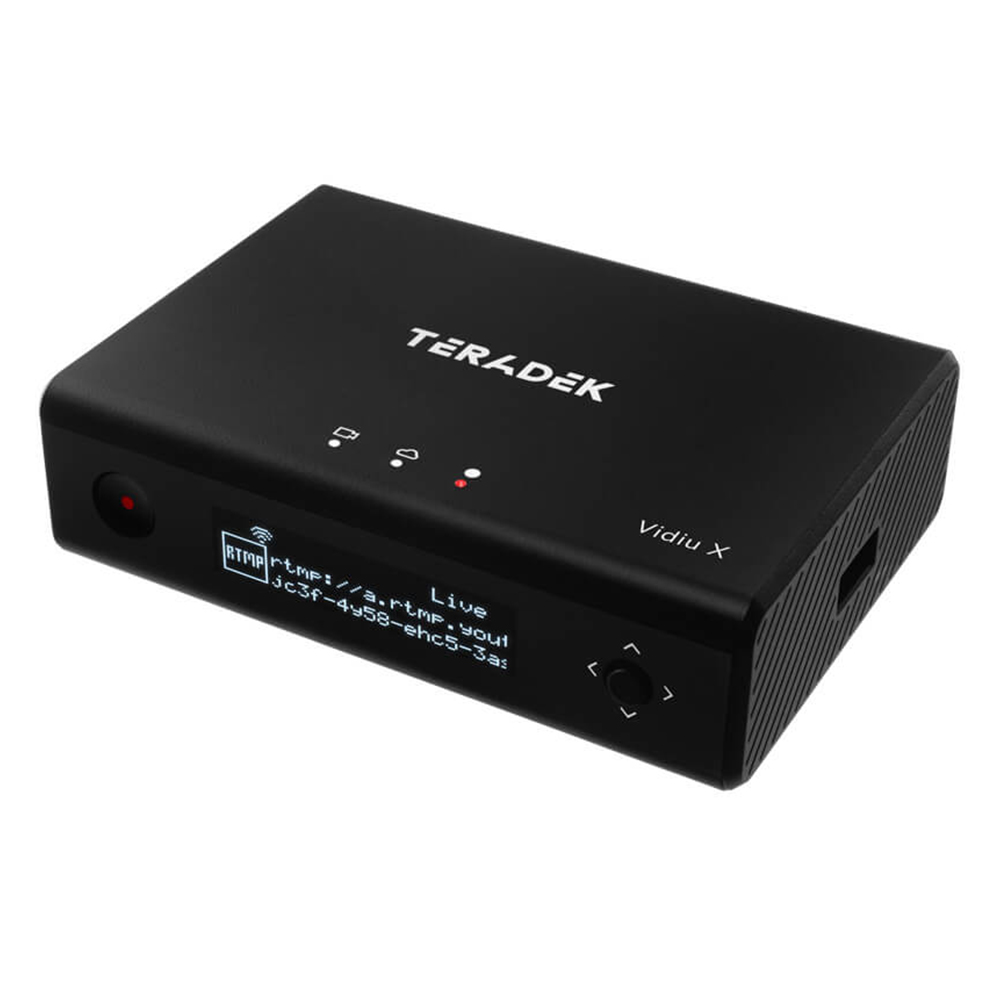
Your Teradek VidiU X encoder is configured and powered, but it won’t connect to YouTube or your streaming platform. The web interface shows “Failed” or “Error” status. This is usually an RTMP configuration issue, network problem, or bitrate exceeding upload speed.
Step 1: Verify Network Connectivity

First, ensure the Teradek has internet access:
- Connect the Teradek to your network via Ethernet (Wi-Fi on VidiU X is unreliable for streaming)
- In the Teradek’s web interface (access the IP on your network), check the Network Status
- Verify it shows Connected or Online
- If it shows offline, the network cable is loose or the port is inactive
- Try a different switch port or network cable
If the Teradek isn’t online, it can’t stream.
Step 2: Access the Teradek Web Interface
- Determine the Teradek’s IP address (check router DHCP clients or use Teradek discovery tool)
- Open a web browser and go to
http://[IP_ADDRESS] - Log in (default credentials: check Teradek manual, often
admin/admin) - Navigate to Streaming or Output Settings
If you can’t access the web UI, the Teradek isn’t online (see step 1).
Step 3: Verify RTMP Server URL
Check that the RTMP URL is in the correct format:
For YouTube:
rtmp://a.rtmp.youtube.com/live2/(or the RTMPS URL from YouTube Live Control Room, which has rtmps in the server name and uses port 443)
For Facebook:
rtmps://live-api-s.facebook.com:443/rtmp/
For generic RTMP:
rtmp://server.com:1935/live/orrtmps://server.com:443/rtmp/
- In the Teradek web UI, check the RTMP Server URL
- If it looks wrong (has typos, missing protocol, etc.), correct it
- Save settings
- Try connecting again
Step 4: Verify Stream Key
The stream key must be complete and correct:
- Go to YouTube/Facebook and copy a fresh stream key (regenerate if necessary)
- In Teradek settings, paste the stream key
- Make sure there are no spaces before or after the key
- Use Notepad as a buffer to avoid hidden characters (copy → paste into Notepad → copy from Notepad → paste into Teradek)
- Save settings
Step 5: Check Bitrate vs Upload Speed
If Teradek connects but immediately drops:
- On your streaming network, run a speed test to measure upload speed
- In Teradek settings, check the Bitrate (usually in the Output section)
- Your upload should be 1.5x the bitrate:
- 4000 kbps bitrate → need 6 Mbps upload
- 8000 kbps bitrate → need 12 Mbps upload
- If upload is insufficient, lower the bitrate:
- Set to 2500–3000 kbps if upload is 4–5 Mbps
- Set to 5000 kbps if upload is 7–8 Mbps
- Save and try streaming
Step 6: Verify HDMI Input Signal
Teradek needs video input to encode:
- Connect your camera/switcher to Teradek’s HDMI input
- In Teradek’s web UI, check Input Status or Video Input
- It should show the resolution and frame rate (e.g., “1080p 30fps”)
- If it shows “No Signal,” the HDMI cable is loose or the source is off
- Verify the source device is powered on and outputting HDMI
Step 7: Test RTMP Connection
Some encoders have a “Test Connection” feature:
- In Teradek settings, look for Test Connection or Verify Settings
- Click it to attempt a connection to your RTMP server
- If successful, you’ll see a confirmation
- If failed, the error message will help diagnose (auth error, server not found, etc.)
Step 8: Check Firewall Blocking RTMP
Firewall may be blocking the Teradek’s connection:
- Temporarily disable your network firewall (if you have a hardware firewall)
- Try streaming from the Teradek
- If it works with firewall off, add an exception:
- Allow RTMP port (1935 for rtmp, 443 for rtmps)
- Allow Teradek IP to send outbound traffic
Step 9: Restart the Teradek
Power cycle the encoder:
- Power off the Teradek
- Wait 30 seconds
- Power it back on
- Wait for full boot
- Try streaming again
A restart sometimes clears stuck connections or memory issues.
Step 10: Update Teradek Firmware
Outdated firmware can cause connectivity issues:
- Go to Teradek’s support website
- Download the latest firmware for VidiU X
- In the Teradek web UI, go to Settings > System > Firmware Update
- Upload the firmware file
- Wait for update to complete (usually 2–5 minutes)
- The Teradek will restart
- Try streaming again
Step 11: Check for Specific Error Codes
If the Teradek shows an error code in the web UI:
| Error | Cause | Solution |
|---|---|---|
| 401 | Unauthorized | Stream key wrong or expired |
| 403 | Forbidden | Stream key invalid for this account |
| Connection timeout | Can’t reach server | RTMP URL wrong or firewall blocking |
| No network | Ethernet offline | Check network connection |
Reference your error code and apply the appropriate fix.
Teradek VidiU X troubleshooting checklist:
- Teradek connected via Ethernet (not Wi-Fi)
- Web interface shows Online/Connected status
- RTMP server URL format correct (rtmps://, includes port if needed)
- Stream key complete and correct (no spaces)
- HDMI input shows video signal
- Bitrate appropriate for upload speed (1.5x rule)
- Test Connection passes (if available)
- Firewall allows RTMP port (1935 or 443)
- Teradek restarted after configuration changes
- Latest firmware installed