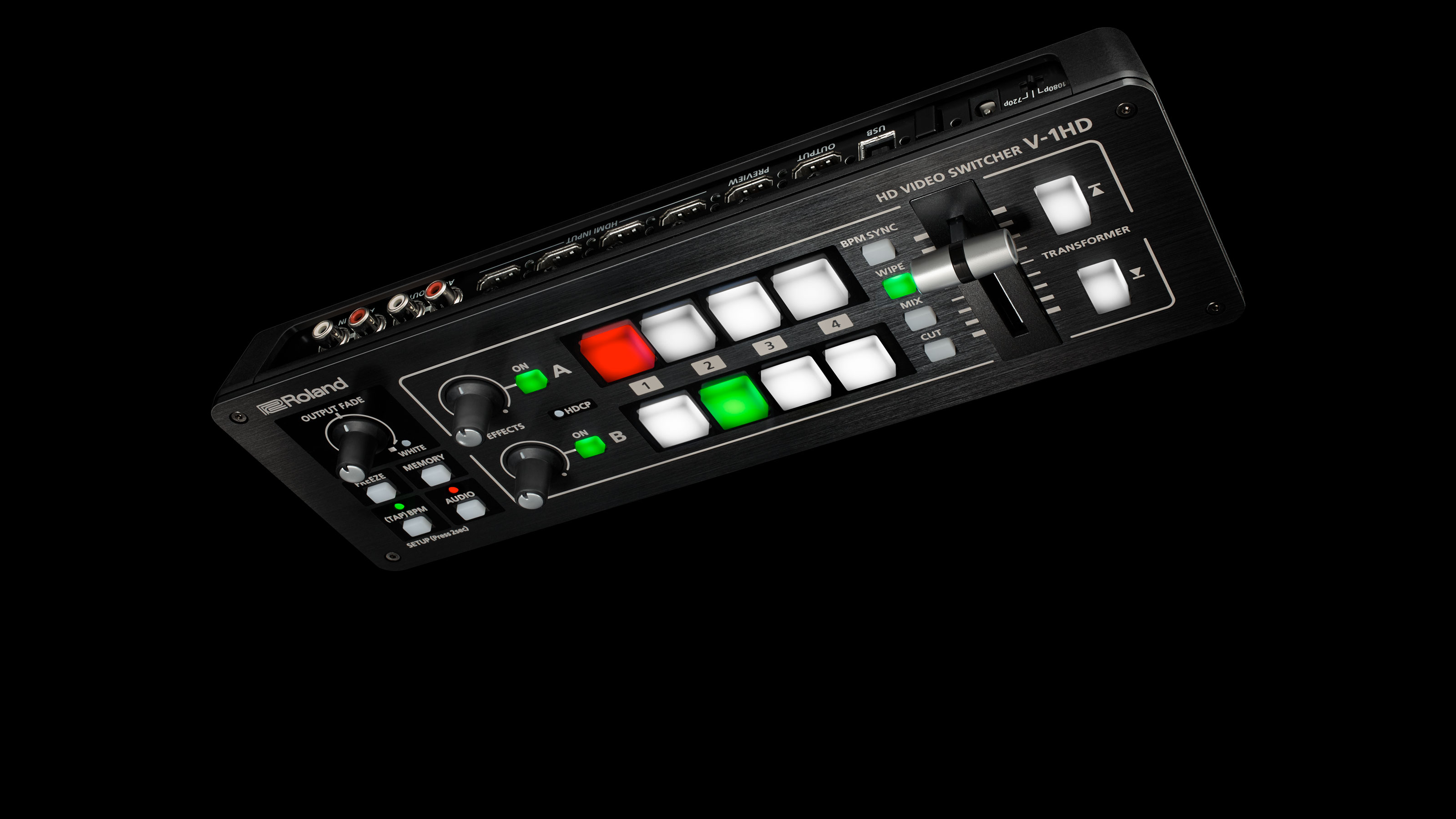
Your Roland V-1HD switcher is powered on with video inputs connected, but the HDMI output shows nothing but black. The switcher seems to be working, but the output to your projector or recorder is dead. This is usually a simple routing or input selection issue.
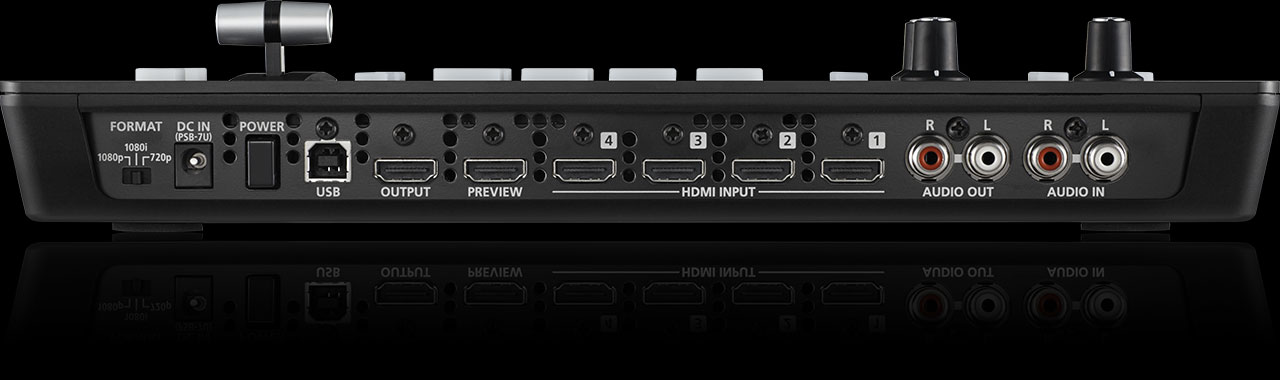
Step 1: Verify the HDMI Output Cable
First, check the physical connection:
- Look at the Roland’s HDMI Output port on the back
- Is the HDMI cable firmly plugged in? Push it in to make sure it’s fully seated
- Try a different HDMI cable if you have one (the current cable may be bad)
- Check the receiving device (projector, monitor, capture card) — is it powered on and set to the correct HDMI input?
- If using a projector, press Input or Source button and select the HDMI port the Roland is connected to
If the output works with a different cable, the original cable was the problem.
Step 2: Select an Input Channel
The Roland may have no input selected:
- On the Roland’s touch screen or control panel, look for Input Selection
- Select one of the video inputs (usually labeled HDMI 1, HDMI 2, Video In, etc.)
- Ensure that input has a video signal connected (camera, laptop, etc.)
- The output should now show that input’s video
If no input is selected, the output has nothing to display.
Step 3: Check Input Settings
Verify the selected input is actually receiving a video signal:
- On the Roland, select each input and watch the output
- Does any input show video on the output?
- If yes, that input is working — the other inputs may have problems (bad cables, powered-off source)
- If no input shows video, continue to step 4
Step 4: Verify HDCP Handshake
HDCP (copy protection) can sometimes fail:
- Try disabling HDCP on the source device (camera, laptop, etc.) if possible
- Or disable HDCP on the Roland (check the menu for HDCP settings)
- This sometimes resolves black screen issues
If the output immediately shows video after disabling HDCP, that was the problem.
Step 5: Check Output Resolution Mismatch
The Roland may be outputting a resolution the receiving device can’t display:
- On the Roland, look for Output Settings or Video Setup
- Check the Output Resolution (e.g., 1080p, 720p)
- Try a different resolution to see if the output works
- If a lower resolution works, set it to that and adjust if needed
Mismatched resolutions can cause black screens.
Step 6: Restart the Roland
Power cycle the switcher:
- Power off the Roland
- Wait 30 seconds
- Power it back on
- Wait for full boot (control panel should respond)
- Select an input — the output should show video
A restart often clears stuck configurations.
Step 7: Reset to Factory Defaults
If nothing works, reset the Roland:
- On the Roland, access Menu > System Settings
- Look for Initialize or Factory Reset
- Confirm the reset — this erases all custom settings
- Wait for the Roland to restart
- Power it off and back on
- Connect inputs and select one — output should show video
This is a last resort, but it clears any corrupted settings.
Step 8: Check for Firmware Updates
Outdated firmware can cause video issues:
- Visit roland.com/support
- Download the latest firmware for your V-1HD
- Follow Roland’s firmware update instructions (usually involves USB or SD card)
- Restart the Roland
- Test video output
Roland V-1HD troubleshooting checklist:
- HDMI output cable firmly connected
- Receiving device (projector, monitor) powered on and on correct HDMI input
- Input selected on Roland (not blank)
- Selected input has video source connected
- HDCP not causing handshake failure
- Output resolution compatible with receiving device
- Roland restarted
- Latest firmware installed