You’re streaming to YouTube and it’s working fine, but Facebook keeps dropping or won’t connect. Or the opposite — Facebook is solid but YouTube fails. When one platform works and the other doesn’t, it’s usually an RTMP server issue, bandwidth problem, or one of your stream keys is wrong. Let’s get both working simultaneously.
Step 1: Verify Both Stream Keys Are Valid
If one platform is failing, the stream key might be expired or wrong:
For YouTube:
- Go to YouTube Studio
- Click Create > Go Live (or Go Live > Stream Settings)
- Find your RTMP Server URL and Stream Key
- Verify they’re current (YouTube regenerates keys periodically)
- Copy the Stream Key and verify it’s very long (30+ characters)
For Facebook:
- Go to your Facebook page
- Click Video > Stream to a Destination or Settings > Live Video
- Find Stream Key and RTMP URL
- Verify these are current and not expired
- Confirm the key is very long (30+ characters)
If either key looks old or short, regenerate a fresh one from the platform.
Step 2: Check Your Upload Bandwidth
Streaming to two platforms simultaneously requires double the bandwidth:
- Do a speed test at speedtest.net
- Note your upload speed (e.g., 10 Mbps)
- Calculate available bandwidth:
- YouTube typical: 3000–5000 kbps per stream
- Facebook typical: 2500–4000 kbps per stream
- If streaming both: 5500–9000 kbps combined
- Your upload should be 1.5x your total bitrate (headroom)
- For 2 simultaneous streams at ~4000 kbps each (8000 total), you need at least 12 Mbps upload
If your upload is only 5 Mbps and you’re trying to send 8 Mbps total, one or both platforms will fail.
Solution: Reduce each platform’s bitrate:
- Instead of 4000 kbps each, try 2500 kbps each (5000 kbps total)
- Test and see which platforms can handle it
Step 3: Use OBS’s Multi-Output Method
OBS can stream to two destinations in advanced configurations:
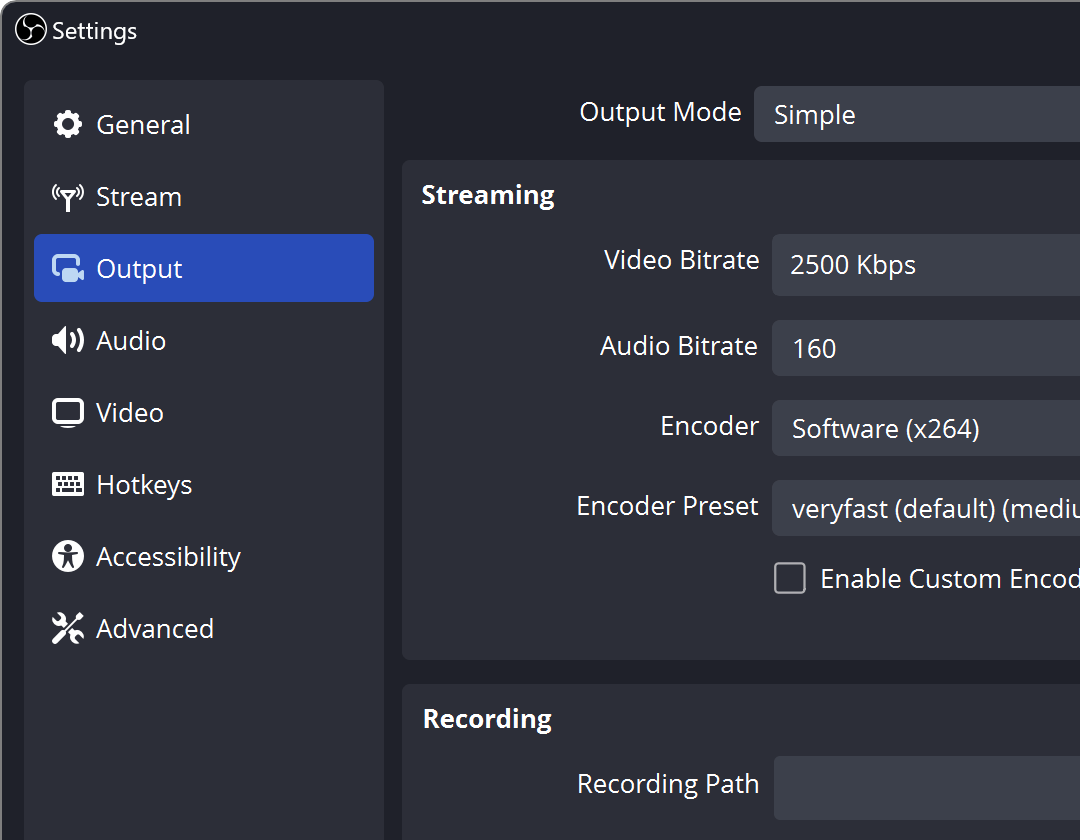
- In OBS, go Settings > Output > Streaming
- Set your Encoder (e.g., H.264)
- Set your Bitrate to half of what each platform would normally get
- Instead of 4000 kbps, use 2000 kbps per platform
- Total: 4000 kbps upload
- However, OBS typically only allows one service at a time from the dropdown
Better method: Use OBS’s Custom Server option with a third-party service (see Restream section below).
Step 4: Try Switching RTMP Servers
Some platforms have multiple RTMP servers. If YouTube is working but Facebook isn’t, try a different Facebook RTMP server:
Facebook RTMP endpoints:
- Primary:
rtmps://live-api-s.facebook.com:443/rtmp/ - Backup:
rtmps://live-api-e.facebook.com:443/rtmp/(east coast) - Try the backup if the primary is failing
YouTube RTMP endpoints:
- Primary:
rtmp://a.rtmp.youtube.com/live2/ - Backup: the Backup server URL shown in YouTube Live Control Room
- Try the backup if primary is failing
In OBS:
- Go Settings > Stream
- If using Custom, change the RTMP URL to the backup server
- Try streaming
Step 5: Check Platform-Specific RTMP Requirements
Some platforms have specific requirements:
YouTube requires:
- RTMPS (secure, port 443)
- Valid stream key format
Facebook requires:
- RTMPS (secure, port 443)
- Specific RTMP endpoint for your region
If you’re using the wrong port or non-secure RTMP (regular RTMP instead of RTMPS), it will fail. Ensure you’re using rtmps:// not rtmp:// for both.
Step 6: Test Each Platform Separately First
Before trying to stream to both simultaneously:
- Stop streaming to both
- Create a test stream to YouTube only:
- In OBS, set Service to YouTube
- Paste YouTube stream key
- Click Start Streaming and verify it works
- Stop streaming
- Now test Facebook only:
- Change Service to Facebook Live
- Paste Facebook stream key
- Click Start Streaming and verify it works
- Stop streaming
If both work individually, the issue is bandwidth or one-at-a-time limitation.
Better Solution: Use Restream
OBS doesn’t natively support simultaneous multi-platform streaming. Restream.io solves this:
What Restream does:
- You stream once to Restream (single RTMP connection)
- Restream re-broadcasts to YouTube, Facebook, Twitch, and dozens of other platforms
- No bandwidth multiplication — you only send data once
- More reliable than trying to stream directly to multiple platforms
Setup:
- Go to restream.io and create a free account
- Log in and go to My Account > Stream Settings
- You’ll see a Restream RTMP URL and Stream Key
- In OBS:
- Set Service to Custom
- Paste Restream’s RTMP URL and Stream Key
- In Restream dashboard, select which platforms to broadcast to (YouTube, Facebook, etc.)
- When you stream from OBS to Restream, it automatically forwards to all selected platforms
Advantages:
- Single stream upload (not double bandwidth)
- More reliable than managing multiple RTMP connections
- Restream handles re-encoding and optimization for each platform
- Can add multiple platforms (Twitch, LinkedIn, etc.) without reconfiguring OBS
Cost: Free tier available (with Restream watermark); paid tiers remove watermark.
Step 7: Monitor Both Streams
When streaming to multiple platforms:
- Open YouTube Studio in one browser window
- Open Facebook in another
- During the stream, periodically check both:
- YouTube: does the live video show? any health warnings?
- Facebook: is the video live? are viewers connecting?
- If one drops, stop OBS and investigate before restarting
Troubleshoot: One Platform Keeps Disconnecting
If Facebook works fine for 5 minutes then drops, but YouTube stays up:
- Check bitrate balance: Lower Facebook’s bitrate slightly (they may have stricter limits)
- Check for firewall: Facebook RTMP may be blocked on your network (rare, but possible) — contact IT to whitelist the Facebook RTMP endpoint
- Try different Facebook RTMP server (see step 4 above)
- Use Restream instead: Restream handles platform-specific quirks better than direct RTMP
Pre-Service Checklist
Before Sunday with multi-platform streaming:
- Both stream keys are current and valid
- Upload speed is at least 1.5x your total planned bitrate
- Each platform works individually (tested)
- Bitrate for each platform is reasonable (2500–4000 kbps each)
- Using RTMPS (not RTMP)
- RTMP server URLs are correct
- Did a 5–10 minute test stream to both platforms simultaneously
- Both platforms were live and stable during test
Multistream setup options:
- Direct OBS to multiple platforms: Requires more upload bandwidth, OBS can’t split to two at once natively
- Use Restream: Single OBS stream, Restream handles distribution (recommended for reliability)
- Use paid services: Wirecast, vMix have built-in multi-platform streaming (more complex setup)