Your Magewell encoder is configured with an RTMP server and stream key, but the stream won’t go live. The web UI shows “Stopped” or “Error,” or it connects briefly then drops. This is usually an RTMP URL format issue, bitrate exceeding upload speed, or a misconfigured stream key. Let’s get it streaming.
Step 1: Access the Magewell Web Interface
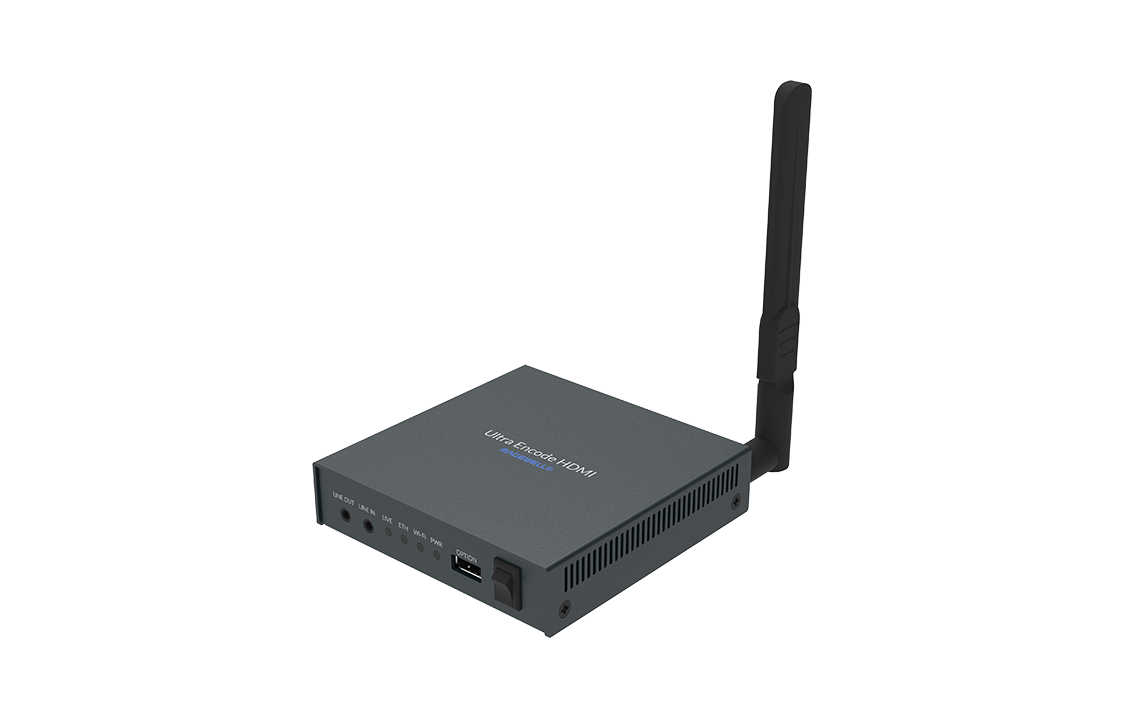
First, verify you can reach the encoder:
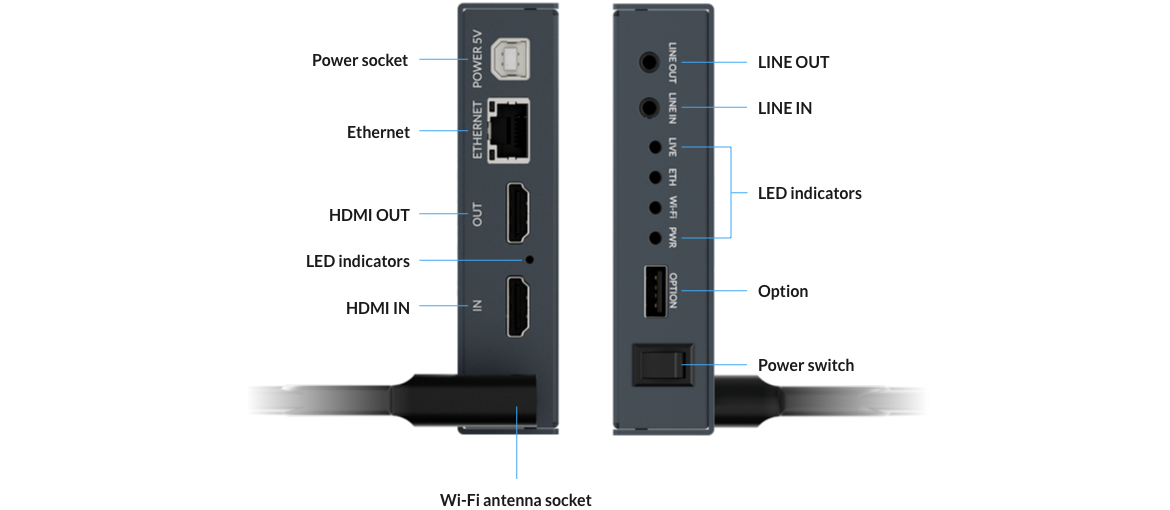
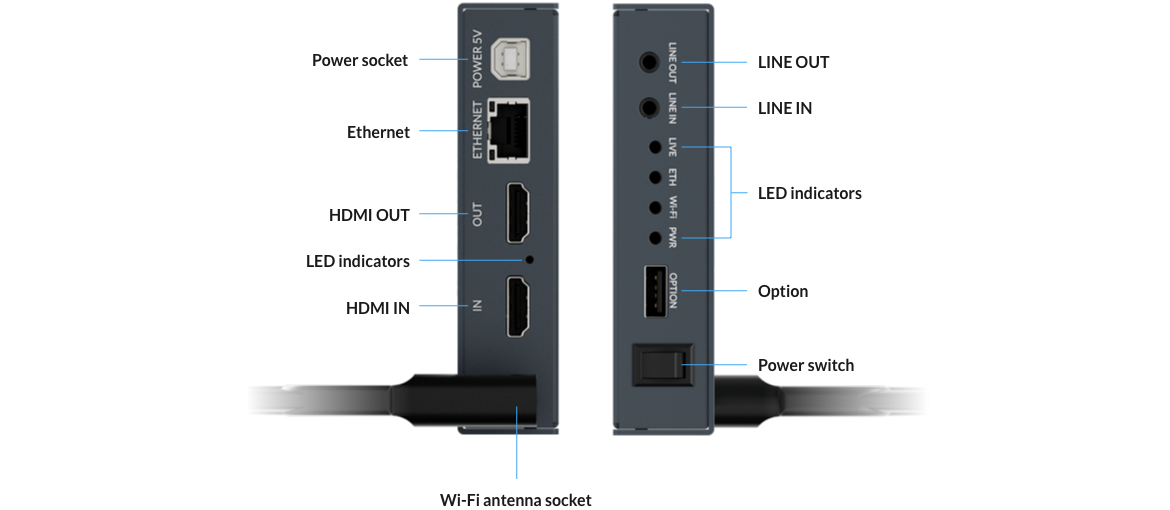
- Connect the Magewell to your network (Ethernet cable)
- On your PC, open a web browser
- If you know the Magewell’s IP address, go to
http://[IP](e.g.,http://192.168.1.50) - If you don’t know the IP, use the Magewell Discovery Tool or check your router’s DHCP clients
- Log in (default username/password: usually
admin/123456or blank — check manual)
If the web UI loads, you can access the encoder. If not, verify the Ethernet connection and IP address.
Step 2: Verify RTMP URL Format
The most common error is incorrect RTMP URL format:
- In the Magewell web UI, go to Output Settings or Streaming Configuration
- Check the RTMP Server URL
- It should be in one of these formats:
For YouTube:
rtmp://a.rtmp.youtube.com/live2/(the default YouTube shows)- For encrypted RTMPS, copy the RTMPS URL from YouTube Live Control Room: its server name contains rtmps and it uses port 443
For Facebook:
rtmps://live-api-s.facebook.com:443/rtmp/- Note: rtmps and includes :443 port
For a generic RTMP server:
rtmp://server.com:1935/live/
Common mistakes:
- Using
http://instead ofrtmp:// - Missing the trailing
/ - Not using
rtmpsfor Facebook - Forgetting the port (
:443for Facebook,:1935for generic RTMP)
- If your URL looks wrong, correct it and save
Step 3: Verify the Stream Key
Check that your stream key is correct and complete:
- In the Magewell web UI, look for Stream Key or Stream Name
- Verify it’s the complete, correct key from YouTube/Facebook (very long, 30+ characters)
- Check for hidden spaces before or after the key
- Paste the key fresh from YouTube or Facebook (avoid copy-paste errors)
Tip: Use Notepad as a buffer to avoid hidden characters (copy from YouTube → paste into Notepad → copy from Notepad → paste into Magewell).
Step 4: Check Bitrate vs Upload Speed
If the encoder connects but drops immediately, bitrate might exceed your upload speed:
- In the Magewell web UI, check the Bitrate setting (usually under Output Settings)
- Run a speed test on your streaming network to measure upload speed
- Your upload should be 1.5x your streaming bitrate:
- Bitrate 4000 kbps → need 6 Mbps upload
- Bitrate 8000 kbps → need 12 Mbps upload
- If upload is insufficient, lower the encoder’s bitrate:
- Set to 2500–3000 kbps if upload is 4–5 Mbps
- Set to 5000 kbps if upload is 7–8 Mbps
- Save and try streaming again
Step 5: Check Output Resolution
High resolution with high bitrate can overload your upload:
- In the Magewell web UI, verify the Output Resolution
- If it’s 1080p and bitrate is high, try reducing to 720p
- 720p with 2500–3000 kbps looks good and uses less bandwidth
- Save and test streaming
Step 6: Verify Audio and Video Inputs
Ensure the encoder is receiving video from your camera/switcher:
- In the Magewell web UI, check the Input section
- Verify the HDMI or SDI input shows a valid signal (should show video resolution, e.g., “1080p 30fps”)
- If no signal is detected, the encoder has no video to send
- Solution: Check your HDMI/SDI cable and camera/switcher connection
Step 7: Check for Stream Authentication Errors
The web UI may show an error code when you try to stream. Common ones:
| Error | Meaning | Solution |
|---|---|---|
| 401 Unauthorized | Stream key wrong | Verify key matches YouTube/Facebook |
| 403 Forbidden | Stream key expired or inactive | Regenerate stream key on platform |
| 404 Not Found | RTMP server URL incorrect | Verify URL format, check for typos |
| Connection refused | Can’t reach RTMP server | Check firewall, verify internet connectivity |
Check the Magewell’s Status or Event Log for error codes and cross-reference with the table above.
Step 8: Manually Test RTMP Connection
Some Magewell encoders have a “Test Connection” button:
- In the web UI, set up your RTMP server and stream key
- Click Test Connection (or similar button — may be labeled differently)
- The encoder will attempt to connect to YouTube/Facebook
- If successful, you should see “Connected” message
- If it fails, the error message will tell you why (auth error, server not found, etc.)
This helps isolate RTMP configuration issues before you try to stream.
Step 9: Check Firewall Blocking RTMP
Your network firewall may block RTMP connections:
- Verify the Magewell can reach the internet:
- Ping a public server (e.g.,
ping 8.8.8.8from the Magewell’s subnet) - If the ping times out, the encoder has no internet access
- Ping a public server (e.g.,
- If firewall is blocking:
- Disable temporarily to test
- If streaming works with firewall off, whitelist RTMP ports (typically 1935 or 443)
- Contact your IT staff if using a business firewall
Step 10: Restart the Encoder
Sometimes the encoder gets stuck:
- In the Magewell web UI, look for a Restart button (under Maintenance or System)
- Or power cycle: unplug the encoder for 30 seconds, plug back in
- Wait for full boot (status lights stable)
- Try streaming again
Step 11: Update Encoder Firmware
Outdated firmware can cause streaming issues:
- Go to Magewell’s support website
- Download the latest firmware for your encoder model
- In the web UI, go to Maintenance > Firmware Upgrade
- Upload the firmware file
- Wait for update to complete and automatic restart
- Try streaming again
Test Before the Service
Before going live:
- Configure RTMP settings in the Magewell
- Click Start Stream or Go Live
- Wait 10–15 seconds for the stream to connect
- Check YouTube/Facebook to verify it’s live
- If it appears online, let it stream for 5–10 minutes to verify stability
- Stop the stream
- If stable, you’re ready for the service
Magewell encoder troubleshooting checklist:
- Can access web UI (knows encoder IP)
- RTMP URL format correct (rtmps://, includes port if needed)
- Stream key complete and pasted correctly
- Bitrate appropriate for upload speed (1.5x rule)
- Output resolution not too high (720p recommended)
- Video input receiving signal from camera/switcher
- No firewall blocking RTMP (port 1935 or 443)
- Encoder firmware up to date
- Test stream confirmed working before service