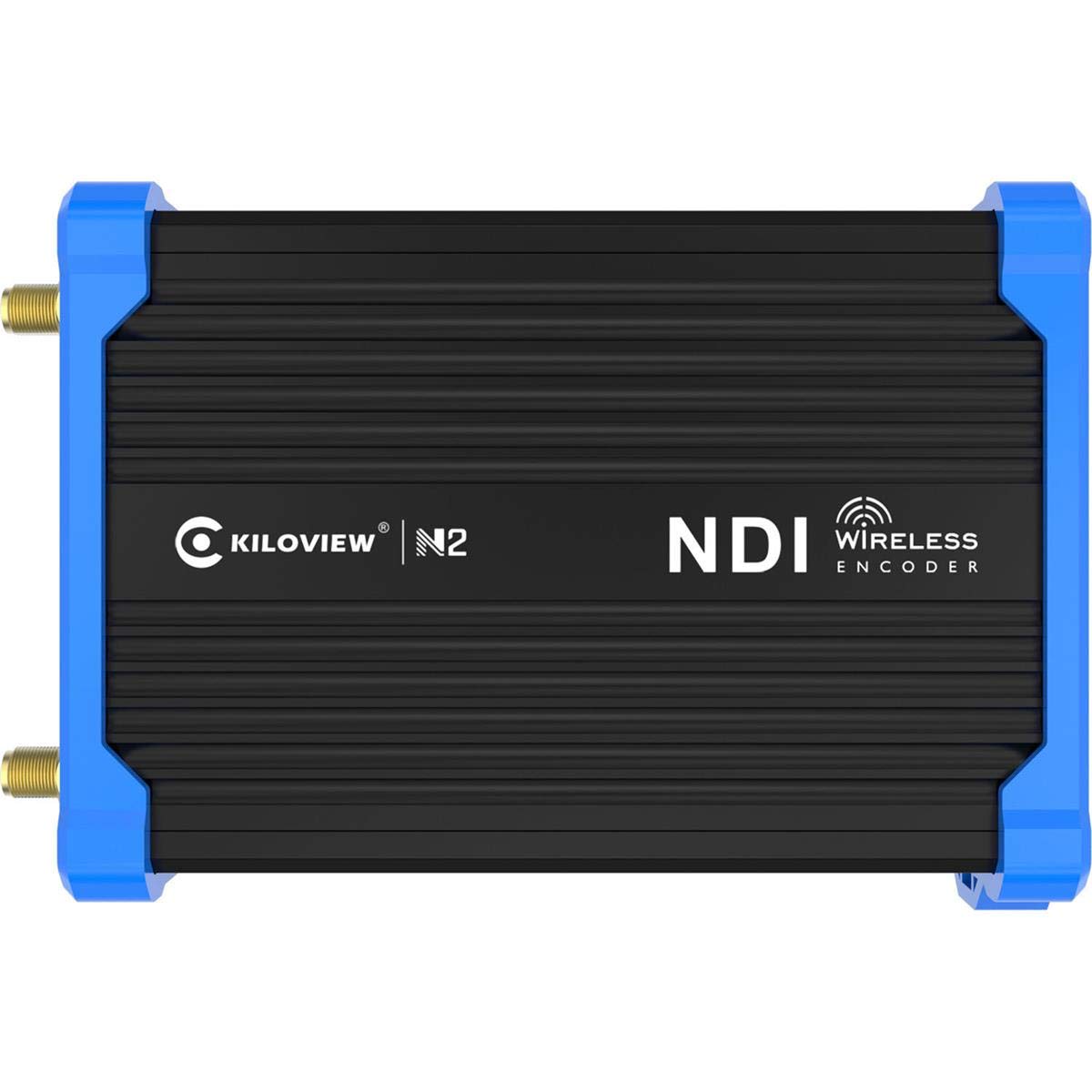
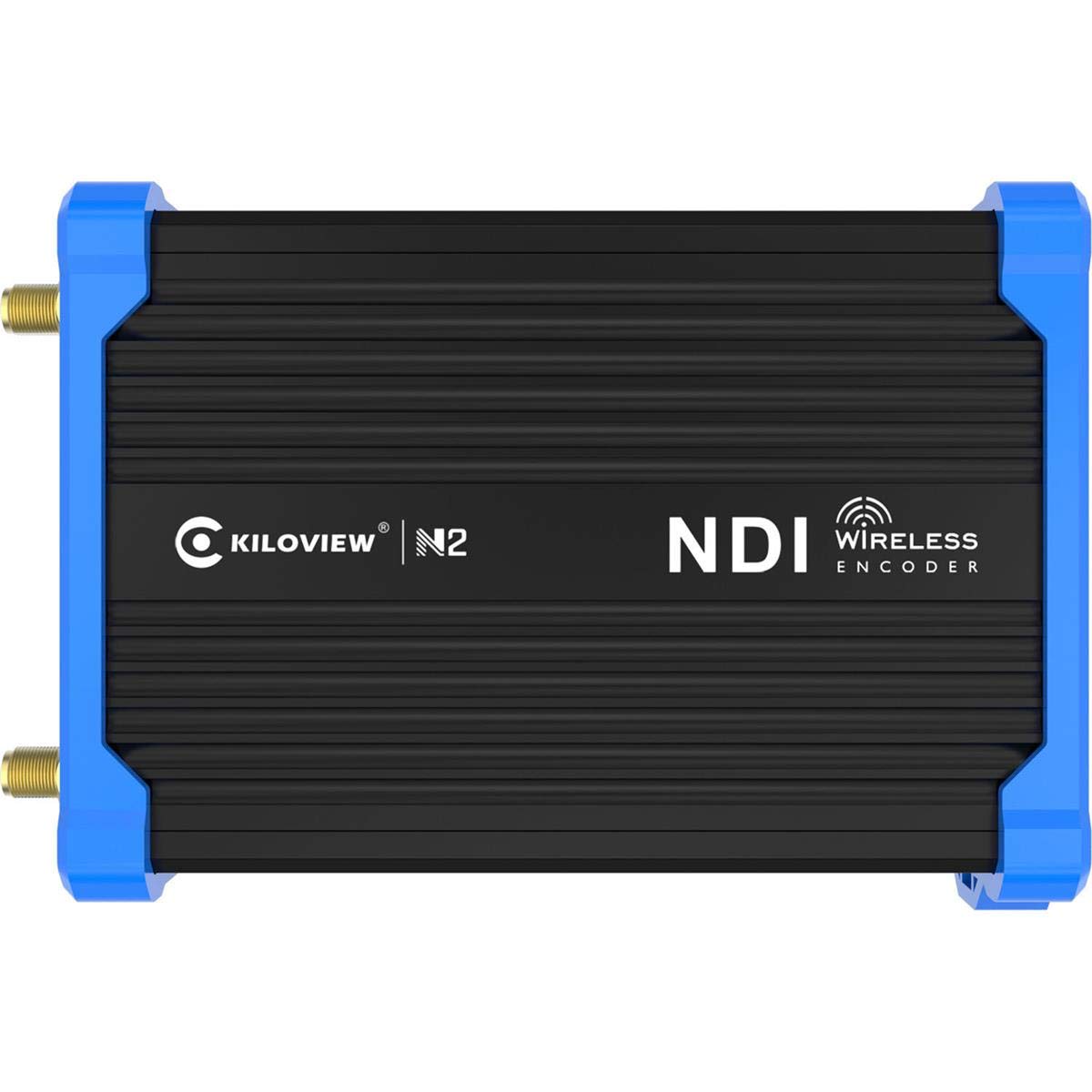
You can’t access your Kiloview encoder’s web interface. Either the browser won’t load the page, or you’re locked out because you don’t remember the password. You need to configure streaming settings and you’re stuck at the login screen. Let’s get you back in.
Step 1: Find the Kiloview’s IP Address
First, discover what IP your Kiloview has:
Using Kiloview Discovery Tool:
- Download Kiloview Discovery Tool from Kiloview’s website
- Run it on a PC connected to the same network as the Kiloview
- The tool will scan and list all Kiloview devices
- Look for your encoder and note its IP address
Using Router DHCP Table:
- Log into your router (usually 192.168.1.1)
- Find Connected Devices or DHCP Clients
- Look for a device with MAC address matching the Kiloview (printed on the back)
- Note the IP address assigned
Using IP Scanner:
- Download Angry IP Scanner or Nmap
- Scan your network range (e.g., 192.168.1.0 to 192.168.1.254)
- Look for “Kiloview” in the hostname or IP list
- Note the IP
Once you have the IP, move to step 2.
Step 2: Try Accessing the Web UI
- Open a web browser (Chrome, Edge, Firefox — avoid Internet Explorer)
- In the address bar, type
http://[IP_ADDRESS](e.g.,http://192.168.1.50) - Press Enter
- You should see the Kiloview login page
If the page loads, you have a password issue (skip to step 3). If the page doesn’t load, continue to step 2B.
Step 2B: If the page won’t load:
- Try a different browser (sometimes one works better than others)
- Clear browser cache: press Ctrl+Shift+Delete (Windows) or Cmd+Shift+Delete (Mac)
- Try a different PC on the same network (verifies it’s not your PC’s issue)
- Verify the IP address is correct using ping:
- Open Command Prompt and type
ping [IP] - If you get “Request timed out,” the Kiloview is not responding
- If you get responses, the device is online — try again with the browser
- Open Command Prompt and type
Step 3: Log In
If the login page loads:
- Enter the default username: admin
- Enter the default password: admin (or try blank password)
- Click Login
If the defaults don’t work, you may need to reset the password (step 4).
Step 4: Reset the Password
If the default credentials don’t work, factory reset the Kiloview:
- Locate the reset button on the Kiloview (usually a small recessed button on the back)
- Power on the device
- Hold the reset button for 10–15 seconds while powered on
- Release the button and wait for the device to restart
- The device will now have factory default credentials (username: admin, password: admin)
- Try logging in again
Warning: Factory reset erases all streaming configuration. You’ll need to reconfigure the Kiloview afterward.
Step 5: If Password Reset Doesn’t Work
Some Kiloview models require a more specific reset procedure:
- Check the Kiloview manual for your specific model (E1 vs N2 have different reset procedures)
- There may be a console port (serial or USB) for resetting via command line
- Or contact Kiloview support with your device MAC address — they can help with password recovery
Step 6: Verify Network Connectivity
If reset doesn’t work and you still can’t access:
- Power off the Kiloview
- Restart your network switch
- Power the Kiloview back on
- Wait 60 seconds for full boot
- Try accessing the web UI again
A clean power cycle can resolve stuck connection states.
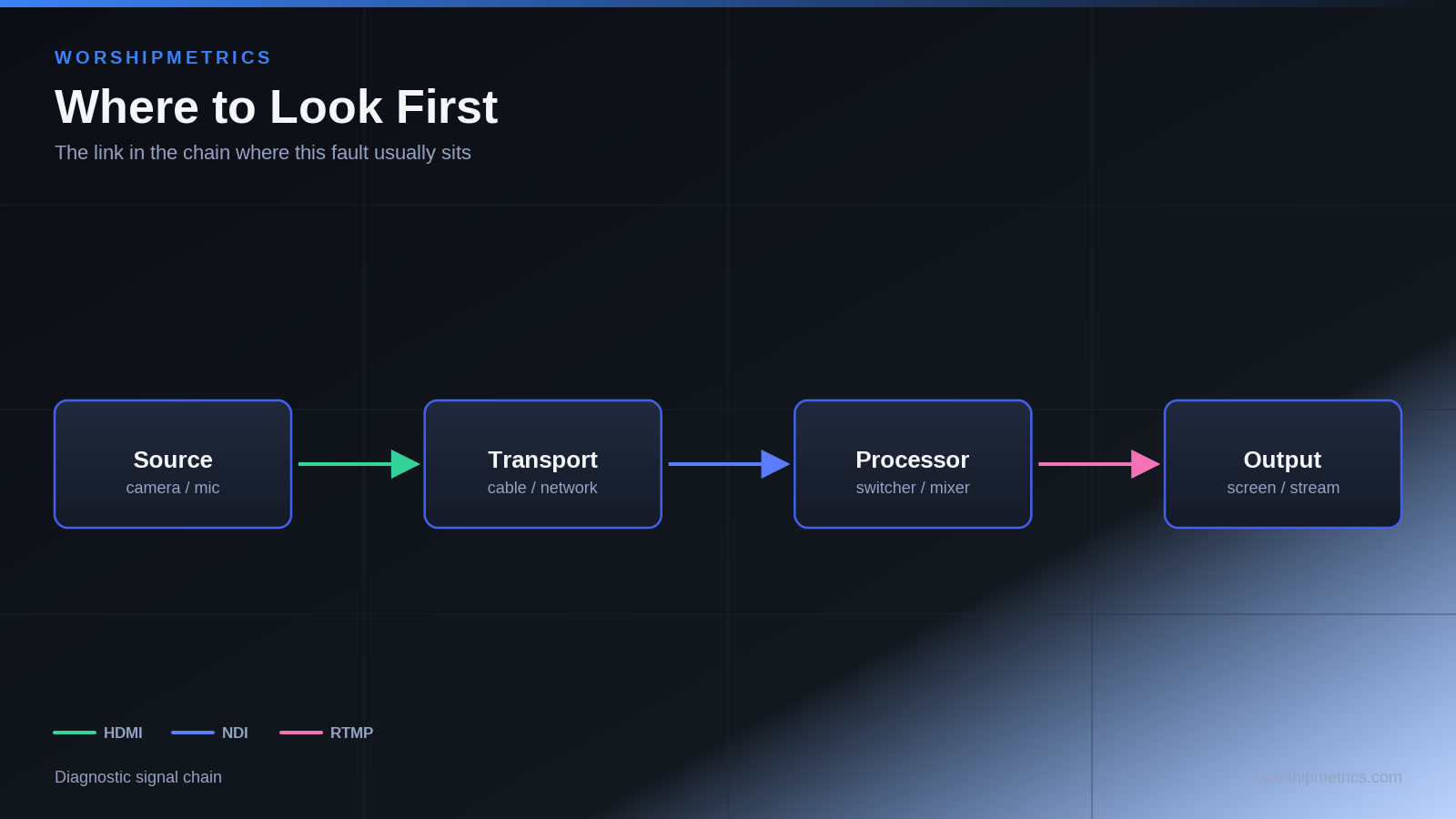
Step 7: Test with Different Browser and Device
Network or browser issues can block access:
- Try accessing from a different PC on your network
- Try a different web browser (Chrome, Edge, Firefox)
- If it works on a different device, the issue is specific to your PC or browser
- If it works on a different browser, clear cache in your regular browser and try again
Step 8: Check for Firewall Blocking
Firewall may be blocking HTTP access:
- Temporarily disable Windows Defender Firewall
- Try accessing the web UI
- If it works, firewall was blocking it — re-enable and add an exception for port 80
If You’re Locked Out of a Configured Device
If the Kiloview is already configured and streaming, and you’re locked out:
- Don’t factory reset if you want to preserve streaming settings
- Contact Kiloview support — they may be able to recover the password via account verification
- Or if the device is still streaming, you can configure a different one while Kiloview support helps with the locked device
Kiloview web UI access checklist:
- Kiloview IP address discovered and verified
- Ping confirms device is reachable
- Tried multiple browsers (Chrome, Edge, Firefox)
- Cleared browser cache
- Tried default credentials (admin/admin)
- Checked manual for password reset procedure
- Performed factory reset if necessary
- Verified network connectivity (different device test)
- Firewall not blocking HTTP port 80