Viewers are 20–30 seconds behind the live action in the sanctuary. The chat is asking questions about something that happened half a minute ago, but the pastor is already talking about something else. High latency is frustrating, but it’s partly inherent to how streaming works. Let’s understand what you can actually control and what’s platform limitation.
Understanding Stream Latency
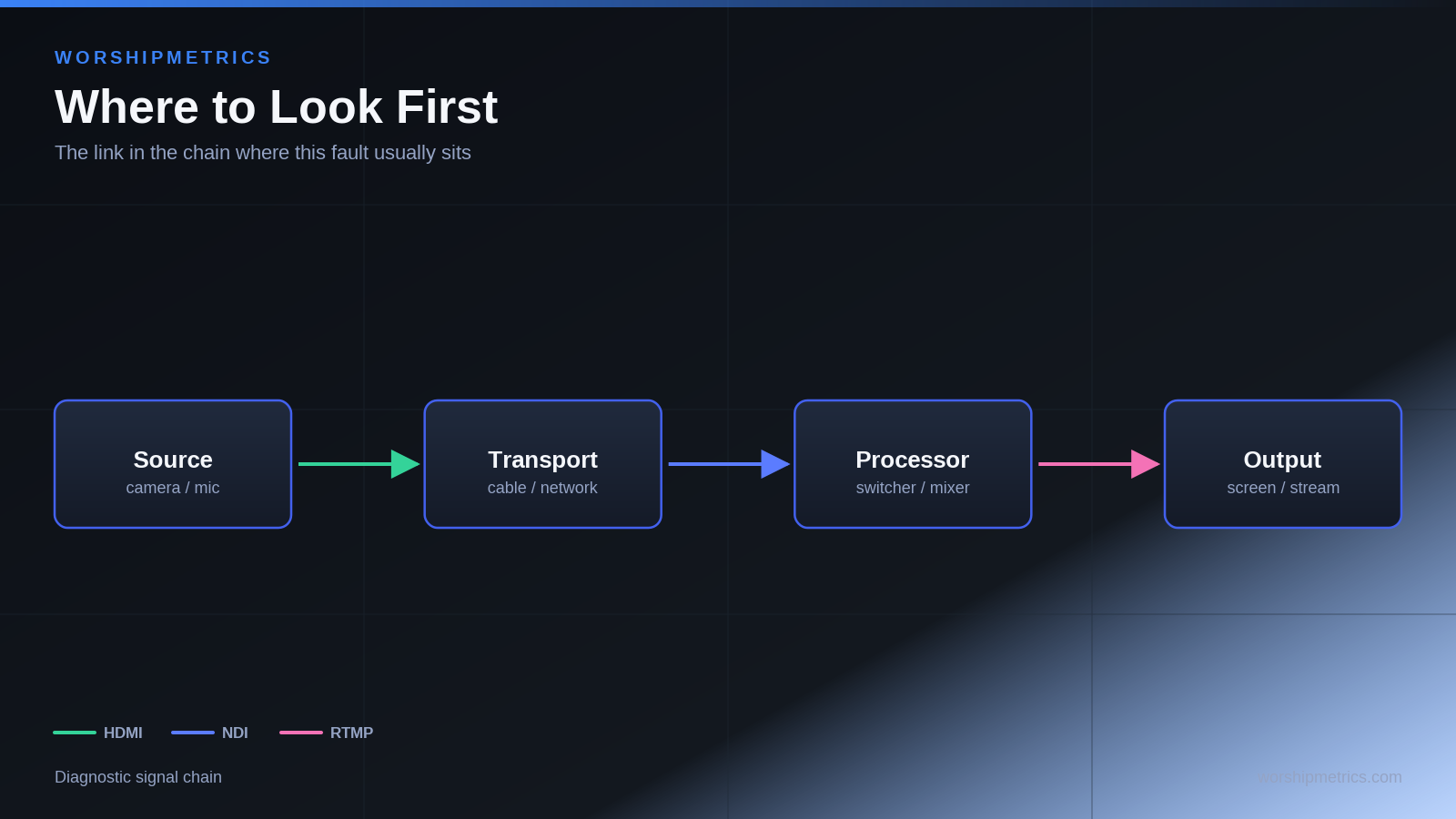
Stream latency has multiple layers, and most aren’t in your control:
- Encoding buffer (your PC): 100–500ms (you can adjust this slightly)
- Network transmission: 50–200ms (depends on internet quality, can’t really control)
- Platform ingest buffer (YouTube/Facebook): 2–10 seconds (their servers, you can’t control)
- Platform adaptive bitrate: varies based on viewer’s bandwidth (they control it)
- Viewer’s buffer: 1–10 seconds (their connection, you can’t control)
Total typical latency: 15–45 seconds from camera to viewer screen.
The reality: unless you’re using specialized ultra-low-latency streaming (which has trade-offs), 20–30 second latency is normal and expected.
What You CAN Control: OBS Buffer Settings
There are a few encoder-side tweaks that marginally reduce latency:
Reduce keyframe interval:
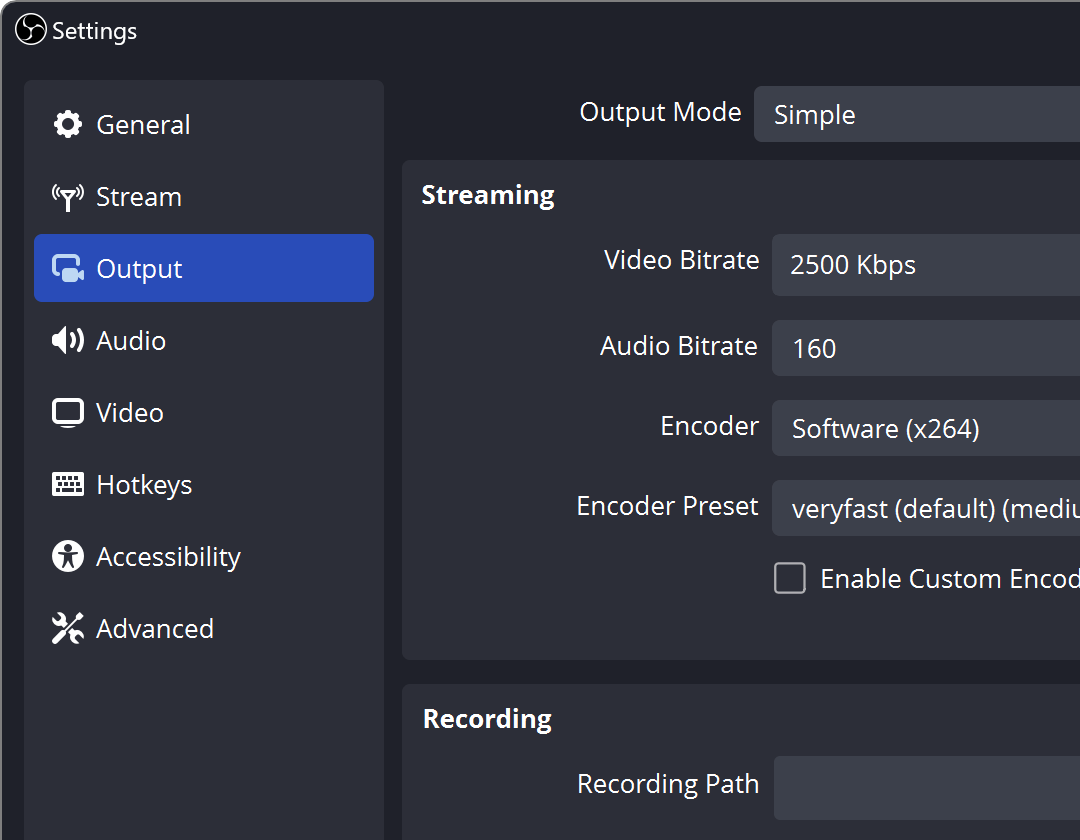
- In OBS, go Settings > Output > Streaming
- Look for Keyframe Interval
- Set it to 2 seconds (instead of the default 5–10 seconds)
- Lower keyframe intervals mean the platform can start streaming faster
- This reduces latency by maybe 1–2 seconds — not dramatic, but every bit helps
Use “Lookahead” disabled (if available):
- Some encoders have a “Lookahead” setting
- Lookahead improves quality but adds latency
- Disable it if you can find it
Reduce encoding preset to “Faster”:
- Go Settings > Output > Streaming
- Look for Preset (if using x264 encoder)
- Set it to Faster (instead of “Medium” or “Slower”)
- Faster encoding has lower latency but slightly lower quality
- For streaming, this trade-off is usually acceptable
These tweaks combined might reduce latency by 2–4 seconds at best.
Enable YouTube’s Low-Latency Mode
YouTube has a low-latency mode that reduces latency to 5–10 seconds (vs. the normal 15–45):
- Go to YouTube Studio
- Find your live stream settings
- Look for Latency or Streaming health settings
- Select Low-latency mode (or Ultra-low-latency if available)
- Save and restart your stream
Trade-off: Low-latency mode sometimes causes buffering issues if your network is marginal. Test it during a practice stream first.
Note: Ultra-low-latency mode (under 5 seconds) exists but is experimental and less stable — stick with regular low-latency mode.
Facebook’s Ultra-Low Latency Mode
Facebook also has a low-latency option:
- Go to Facebook.com and navigate to your page
- Find Stream Settings or Live Video Settings
- Look for Ultra Low Latency checkbox
- Enable it
- Restart the stream
Facebook’s ultra-low latency brings it down to 5–15 seconds, which is much better.
Understand: This is Platform Limitation, Not Your Fault
Here’s the key insight: the platform chooses the latency, not your encoder.
- YouTube and Facebook buffer video server-side to smooth out network variations
- They add 10–20+ seconds of buffer intentionally (to prevent glitching for viewers on slow connections)
- You don’t control this as a streamer
- Even professional broadcasters using expensive encoding hardware see the same latency on YouTube/Facebook
What latency is normal:
- YouTube Live typical: 20–45 seconds latency
- Facebook Live typical: 10–30 seconds latency
- Professional TV broadcast: 5–10 seconds (but requires specialized RTMP ingest)
Set Expectations: This Is Normal
Before Sunday, communicate with your congregation:
- “Live streams are typically 20–30 seconds behind real-time. This is normal for YouTube and Facebook.”
- Disable or mute the live chat during service (or moderate heavily) so chat questions don’t spoil moments viewers haven’t seen yet
- Consider mentioning the latency in your stream title or description
Workaround: Parallel Streaming for Critical Moments
If you’re worried about chat interaction or announcements:
- Have someone monitor the live chat on the streaming platform
- Let them know to dissuade viewers from asking time-sensitive questions
- Or, disable chat entirely during the service
Another approach: If there are crucial announcements, make them in person first, then the online viewers catch up 20–30 seconds later.
Test Latency Before the Service
To measure your actual latency:
- Start a test stream (private/unlisted on YouTube)
- Have someone watch the stream on a phone while you’re in the sanctuary
- Hold up a clock or your phone showing the current time
- Have the remote viewer tell you what time they see on your device in the stream
- The difference is your end-to-end latency
Example: If it’s 10:00:00 AM in person but the stream viewer sees 9:59:30 AM, your latency is 30 seconds.
What NOT to Do (Won’t Help)
These don’t reduce latency and may hurt:
- Upgrading internet to faster speeds: Latency is about encoding/platform buffering, not bandwidth. A faster connection won’t reduce it.
- Using a faster PC: Encoding is fast already; a better PC won’t help.
- Reducing bitrate: Lower bitrate might marginally reduce latency but will hurt video quality more than it helps.
If High Latency Is Really Bothering You
For critical applications (like high-interaction events), consider:
- Restream.io: Acts as a re-encoder and can add features like lower latency
- Custom RTMP ingest: Rent a low-latency ingest service (costs money, but delivers 5–10 second latency)
- Hybrid approach: Stream to YouTube/Facebook normally, but use a separate NDI or WebRTC connection for interactive viewing
These are advanced and usually unnecessary for a church service.
Latency reality check:
- Understand normal latency is 15–45 seconds (not a bug, platform design)
- Enable YouTube low-latency mode if available
- Enable Facebook ultra-low-latency if available
- Adjust OBS keyframe interval to 2 seconds
- Test your actual latency with a clock comparison before the service
- Set viewer expectations about latency in stream description