You want to use your ATEM Mini as a webcam for Zoom or Teams, but it doesn’t appear in the device list. Zoom shows “No camera found” and OBS can’t see it either. The ATEM has a USB webcam mode, but it’s not being recognized.
Step 1: Install the ATEM Mini Webcam Driver
ATEM webcam mode requires a driver:
- Visit blackmagicdesign.com/support
- Search for ATEM Mini Drivers
- Download the Webcam Driver for your OS (Windows 10/11 or Mac)
- Install the driver
- Restart your PC or Mac
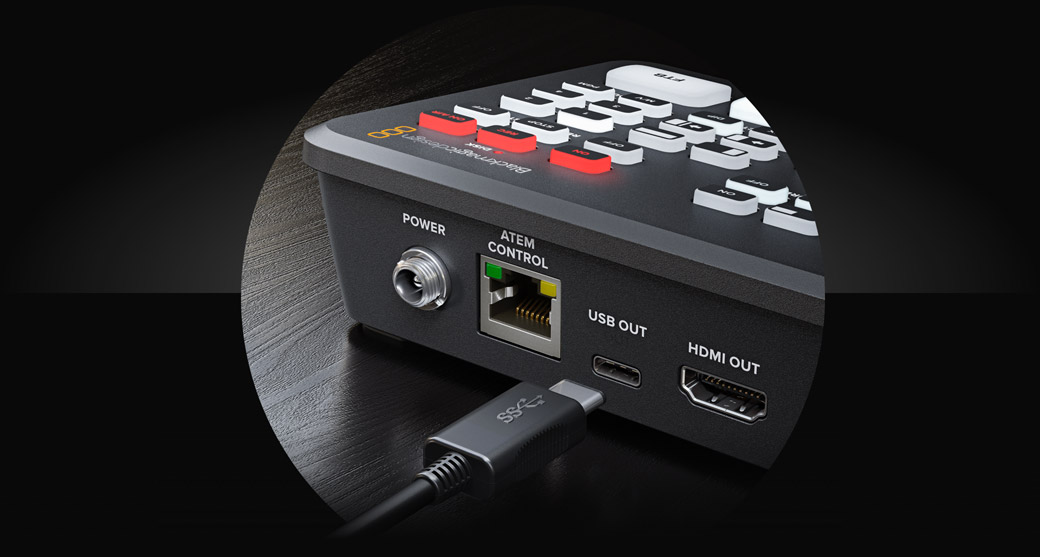
- Plug the ATEM Mini into USB
- Wait 10 seconds for Windows/Mac to recognize it
If you skip this step, the ATEM won’t appear as a webcam.
Step 2: Enable Webcam Mode on the ATEM
The ATEM has a setting to enable/disable webcam mode:
- On the ATEM Mini, locate the USB Mode or Webcam Mode button or menu option
- Verify Webcam Mode is enabled
- Some ATEM models require you to go into Settings > USB and toggle it on
- If you changed the setting, restart the ATEM
Without this enabled, the ATEM won’t broadcast as a webcam.
Step 3: Check Device Manager (Windows)
Verify Windows recognizes the ATEM as a webcam device:
- Right-click Start and select Device Manager
- Look for Imaging devices or Camera in the list
- Expand it and look for “ATEM” or “Blackmagic”
- If it appears without a warning icon, drivers are installed
- If you see a yellow warning icon, right-click and select Update driver (or reinstall the driver from step 1)
Step 4: Restart Your PC
Sometimes the OS doesn’t immediately recognize the new device:
- Connect the ATEM Mini to USB
- Wait 5 seconds
- Restart your PC
- Once booted, open Zoom or Teams
- Check if the ATEM now appears in the camera list
Step 5: Test in OBS
OBS gives you good feedback on webcam detection:
- Open OBS
- Click + in Sources
- Select Video Capture Device
- In the Device dropdown, look for “ATEM Mini” or “Blackmagic”
- If it appears, select it and click OK
- You should see a preview in OBS
If the ATEM appears in OBS, it’s recognized. If Zoom still doesn’t see it, it may be a Zoom-specific setting.
Step 6: Authorize Camera in Zoom/Teams
Even if Windows recognizes the camera, Zoom/Teams may need permission:
Zoom:
- Open Zoom settings
- Click Audio/Video or Camera
- Look for Camera dropdown
- Select ATEM Mini from the list
- If not in the list, restart Zoom and try again
Microsoft Teams:
- Open Teams settings
- Click Devices or Camera
- Select the ATEM Mini from the camera dropdown
- If not listed, restart Teams
Step 7: Check USB Webcam Version
Some older ATEM models don’t support webcam mode:
- ATEM Mini Pro: Full webcam support
- ATEM Mini Pro ISO: Full webcam support
- ATEM Mini: Basic webcam support (confirm your model supports it)
If your model is very old, it may not have webcam drivers available. Check Blackmagic’s support page to confirm your model supports webcam mode.
Step 8: Use Different USB Port
Some USB ports work better than others:
- Try plugging the ATEM into a different USB port (not a hub — direct to the PC)
- Preferably a USB 3.0 port (faster, more compatible)
- Wait 10 seconds and check if it appears in the device list
Troubleshoot Zoom/Teams Not Showing Camera
Even if the ATEM appears in Windows, Zoom/Teams sometimes don’t see it:
- Close and restart Zoom/Teams completely (not just minimize)
- Open Device Manager and verify the ATEM is still listed
- If Zoom/Teams still don’t see it, restart your PC
- After restart, open the software and check the camera list again
ATEM Mini webcam setup checklist:
- Webcam driver installed from Blackmagic website
- Webcam mode enabled on ATEM Mini
- ATEM connected to USB (not hub)
- Device Manager shows ATEM (no warning icon)
- PC restarted after driver installation
- OBS can see ATEM in Video Capture Device list
- Zoom/Teams camera list shows ATEM Mini