
The X32 Compact’s USB audio capability and auxiliary bus routing make it an excellent choice for churches that want to stream services without sacrificing the live mix quality that your in-person congregation experiences. Like the full X32, the Compact can send up to 16 channels over USB to your streaming computer, and it can create a completely independent streaming mix that’s different from your main sanctuary sound.
Enabling USB Audio on the Compact
Connect the Compact to your streaming computer via a standard USB 2.0 cable plugged into the rear panel. Go to Setup on the mixer, then navigate to IO. Look for the USB section and enable “USB Audio” if it’s not already turned on. The Compact will reboot and then appear as an audio device on your computer.
On Windows, open Settings > Sound and verify that the Behringer X32 Compact appears in the recording devices list. Select it as your default recording device. On Mac, open System Preferences > Sound > Input and select the Behringer X32 Compact.
The Compact will now appear as an available audio input in OBS, vMix, and any other streaming software. Unlike the full X32 which can send up to 32 channels over USB, the Compact typically sends up to 16 channels due to its physical architecture. This is more than sufficient for most small church streaming setups.
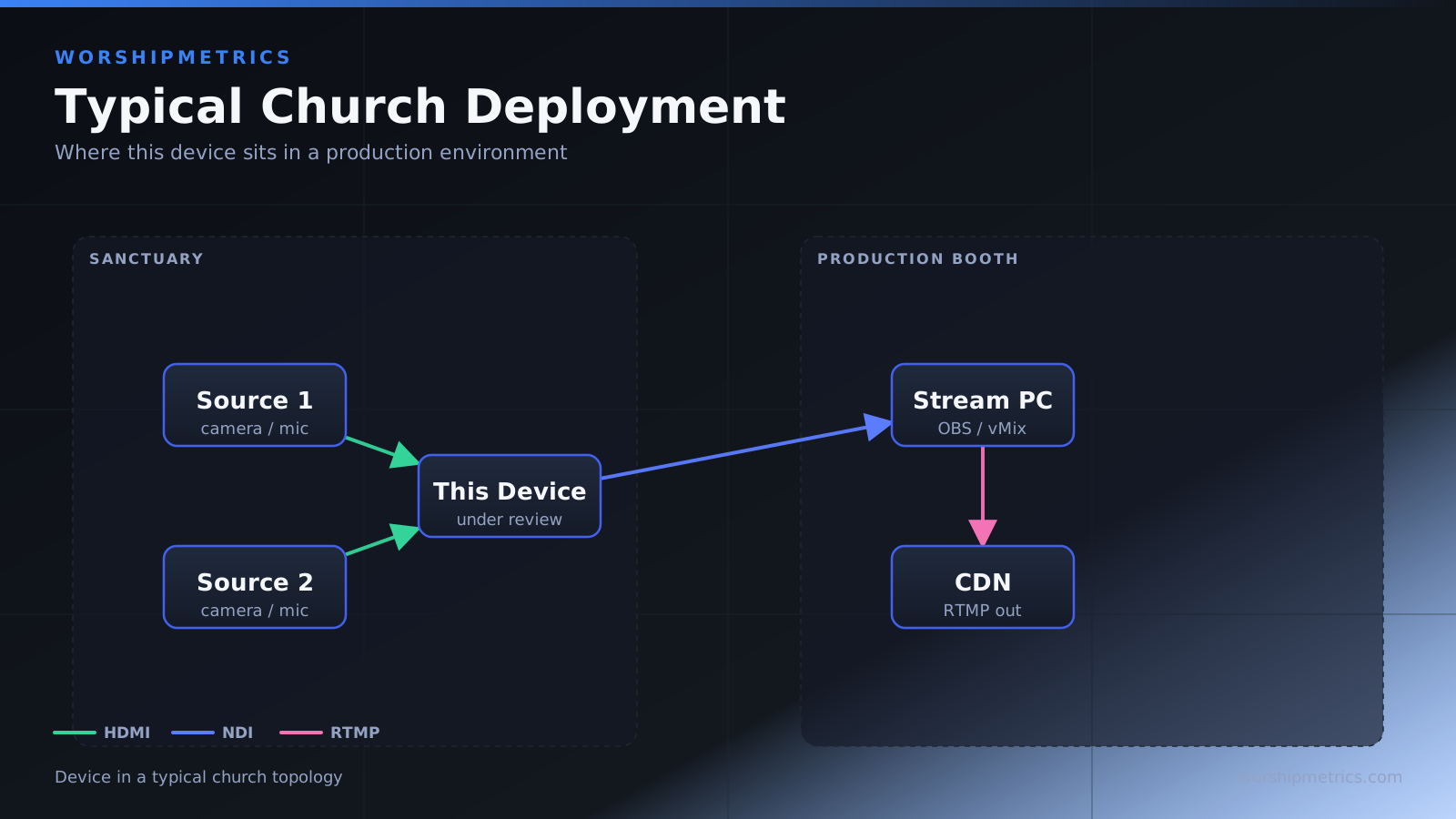
Creating Your Streaming Auxiliary Bus
The Compact has four stereo output pairs available in addition to the main L/R. For streaming, dedicate one of these—let’s say Output 3—as your streaming mix output. Select Aux 3 on the Compact (or navigate to Output 3, depending on your firmware labeling). This brings up the auxiliary output configuration.
Now decide which input channels feed into Aux 3. For most churches, you want all your active channels going to Aux 3 so your streaming audience hears everything. However, you can customize this. If you want to emphasize the vocal more for streaming viewers than for in-room listeners, increase the send level from the vocal channel to Aux 3. If you want less drums for streaming (many churches find online viewers prefer less percussion), reduce the send level from the drum channel to Aux 3.
This is where the Compact’s smaller footprint becomes an advantage. With fewer total channel faders, it’s easier to get a clear mental picture of your entire mix. You’re not overwhelmed by 32 channels; you focus on the 8-12 channels you actually use and make intentional choices about which ones go to Aux 3.
Routing Aux 3 to USB
Go to Setup > IO > USB Send. Configure the USB audio output to send Aux 3. This routes your streaming mix directly to your streaming computer. Now when you open OBS or vMix, the stereo feed from Aux 3 flows directly into the software.
The advantage of using an auxiliary bus for streaming is that your main L/R output (what your congregation hears in the sanctuary) stays completely independent. You can be adjusting your main mix—bringing up a vocal for people in the room—without affecting what your online viewers hear. Aux 3 can have a completely different balance.
Integration with OBS
In OBS, add a new audio input source by clicking the plus button in Sources and selecting “Audio Input Capture.” Set the audio device to “Behringer X32 Compact.” OBS now receives the stereo Aux 3 feed from your mixer.
Set the audio levels in OBS so that your peaks reach around -12 dB on the OBS meter. This leaves adequate headroom for unexpected loud moments. Unlike the full X32, the Compact’s smaller screen means you’ll probably operate it from the same location, so having OBS open nearby lets you monitor both the mixer display and the streaming audio levels simultaneously.
Integration with vMix
In vMix, go to Settings > Audio and click “Add Audio Input.” Select “Behringer X32 Compact” from the device dropdown. vMix receives the stereo Aux 3 stream just like OBS. Configure levels similarly—aim for -12 dB peaks.
vMix offers some built-in audio processing including compression and EQ. For most churches, the Compact’s Aux 3 mix should already be well-balanced from the mixer itself, so you won’t need heavy processing in vMix. Use vMix’s audio controls for fine-tuning only.
Managing Independent Mixes
During service, your audio operator works with two mixes simultaneously. The main L/R faders control what the congregation hears. The Aux 3 send levels (adjusted while viewing Aux 3 on the mixer) control what streaming viewers hear.
Your operator might discover that for in-room listeners, the drums need to be louder to compete with the acoustic space. But for streaming, those same drums are overwhelming the vocal. So the main output has strong drums while Aux 3 has more subdued drums. The streaming viewer gets a balanced mix while the in-person experience is optimized for the physical space.
This flexibility is what separates professional streaming from simply pointing a microphone at the speakers. You’re deliberately creating two different experiences, each optimized for its medium.
Soloing and Monitoring Aux 3
The Compact allows you to temporarily route Aux 3 to your headphone output so you can monitor your streaming mix while the main mix plays out to the speakers. This is extremely useful during the service to verify that your streaming audio is staying clean.
Select Aux 3 and look for a “Monitor” or “Cue” button. Press it to listen to Aux 3 on your headphones. You can now hear what your streaming audience is hearing while still managing the main mix. Release the monitor button when you want to switch back to monitoring the main output.
Troubleshooting USB Streaming on the Compact
No audio in OBS or vMix: Verify that the Compact is set to send USB audio and that Aux 3 is routed to USB output. Check Windows/Mac audio settings to confirm the Behringer X32 Compact is selected as the recording device. In OBS/vMix, verify the audio source device dropdown is set to the Compact.
Clipping on stream: The Aux 3 output level is too hot. Either reduce the send levels from individual channels to Aux 3, or reduce the Aux 3 main fader. Aim for -12 dB peaks.
Streaming audio is significantly different from main mix: This is actually expected—you configured independent mixes intentionally. But if you accidentally separated them when you didn’t mean to, verify that the channels you expect to send to Aux 3 actually have non-zero send levels.
USB connection drops intermittently: Try a different USB port on your computer. Ensure the USB cable is firmly seated at both ends. Avoid USB hubs; connect directly to the computer’s USB port if possible.
Weekly Workflow
Your streamlined Compact-based streaming workflow might look like this: Before service, load your Sunday scene, which sets all the basic levels. Test both the main L/R mix and the Aux 3 streaming mix with a quick sound check. Start streaming when service begins. During service, operate the main mix for your congregation while occasionally glancing at OBS to verify streaming audio levels are stable. After service, stop streaming, save your scene with any adjustments you made, and export your show file to a backup drive.
This is simpler than a full X32 setup with more channels, yet it delivers professional results for churches that stream online.